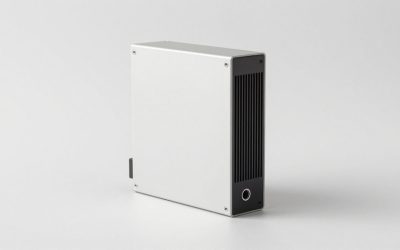
Our Top Picks


Top 3 picks at a glance
The best barebones PCs for custom builds in 2026
The best barebones PCs are compact mini PCs from established makers if you want a nearly complete system, or a small-form-factor case-and-motherboard bundle if you want to choose a desktop CPU and graphics card yourself. For gaming, the key distinction is whether “barebones” includes a processor: many mini PCs include a soldered CPU and integrated graphics, while DIY bundles may leave the CPU, memory, storage, and power supply to you.
Before buying, check what the bundle actually includes, which parts can be replaced, and whether its cooling and power supply can support the upgrade you have in mind. A low entry price can become poor value if the included CPU cannot be changed or the case cannot fit a graphics card.
As an Amazon Associate we earn from qualifying purchases at no extra cost to you.


Where the top four picks fit
The four picks above represent four different ways to approach a barebones build, and they suit different buyers.
ASRock DeskMeet X300: the budget desktop route. It is a compact case-and-board kit for AMD AM4 processors, with an internal 500W power supply and a PCIe x16 slot for a graphics card. You supply the CPU, memory, and storage. Because AM4 processors and DDR4 memory are mature and widely available, this is one of the lowest-cost ways to build a small PC with a real graphics card, and it suits someone reusing parts from an older AM4 system. The trade-off is an older platform with no new CPU generations ahead.
ASRock DeskMini X300 2.5G: the tiny APU route. At under 2 liters, it is far smaller than the DeskMeet, but it has no graphics card slot. It suits AM4 APUs with integrated graphics, so it works best for a quiet office PC, media machine, or light gaming box. Adding 2.5G LAN makes it practical as a home server as well.
MINISFORUM MS-A2: the workstation route. It pairs an 8-core, 16-thread Ryzen 7 7745HX mobile processor with unusually rich networking, including dual 2.5G ports and 10G SFP+, plus support for several SSD formats. It is more of a creator, virtualization, or home-lab machine than a pure gaming box, but its CPU power makes it a strong all-rounder for someone who streams, edits, and games lightly on the same system.
MINISFORUM M1 Pro-125H: the connected-Intel route. It offers a Core Ultra 5 processor with USB4 and OCuLink for an external GPU, plus Wi-Fi 7. It suits a buyer who wants a compact everyday PC now and the option of a desktop-class graphics card through a dock later.
Mini PC barebone vs small desktop barebone vs full DIY build
Before choosing a specific kit, decide which of three build styles fits you.
- Mini PC barebone: the smallest and quietest at idle, with the least assembly. You add memory and storage only. Performance is fixed at purchase, apart from external GPU options. Best for living-room PCs, emulation, light gaming, and secondary machines.
- Small desktop barebone (DeskMeet, DeskSlim): a middle ground. You choose the CPU and can add a compact graphics card, but case and power limits restrict the largest components. Best for gamers who want a small footprint and a real upgrade path.
- Full DIY Mini-ITX or micro-ATX build: the most flexible and usually the best performance per dollar for high-end gaming, but you pick every part and handle more complex assembly. Best for enthusiasts planning to use large graphics cards and powerful CPUs.
Noise and placement
Small systems have small fans, and small fans spin faster to move the same amount of air. A mini PC that is nearly silent while browsing may become clearly audible during a long gaming session. If noise matters, look for larger chassis with vapor-chamber or dual-fan cooling, use the BIOS or vendor software to choose a balanced performance profile instead of the maximum mode, and keep the unit on an open shelf rather than in a closed cabinet. VESA mounting behind a monitor saves desk space, but make sure the monitor’s own heat does not blow directly into the PC’s intake. For desktop barebones like the DeskMeet, a quality low-profile cooler and a graphics card with a good dual-fan design matter more for noise than the case itself.
Compare the main barebones routes
| Build route | Usually included | Upgrade path | Best suited to |
|---|---|---|---|
| Mini PC barebones kit | Case, motherboard, cooling, and often a soldered processor; RAM and SSD may be absent | Usually RAM and M.2 storage; CPU and GPU are generally fixed | Small, quiet gaming at modest settings, emulation, or a compact second PC |
| Mini PC with discrete mobile GPU | Case, motherboard, mobile CPU and GPU, cooling; memory or storage may be configurable | Typically RAM and storage only | More gaming performance in a small, ready-to-finish system |
| Mini-ITX case-and-board bundle | Case and motherboard, sometimes a power supply or cooler | Desktop CPU, desktop graphics card, RAM, and storage, subject to compatibility | Builders who want replaceable desktop parts without a full-size tower |
One example of a compact gaming system with a discrete mobile GPU is the Minisforum AtomMan G7 PT. It is not equivalent to a standard desktop barebones kit: its processor and graphics are integrated into the platform, so the meaningful upgrades are memory and storage. For a conventional desktop build, start with a clearly specified Mini-ITX case and motherboard combination, then verify that the chosen CPU, graphics card, cooler, and power supply all fit.
More barebones kits worth shortlisting
The four picks at the top of this guide cover the AM4 DeskMeet and DeskMini route and two Minisforum mini PCs. The kits below fill the gaps: a current AM5 platform with a real graphics card slot, an Intel desktop-socket option, two premium Intel mini PCs with tool-free access, and two AMD mini PCs with an OCuLink port for an external graphics dock. Each is sold without RAM, storage, or an operating system unless noted, so budget for those parts.
ASRock DeskSlim X600 (AM5, 5L)

The DeskSlim X600 is the most interesting newcomer for gamers who want a desktop socket in a very small box. It is a 5-liter chassis built on AMD’s AM5 platform, supporting Ryzen 9000, 8000, and 7000 series processors up to about 120W. That means you can choose anything from an APU with strong integrated graphics to a full desktop Ryzen chip, and you keep a socket that can be upgraded later.
Unlike the DeskMini line, it has a PCIe 5.0 x16 slot for a low-profile, dual-slot graphics card. ASRock lists limits of roughly 200 mm card length, 70 mm height, and 38 mm thickness, so only low-profile cards fit. Memory goes into four full-size DDR5 DIMM slots, with up to 256 GB supported, and storage options include one PCIe Gen5 x4 M.2 slot, one Gen4 x4 M.2 slot, and two SATA ports. Rear I/O includes HDMI, DisplayPort 1.4, a USB4 Type-C port, and 2.5G Ethernet. CPU cooler height is limited to about 71 mm.
The power supply is an external brick rather than an internal PSU, which keeps heat out of the case but caps the combined CPU and GPU power. If you plan to pair a higher-wattage Ryzen with a discrete card, check ASRock’s guidance on the larger optional adapter before buying.
Who it is for: builders who want a current socket, DDR5, and a real GPU slot in a console-sized case. Strengths: AM5 upgrade path, four DIMM slots, Gen5 storage, USB4. Drawbacks: low-profile GPUs only, an external power brick, and a mid-range kit price before you add CPU, RAM, storage, and a card. Versus the existing picks: it is the modern successor to the DeskMeet X300 idea, trading the X300’s internal PSU and roomier graphics card space for a much smaller case and a newer platform.
ASRock DeskMeet B760 (LGA1700, 8L)

If you prefer Intel, the DeskMeet B760 is the closest equivalent to the AM4 DeskMeet in the main picks. It is an 8-liter compact desktop built on the B760 chipset, supporting 12th, 13th, and 14th Gen Intel Core processors on the LGA1700 socket. It uses DDR4 memory in four slots, which keeps memory costs down and lets you reuse modules from an older build.
The key difference from mini PCs is the internal 500W 80 Plus Bronze power supply and a PCIe 4.0 x16 slot. ASRock lists support for dual-slot graphics cards up to about 200 mm long, 125 mm high, and 38 mm thick. That rules out large triple-fan cards, but many compact single- and dual-fan models fit. CPU cooler height is limited to about 54 mm, so a low-profile cooler is essential and lower-power CPUs are the sensible choice; a 65W non-K chip is the natural match.
Who it is for: Intel builders who want a small desktop with an internal PSU and a real graphics card. Strengths: internal PSU, standard desktop socket, cheap DDR4, room for a compact GPU. Drawbacks: LGA1700 is a mature platform with no further CPU generations, the cooler height limit restricts high-wattage CPUs, and GPU length is tight. Versus the existing picks: it is the Intel twin of the DeskMeet X300, with a newer chipset and PCIe 4.0 graphics.
ASUS NUC 15 Pro Barebone Kit

The NUC line moved from Intel to ASUS, and the NUC 15 Pro is the current mainstream model. It is a premium palm-sized barebone kit built around Intel Core Ultra Series 2 processors, with the exact CPU depending on the version you choose, so check the listing. RAM and storage are left to you, and the chassis is designed for tool-free access, which makes adding memory and an SSD unusually easy.
ASUS lists two DDR5 SO-DIMM slots supporting up to 96 GB, a full-length M.2 2280 slot plus a shorter M.2 2242 slot, Wi-Fi 7 and Bluetooth 5.4, 2.5G Ethernet, two Thunderbolt 4 ports, and two HDMI 2.1 outputs. Integrated Intel Arc graphics on the higher-end Core Ultra chips handle esports and older titles at modest settings. Thunderbolt 4 also makes an external GPU enclosure possible, though with more bandwidth loss than an internal slot.
Who it is for: buyers who want a dependable, quiet, compact PC with excellent connectivity and do not need a discrete GPU. Strengths: tool-free chassis, Thunderbolt 4, Wi-Fi 7, long-standing BIOS support. Drawbacks: premium price, a soldered CPU, and a second SSD slot that only takes shorter 2242 drives. Versus the existing picks: it competes with the Minisforum M1 Pro-125H, offering a more polished chassis and Thunderbolt in exchange for a higher price.
GIGABYTE BRIX GB-BRU5-225H

The BRIX GB-BRU5-225H is a very small Intel barebone built around the Core Ultra 5 225H, a 14-core processor with Intel Arc 130T integrated graphics. At roughly 0.46 liters, it is small enough to mount behind a monitor using the included VESA support, which makes it well suited to a clean desk or a living-room shelf.
GIGABYTE lists two DDR5 memory slots supporting up to 96 GB, with SO-DIMM support up to DDR5-5600 and CSO-DIMM support at higher speeds. Integrated graphics need both slots filled for full performance, so plan on two matching modules. Storage uses two M.2 2280 slots, and connectivity includes two HDMI 2.1 outputs, two USB Type-C ports with DisplayPort output, several USB-A ports, 2.5G Ethernet, and a Wi-Fi module slot. Power comes from a 100W USB-C adapter.
Who it is for: users who want a modern Intel mini PC for light gaming, emulation, and productivity in the smallest footprint possible. Strengths: two full-length M.2 slots, four-display support, compact VESA-mountable chassis. Drawbacks: a single-fan cooler in a tiny case will be louder under sustained load than larger mini PCs, and the CPU and GPU are fixed. Versus the existing picks: it is smaller than the Minisforum M1 Pro-125H and uses a newer Core Ultra chip, but lacks that model’s OCuLink port.
MINISFORUM UM880 Plus Barebone

The UM880 Plus is a popular AMD mini PC for budget-conscious gamers. It uses the Ryzen 7 8845HS, an 8-core, 16-thread chip with Radeon 780M integrated graphics, which is one of the stronger integrated GPUs for 1080p gaming at low to medium settings in lighter titles.
It has two DDR5 SO-DIMM slots (up to 96 GB) and two M.2 2280 PCIe 4.0 slots. Ports include a USB4 port, HDMI 2.1, DisplayPort 1.4, USB-A, and 2.5G Ethernet, with support for three displays. The headline feature for gamers is OCuLink, a PCIe 4.0 x4 link for an external graphics dock that offers more bandwidth than USB4. Note that OCuLink on this model is provided through an adapter board that uses one of the two M.2 slots, so enabling it leaves you with a single internal SSD. OCuLink is also not hot-swappable; power down before connecting or disconnecting the dock.
Who it is for: gamers who want a capable mini PC today and the option to add an external desktop GPU later. Strengths: strong integrated graphics, USB4, OCuLink upgrade path, mid-range price. Drawbacks: OCuLink costs an SSD slot, and an external GPU dock adds cost and desk clutter. Versus the existing picks: it is a more gaming-focused alternative to the Minisforum M1 Pro-125H, with AMD’s stronger integrated graphics.
AOOSTAR GEM12+ PRO Barebone

The GEM12+ PRO uses the Ryzen 7 PRO 8845HS with Radeon 780M graphics, the same performance class as the UM880 Plus, but adds features that matter to tinkerers. Its OCuLink port has a dedicated channel and does not take an M.2 slot, so you keep both internal SSD slots while running an external GPU.
AOOSTAR lists two DDR5-5600 slots, two M.2 2280 NVMe slots, two USB4 ports, HDMI 2.1, DisplayPort 1.4, and dual 2.5G Ethernet ports, along with Wi-Fi 6 and Bluetooth 5.2. Four 4K displays can run at once. The PRO version also has a small built-in status screen for CPU, GPU, and memory data, plus a fingerprint sensor. Cooling uses a fan with a vapor chamber, and power comes from a 120W DC adapter.
Who it is for: users who want the most connectivity in a small AMD box, including home-lab use thanks to the two LAN ports. Strengths: OCuLink without losing an SSD slot, two USB4 ports, dual 2.5G LAN. Drawbacks: a larger chassis than slim mini PCs, a less established brand for long-term BIOS updates, and features like the status screen that many gamers will not use. Versus the existing picks: it is more expandable than the Minisforum M1 Pro-125H and the UM880 Plus, at a similar mid-range price.
Choose by the upgrade you expect to make
- You want a small PC with minimal assembly: Choose a mini PC barebones kit with replaceable SO-DIMM memory and an accessible M.2 slot. Confirm the maximum supported memory and SSD length in the manual.
- You want gaming performance without a separate graphics card: Consider a model with a discrete mobile GPU, but treat its CPU and GPU as fixed. Compare its cooling and sustained power limits, not just the chip names.
- You want to replace the graphics card later: Choose a desktop-platform build. Check graphics-card length and thickness, motherboard slot layout, PSU capacity, and the case’s airflow before ordering parts.
- You want the longest useful upgrade life: Favor standard desktop components. Mini PCs can be excellent space-savers, but a soldered CPU or GPU usually means replacing the entire system to make a major performance jump.
What to check before you buy
Included components: read the exact configuration
“Barebones” does not have one universal meaning. Some systems include a CPU, cooler, and wireless networking but omit RAM and storage; others include almost everything except memory and an SSD. DIY bundles may not include a power supply or CPU cooler. Write down what is included, what is optional, and what you must purchase separately. Also check whether the kit includes antennas, mounting hardware, and the correct power cable.
CPU and GPU: distinguish replaceable from fixed
In most mini PCs, the processor is soldered to the motherboard. Integrated graphics share system memory, so dual-channel RAM can matter; a single memory module may reduce available bandwidth and graphics performance. Discrete mobile GPUs improve gaming capability but are normally fixed as well.
A Mini-ITX desktop build usually offers a socketed CPU and a PCIe slot for a desktop graphics card. That flexibility comes with constraints: the board’s CPU socket and firmware must support the processor, and the case must accommodate the GPU and its connectors. Check the case specifications for maximum card length and slot thickness, then leave room for the power cable to bend without pressing against a panel.
RAM and storage: check access, not just capacity
Look for removable memory modules and a standard M.2 NVMe slot if future upgrades matter. Some slim mini PCs use soldered memory, which cannot be expanded; others provide one or two SO-DIMM slots. Desktop Mini-ITX boards commonly use full-size DIMMs, but the CPU cooler can obstruct access, so installing memory before the cooler may be easier.
Verify whether an M.2 drive is mounted beneath a heatsink or another component, and whether adding a second SSD shares bandwidth or disables a port. For a first gaming build, 32 GB of RAM and a 1 TB SSD are sensible targets for many current games, though the right amount depends on your workload and budget. Use the manufacturer’s memory compatibility list when available.
Cooling and power: budget for sustained load
A tiny chassis can handle short bursts well yet become noisy or reduce performance during a long gaming session. Look for unobstructed intake and exhaust vents, a cooler designed for the case, and room for the graphics card’s fans to breathe. Avoid placing a vent directly against a wall or inside a closed cabinet.
For a desktop build, estimate power before choosing the PSU. As a worked example, take a graphics card rated around 250 W, a CPU that can draw up to 150 W, and about 70 W for the motherboard, memory, storage, and fans. That is roughly 470 W at peak component draw. Adding 25% headroom gives about 590 W, so a quality 650 W PSU is a reasonable starting point—provided the manufacturer’s GPU guidance and connector requirements are also met. This is a planning estimate, not a substitute for checking the exact components. A mini PC’s external power adapter is generally matched to its fixed configuration and is not a route to upgrading to a desktop GPU.
Assembly difficulty: account for cramped access
Adding RAM and an SSD to a mini PC is usually a short installation, but opening the case can involve small screws, clips, or delicate antenna leads. Follow the model’s service guide rather than prying around the chassis. A Mini-ITX desktop build is more involved than a standard mid-tower: cable routing is tighter, cooler clearance is limited, and you may need to install parts in a specific order. Before assembly, confirm motherboard standoffs, cooler height, GPU dimensions, PSU format, and front-panel connector compatibility.
Quick compatibility checks
| Your situation | Prioritize | Watch out for |
|---|---|---|
| Quiet living-room PC | Well-ventilated mini PC, efficient fixed hardware, accessible SSD | Fan noise under sustained gaming and blocked intake vents |
| Small gaming PC with a desktop GPU | Mini-ITX case with documented GPU and PSU clearances | Card thickness, connector bend room, and heat buildup |
| Frequent memory or SSD upgrades | Removable RAM and standard M.2 slots | Soldered memory, single-slot limits, or inaccessible drive locations |
| Easy future CPU upgrade | Socketed desktop motherboard with verified CPU support | BIOS compatibility, cooler capacity, and power delivery |
Side-by-side: the additional kits
| Kit | CPU | Graphics route | Memory | Storage | Power | Price tier |
|---|---|---|---|---|---|---|
| ASRock DeskSlim X600 | Your choice, AM5 socket | Low-profile dual-slot card or APU | 4x DDR5 DIMM | Gen5 + Gen4 M.2, 2x SATA | External adapter | Mid-range kit |
| ASRock DeskMeet B760 | Your choice, LGA1700 socket | Compact dual-slot card | 4x DDR4 DIMM | M.2 and SATA | Internal 500W Bronze | Budget to mid-range kit |
| ASUS NUC 15 Pro | Soldered Core Ultra Series 2 | Integrated Arc, Thunderbolt eGPU | 2x DDR5 SO-DIMM | M.2 2280 + M.2 2242 | External adapter | Premium |
| GIGABYTE BRIX GB-BRU5-225H | Soldered Core Ultra 5 225H | Integrated Arc 130T | 2x DDR5 SO-DIMM | 2x M.2 2280 | 100W USB-C | Mid-range to premium |
| MINISFORUM UM880 Plus | Soldered Ryzen 7 8845HS | Radeon 780M, OCuLink eGPU | 2x DDR5 SO-DIMM | 2x M.2 2280 (one used by OCuLink) | External adapter | Mid-range |
| AOOSTAR GEM12+ PRO | Soldered Ryzen 7 PRO 8845HS | Radeon 780M, dedicated OCuLink | 2x DDR5 SO-DIMM | 2x M.2 2280 | 120W DC adapter | Mid-range |
OCuLink, Thunderbolt, and USB4: adding a graphics card to a mini PC
A mini PC with a soldered processor does not have to stay limited to integrated graphics. Several kits in this guide support an external GPU dock, which holds a desktop graphics card and its own power supply outside the PC. The link you use matters a lot.
- OCuLink: a direct PCIe 4.0 x4 connection. It offers the most bandwidth of the three and the smallest performance loss, but it carries data only, is not hot-swappable, and needs a dock with its own power supply. On some kits it shares bandwidth with or occupies an M.2 slot.
- USB4 and Thunderbolt 4: more convenient, often hot-pluggable, and widely supported by enclosures. Bandwidth for PCIe traffic is lower than OCuLink, so a fast desktop card loses more performance, especially at lower resolutions where the GPU waits on the link.
An external GPU makes the most sense when you already own a mini PC or want a compact daily machine that becomes a gaming setup at the desk. If you are buying from scratch and gaming is the main goal, a small desktop barebone with an internal slot, like the DeskMeet or DeskSlim, usually gives better performance per dollar and less cable clutter.
Your full shopping list after the kit
A barebones price is only the starting point. Before comparing kits, add up everything you still need:
- Processor: only for socketed desktop kits. Check the motherboard’s CPU support list and whether a BIOS update is needed for newer chips.
- CPU cooler: confirm whether one is included and the maximum cooler height. Compact kits often need a low-profile cooler.
- Memory: match the type (DDR4 or DDR5) and form factor (full-size DIMM or laptop-style SO-DIMM). For integrated graphics, buy two matching modules for dual-channel operation.
- Storage: at least one M.2 NVMe SSD; check slot length (2280 or 2242) and PCIe generation.
- Graphics card: only for kits with a slot. Check length, height, thickness, and power connectors against the case limits.
- Operating system license: some kits include one; most barebones do not.
- Wi-Fi module and antennas: some desktop kits leave the M.2 Wi-Fi slot empty.
- Thermal paste and small tools: a magnetic screwdriver and fresh paste make assembly easier.
Once these are included, a cheaper kit with fewer included parts can end up costing more than a pricier, more complete one. Compare the finished build cost, not the kit price.
Step-by-step: finishing a mini PC barebone
- Ground yourself by touching a metal object, and work on a clean, non-carpeted surface.
- Open the chassis following the service guide. Tool-free designs usually release with a latch or a thumbscrew; others have small screws under rubber feet.
- Disconnect or move any antenna leads and fan cables gently before lifting internal brackets.
- Install memory at an angle and press down until the clips lock. Fill both slots for dual-channel performance.
- Insert the SSD into the M.2 slot, secure it with the included screw or latch, and add any thermal pad supplied.
- Reassemble, connect a display, keyboard, and power, and enter the BIOS to confirm memory and storage are detected.
- Install the operating system from a USB drive, then install the maker’s chipset, graphics, and network drivers.
- Run a long game session or a stress test while watching temperatures. If the unit throttles heavily, check that vents are not blocked and consider a different performance profile in the BIOS.
Common barebones mistakes
- Buying desktop DIMMs for a mini PC. Most mini PCs take laptop-style SO-DIMMs; most desktop kits take full-size DIMMs.
- Using a single memory module with integrated graphics. Single-channel memory can noticeably reduce gaming performance.
- Ignoring GPU height and thickness. Compact cases often list length, height, and slot thickness separately. A card can fit by length and still fail by height.
- Assuming any CPU fits the socket. Newer CPUs can need a BIOS update, and cooler height limits can rule out higher-wattage chips.
- Overlooking the power adapter. External bricks set a hard ceiling on combined CPU and GPU draw.
- Blocking the vents. Small PCs depend on clear intake and exhaust paths. A closed cabinet can cause throttling and fan noise.
Frequently asked questions
What does “barebones” mean for a PC?
It means the kit is sold without some of the parts needed to run. Mini PC barebones usually include the processor, cooling, and case but leave out memory, storage, and the operating system. Desktop barebones kits often include the case, motherboard, and power supply but leave out the CPU as well. Always read the exact parts list.
Is a barebones PC cheaper than buying a prebuilt?
Sometimes, but not always. The advantage is choosing your own memory and storage, often higher quality or capacity than a prebuilt at the same tier, and reusing parts you already own. Once memory, storage, and an operating system license are added, the total can match or exceed a comparable prebuilt, so compare finished costs.
Can a mini PC barebone play modern games?
Models with strong integrated graphics, such as the Radeon 780M in the UM880 Plus and GEM12+ PRO, can handle esports titles and many older or lighter games at 1080p with reduced settings. Demanding new releases need a discrete graphics card, either inside a desktop barebone like the DeskMeet or DeskSlim, or in an external dock through OCuLink or Thunderbolt.
How much RAM and storage should I add?
For gaming, 32 GB of dual-channel memory and a 1 TB NVMe SSD are sensible targets. With integrated graphics, the GPU borrows system memory, so 16 GB can feel tight in current games. A second M.2 slot makes it easy to add storage later.
Is OCuLink better than Thunderbolt for an external GPU?
For performance, yes. OCuLink is a direct PCIe link with more usable bandwidth, so a graphics card loses less performance. Thunderbolt and USB4 are more convenient and can be hot-plugged, but they leave more performance on the table with fast desktop cards.
Do barebones kits include Windows?
Most do not. Some mini PC sellers bundle a license with barebone versions, but plan on supplying your own operating system unless the listing clearly states otherwise. Linux is also widely supported on current mini PCs.
Bottom line
For the simplest compact build, choose a mini PC with accessible RAM and M.2 storage, and accept that its CPU and GPU are likely fixed. For a gaming PC with a meaningful graphics-card upgrade path, choose a Mini-ITX desktop platform and verify every clearance and power requirement before purchase. The right barebones PC is not the one with the shortest parts list; it is the one whose included parts, upgrade limits, cooling, and assembly demands match the system you actually plan to build.