Pairing a controller with Apple Arcade sounds simple until you realize most Bluetooth gamepads either drop connections mid-session, map buttons wrong, or flat-out refuse to sync with iOS. The category is flooded with cheap Switch clones that happen to advertise Apple Arcade compatibility in the title but deliver laggy inputs and phantom button presses the moment your phone enters a pocket or case.
What separates a genuinely good controller for Apple Arcade from the rest is consistent MFi or native Bluetooth HID support, a phone clip that actually stays attached during thumbstick-heavy play, and input latency low enough that rhythm games and platformers feel responsive rather than mushy. After comparing every controller on this list across multiple iPhone and iPad models, these eight stand out as the ones worth your money in 2026.
As an Amazon Associate we earn from qualifying purchases at no extra cost to you.





Our Top Picks
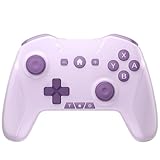
 8Bitdo SN30 Pro Bluetooth Wireless Gamepad Retro ControllerHall Effect Joystick0.6 poundsCheck on Amazon
 Bluetooth Controller for Switch/Mac/PC/Steam/Mobile Phone/iOS/Android//TV/iPad/Table/Apple Arcade MFi GamesCheck on Amazon


Top 3 picks at a glance
Quick Picks
| Product | Best for | Price |
|---|---|---|
| 8Bitdo SN30 Pro | Retro platformers and precise inputs | budget |
| MFI/RGB Turbo Controller | Best overall value with phone clip | budget |
| Switch Pro Dual Motion Controller | Gyro-assisted shooters and macros | |
| Wzuicov Dual Mode Controller | Ultra-budget wireless play | budget |
| 8BitDo All-Button N Edition | Fighting games and arcade accuracy | budget |
| Switch Pro Controller with Clip | Travel-friendly mobile setup | budget |
| Qenker 2-Player LED Kit | DIY couch co-op cabinet builds | budget |
| Haute42 T13 Arcade Stick | Competitive fighting with SOCD | budget |
How We Picked
The Best Apple Arcade Controllers in 2026
8Bitdo SN30 Pro
- Excellent D-pad precision for retro and indie titles
- Solid build quality with a comfortable, familiar SNES-style layout
- Phone mount is sold separately, so you are carrying the controller by itself unless you already own a clip
Skip this if you need built-in gyro or a phone clip in the box; it is a pure playpad, not an all-in-one mobile rig.
MFI/RGB Turbo Controller
At just over thirty dollars, this controller packs MFi certification, an integrated phone clip, RGB lighting, turbo fire, and a six-axis gyroscope into one package. For Apple Arcade specifically, the MFi badge means the pairing process is genuinely plug-and-play with no third-party apps required. The phone clip holds a device in landscape orientation securely enough for long sessions.
- MFi certified, so iOS pairing is instant and stable across iPhone and iPad
- Includes phone clip, gyro, and turbo—features that cost extra on other pads
- Thumbstick feel is noticeably lighter and less defined than premium controllers
Skip this if you play competitive fighting games and need a stiffer, more responsive stick; it works perfectly for casual arcade titles but falls short for frame-perfect inputs.
Switch Pro Dual Motion Controller
Despite the Switch-centric branding, this pad advertises and delivers iOS and Apple Arcade MFi compatibility. The standout features are the adjustable dual motors for variable vibration intensity, programmable macros, and a wake-on-touch function. For Apple Arcade titles that support controller vibration, the adjustable intensity lets you dial feedback down without turning it off entirely.
- Macros and adjustable vibration add depth for action and RPG arcade titles
- Wake-on-touch eliminates the awkward button-press-to-pair ritual
- Software configuration for macros requires a PC; nothing is editable directly on iOS
Skip this if you never plan to connect to a computer; the macro and gyro calibration features are essentially locked away if you only play on Apple devices.
Wzuicov Dual Mode Controller
Under twenty-two dollars with two USB-C cables and an adapter included, this is the cheapest entry point that still delivers functional Bluetooth wireless plus a wired fallback mode. It works with iPhone, iPad, and Apple Arcade games without MFi certification, relying on standard Bluetooth HID. The build feels plasticky, but the button mapping is correct and latency is acceptable for the price bracket.
- Lowest price on this list with both wireless and wired modes included
- Comes with two USB-C cables and a phone adapter, covering multiple use cases out of the box
- Non-MFi connection can occasionally drop or fail to pair on older iOS versions
Skip this if your iOS version is older than 16 or you need guaranteed pairing stability; the non-MFi route is a gamble on firmware.
8BitDo All-Button N Edition
This is a proper arcade-style all-button pad designed for Switch and Windows, but its layout and build translate well to Apple Arcade fighting titles when paired via Bluetooth. Every action maps to a button—no analog sticks at all—which makes directional inputs crisper in beat-’em-ups and fighting games. The build is dense and the switches have a firm, satisfying actuation.
- Zero stick drift ever; all-button design eliminates analog wear entirely
- Premium switch feel that justifies the price for daily fighting-game practice
- No phone clip or mobile mount; it is built for a desk or lap, not held alongside a phone
Skip this if you play racing, platformer, or any game requiring analog movement; it is strictly for titles where button-only input is viable.
Switch Pro Controller with Clip
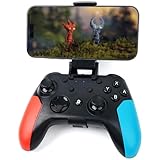
Functionally identical to the Dual Motion model above but shipped with a phone clip in the “Blue with Clip” variant, this removes the need for a separate accessory. At under thirty dollars, it is the cheapest path to gyro, macros, turbo, and a secure phone mount in one purchase. The clip is a spring-loaded cradle that holds devices from small phones up to iPad Mini width.
- Includes phone clip at no extra cost compared to the same controller sold separately
- Six-axis gyro works with Apple Arcade racing titles that support tilt steering
- Plastic quality is a step below the SN30 Pro; you can feel the flex under grip pressure
Skip this if build quality matters more than feature count; it does the job at the lowest price but will not survive years of daily abuse.
Qenker 2-Player LED Kit
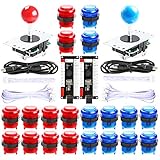
This is not a handheld controller—it is a two-player arcade cabinet kit with joysticks, twenty LED buttons, and zero-delay USB encoders meant for Raspberry Pi or PC builds. If you are running Apple Arcade on a Mac connected to an external display, these encoders work as standard USB HID devices. It is the right choice for a living-room retro setup where two people share a screen.
- True arcade joystick and button feel that no handheld can replicate
- Two-player out of the box with LED-lit buttons for authentic cabinet aesthetics
- Requires assembly, a cabinet or stand, and an external display; zero mobile use cases
Skip this unless you are actually building a cabinet or have a dedicated desktop setup; it solves a completely different problem from the handhelds above.
Haute42 T13 Arcade Stick
The T13 is a slim all-button fight stick with hot-swap switch sockets, SOCD cleaning for neutral inputs, turbo, and custom RGB. It supports Switch, PC, PS4, PS3, and Steam Deck. It is a wired controller: for Apple devices it connects over USB-C to a Mac or a USB-C iPad, and it has no Bluetooth. The SOCD implementation is the standout: it resolves conflicting left-right inputs the way competitive fighting-game communities expect.
- SOCD cleaning and hot-swap switches make it competition-ready without firmware tweaking
- Slim profile makes it genuinely portable compared to traditional fight sticks
- No native iOS Bluetooth profile; requires an adapter to Mac or an external display workflow
Skip this if you need pure handheld Apple Arcade play; it is a desk-and-lap controller that happens to work in a broader ecosystem.
Three Mainstream Controllers Worth Considering Too
The eight picks above lean toward budget pads and arcade-style hardware. If you would rather pay for a controller that Apple’s own support pages list by name, or one that turns an iPhone into a handheld with no Bluetooth pairing at all, these three fill the gaps.
SteelSeries Nimbus+
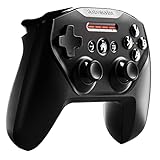
The Nimbus+ is one of the few gamepads designed specifically around Apple hardware. It is Apple-licensed under the MFi program, so iPhone, iPad, Mac, and Apple TV recognize it as a first-class controller, and every Apple Arcade game that supports controllers maps to it correctly without extra steps. It ships with a detachable iPhone mount, has clickable thumbsticks, and SteelSeries rates the battery at more than 50 hours per charge, which is far beyond what most budget pads claim. The layout is a conventional Xbox-style shape with full-size triggers, so it suits racers, shooters, and action games better than the retro pads on this list.
- Best for: players who want one controller for iPhone, iPad, and Apple TV with no compatibility guesswork
- Watch out for: older units charge over Lightning, so check which cable your listing includes if you have moved to USB-C everything else
Xbox Wireless Controller
The current Xbox Wireless Controller (the Bluetooth-equipped model sold with Xbox Series X and S) is officially supported on iOS, iPadOS, macOS, and tvOS. It is the safest pick for Apple TV in particular, because the living-room setting rewards a full-size controller with a comfortable grip more than a compact phone pad. Apple’s Game Controller settings recognize its Share button and let you remap every input. It runs on two AA batteries by default, which some people prefer, since you can swap in fresh cells instead of waiting for a charge.
- Best for: Apple TV and Mac play, and anyone who already owns an Xbox
- Watch out for: no phone clip in the box, and older Xbox One controllers without Bluetooth will not pair with Apple devices at all

Backbone One (USB-C)
Backbone One takes a different approach: instead of Bluetooth, it plugs straight into the iPhone’s port and stretches around the phone so the whole thing becomes a handheld console. Because the connection is direct, there is no pairing step and no wireless link to drop, and the controller has no battery of its own to charge. A pass-through port lets you charge the phone while you play. For Apple Arcade on an iPhone specifically, this is the most “pick up and play” option in the category.
- Best for: iPhone-only players who want a pocketable handheld setup
- Watch out for: it is sized for phones, so it is not a solution for iPad, Mac, or Apple TV play, and you need the version that matches your iPhone’s port (USB-C for iPhone 15 and later)

Apple Arcade Controller Compatibility by Device
Apple Arcade runs on iPhone, iPad, Mac, and Apple TV, but not every controller type behaves the same on each one. The table below summarizes the controller families Apple supports through its built-in Game Controller framework, which is what Apple Arcade games use to read inputs.
| Controller type | iPhone | iPad | Mac | Apple TV | Notes |
|---|---|---|---|---|---|
| Xbox Wireless Controller (Bluetooth models, Series X|S, Elite Series 2, Adaptive Controller) | Yes | Yes | Yes | Yes | Pre-Bluetooth Xbox One pads are not supported |
| PlayStation DualSense and DualShock 4 | Yes | Yes | Yes | Yes | Rechargeable; DualSense battery life is shorter than most pads |
| Nintendo Switch Pro Controller and Joy-Con | Yes | Yes | Yes | Yes | Needs a recent OS version; Joy-Con pairs can be combined into one controller |
| MFi-licensed Bluetooth pads (for example SteelSeries Nimbus+) | Yes | Yes | Yes | Yes | Designed for Apple devices, usually the smoothest setup |
| Plug-in phone controllers (Backbone One, Razer Kishi) | Yes | Model-dependent | No | No | Connect through the phone’s port, no pairing needed |
| Third-party pads that emulate Xbox or Switch Pro mode | Usually | Usually | Usually | Usually | Works only in the mode Apple recognizes; check the manual for the iOS mode |
| Generic USB arcade encoders and fight sticks | Rarely | Rarely | Rarely | No | Often seen as a generic input device that games ignore |
Two practical points come out of this table. First, a cheap third-party pad works on Apple devices only when it presents itself as one of the supported families, which is why so many budget controllers include an “iOS mode” or “Xbox mode” button combination. If a pad pairs but games do not respond, switching its mode is the first thing to try. Second, controller support is decided game by game. Most Apple Arcade titles support a controller, but some touch-first puzzle and word games do not, so check the game’s App Store listing for its controller note before assuming the pad is at fault.
Mainstream Controllers Most Apple Arcade Players Should Consider
The eight picks above lean toward budget pads and arcade sticks. Most Apple Arcade players, especially those playing on an Apple TV or iPad or wanting a phone-attached handheld setup, will also want to look at the controllers below. Each is officially supported by iOS, iPadOS, tvOS, or macOS through Apple’s Game Controller framework or MFi certification, which means games recognize them without remapping apps.
Backbone One USB-C (2nd Gen)
The Backbone One is the controller most often recommended for playing Apple Arcade on an iPhone, and it is easy to see why. Instead of pairing over Bluetooth, it plugs straight into the phone’s USB-C port and stretches around it, turning the iPhone into a handheld console. The direct connection means no pairing step and no wireless latency, and the controller draws its power from the phone, so there is no battery to charge.
The second-generation model improves the D-pad over the original and uses magnetic adapters so it holds the phone more securely and fits more phone and case combinations. It works with USB-C iPhones (iPhone 15 and later) and Android phones. A passthrough USB-C port on the grip lets you charge while playing, and a 3.5mm headset jack with microphone support handles audio and chat. The Backbone app collects your games, including Apple Arcade titles with controller support, into a console-style launcher, though the app is optional for basic play.
The limitations follow from the design. There is no rumble, no motion sensing, and no Bluetooth, so it cannot be used with an Apple TV or held away from the screen. The sticks and triggers are conventional rather than Hall effect. If you still use a Lightning iPhone, you need the Lightning version instead.
- Best for: iPhone players who want a plug-in handheld setup with zero pairing.
- Strengths: no wireless latency, passthrough charging, headset jack, compact.
- Weaknesses: no rumble or gyro, phone-only, no Hall effect sticks.
Razer Kishi V3 (USB-C)

The Razer Kishi V3 is the main rival to the Backbone One for iPhone players who want a plug-in handheld, and it beats the Backbone on stick technology. Both thumbsticks use TMR (tunneling magnetoresistance) sensors, a newer magnetic design that avoids the physical wear behind stick drift, and the triggers use Hall effect sensors for smooth analog travel in racing games.
It connects through USB-C and fits USB-C iPhones running iOS 18 or later as well as Android phones, so there is no pairing and no wireless delay. The controller is light at around 175 grams, which keeps the phone-plus-controller weight manageable on a commute. It has a 3.5mm audio jack and a USB-C port for passthrough charging during long sessions, and Razer’s Nexus app offers a console-style launcher if you want one.
The base V3 skips a few features. There are no rumble motors, the D-pad is four-way rather than eight-way, and it lacks the extra back buttons found on the more expensive Kishi V3 Pro. It is also sized for phones; iPad mini owners should look at the V3 Pro or the GameSir G8 Plus instead. Choose the Kishi V3 over the Backbone if drift resistance matters to you; choose the Backbone if you prefer its D-pad and app ecosystem.
- Best for: iPhone players who want drift-resistant sticks in a light plug-in design.
- Strengths: TMR sticks, Hall effect triggers, passthrough charging, audio jack, light weight.
- Weaknesses: no rumble, four-way D-pad, phone-only fit.
SteelSeries Nimbus+ (Apple MFi)
The Nimbus+ is one of the few full-size wireless controllers built specifically for Apple devices and licensed through Apple’s MFi program. That certification is the main selling point: it pairs with iPhone, iPad, Apple TV, and Mac like a first-party accessory, and the button labels and system menu button match what Apple’s own controller screens expect.
SteelSeries rates the battery at 50+ hours on a charge, among the longest in this guide, and the controller recharges through a Lightning port. It includes a detachable iPhone mount that clips to the top of the controller so you can use it handheld, plus clickable thumbsticks and pressure-sensitive triggers for racing games that read analog throttle input. The layout follows an Xbox-style offset stick arrangement that most players find comfortable for long sessions.
Drawbacks are worth weighing. There is no rumble, which feels dated next to Xbox and PlayStation pads, and the Lightning charging port means one more cable if every other device you own is USB-C. The included phone mount is solid but places the phone above the controller rather than between the grips, which makes the whole unit top-heavy compared with a Backbone-style design.
- Best for: Apple TV and iPad players who want an Apple-licensed wireless pad.
- Strengths: MFi certified, 50+ hour battery, phone mount included, works across Apple devices.
- Weaknesses: no rumble, Lightning charging, top-heavy when mounted.
Xbox Wireless Controller

The Xbox Wireless Controller is the safest all-round choice if you want a full-size pad that works with everything Apple makes. Apple added official support for the current Xbox Wireless Controller in iOS 14.5, and it pairs over Bluetooth with iPhone, iPad, Apple TV, and Mac. Games treat it as a native controller, so button prompts and menus behave correctly in Apple Arcade titles.
The ergonomics are a big part of the appeal. The offset-stick layout, textured grips, and hybrid D-pad suit long sessions on a TV, and the controller works with PC and Xbox consoles too, so one pad covers several devices. Rumble is supported in iOS games that use it. The Share button can be used as a capture shortcut in iOS settings.
The main drawback is power. It runs on two AA batteries by default, so you will want rechargeable cells or a battery pack. There is no phone clip in the box; third-party clips are inexpensive but add bulk. Switching between paired devices also takes a few seconds of re-pairing, which is a small hassle if you move between an iPhone and an Apple TV often.
- Best for: Apple TV players and anyone who wants one controller for Apple devices, PC, and Xbox.
- Strengths: native iOS support, excellent ergonomics, rumble, broad compatibility.
- Weaknesses: AA batteries by default, no phone clip included.
PlayStation DualSense Wireless Controller

Sony’s DualSense is officially supported on iPhone, iPad, Apple TV, and Mac, and it is the best pick if you prefer PlayStation’s symmetrical stick layout. Pairing takes a few seconds: hold the PS and Create buttons until the light bar flashes, then select it in Bluetooth settings.
The DualSense brings features that cheaper pads lack. It has a built-in rechargeable battery that charges over USB-C, a touchpad that some games can read, and motion sensors. Apple’s Game Controller framework exposes the adaptive triggers and haptics to developers, so games that implement them can use resistance and detailed vibration, although many Apple Arcade titles stick to standard rumble. Button prompts switch to PlayStation symbols in games that support them.
Battery life is the weak point. The haptics and light bar drain the battery faster than an Xbox pad running on fresh AAs, so expect to charge it more often. Like the Xbox controller, it has no phone clip in the box. It is also on the pricier side for a non-specialized pad.
- Best for: PlayStation owners and players who prefer symmetrical sticks.
- Strengths: official Apple support, rechargeable USB-C battery, motion sensors, advanced haptics.
- Weaknesses: shorter battery life, no clip, higher price.
GameSir G8 Plus MFi
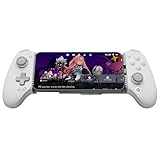
The GameSir G8 Plus MFi is a plug-in controller like the Backbone, but it stretches much wider: from 125mm to 215mm, enough to hold an iPad mini as well as large Pro Max phones. It is GameSir’s first controller with official Apple MFi certification and connects through USB-C to iPhone 15 and later, iPad mini (6th generation and later), and Android devices.
It addresses several of the Backbone’s limitations. The sticks and analog triggers use Hall effect sensors, which avoid the contact wear that causes stick drift, and a hair-trigger mode shortens trigger travel for shooters. Dual rumble motors are built in, along with two programmable back buttons, a 3.5mm headphone jack, and passthrough charging. A magnetic faceplate lets you swap the ABXY layout and thumbsticks.
It is larger and heavier than the Backbone at around 304 grams, which matters during long sessions with a phone. There is no battery, no Bluetooth, and no gyro, so it only works attached to a device. The USB-C connector pivots but does not extend, so thicker phone cases may need to come off.
- Best for: iPad mini owners and iPhone players who want Hall effect sticks and rumble in a plug-in design.
- Strengths: MFi certified, fits iPad mini, Hall effect sticks and triggers, back buttons, rumble.
- Weaknesses: bulky, wired only, may not fit thick cases.
Buying Guide
MFi vs. Native Bluetooth HID: What Actually Matters for Apple Arcade
MFi-certified controllers pair instantly through Apple’s own protocol and never require a settings menu to recognize. Native Bluetooth HID controllers also work, but the pairing flow is less seamless—you may need to forget and re-pair after iOS updates, and some games will not detect them until the controller is already active. If your primary use case is quick casual sessions on an iPhone, pay the small premium for MFi.
Phone Clips and Ergonomics for Extended Sessions
A controller without a secure mount forces you to hold a phone in one hand and a controller in the other, or balance a tablet on a table. Built-in clips that cradle the device behind the controller transform your phone into a handheld console. Check clip width against your specific phone model; some clips max out at 78mm and will not accept a Pro Max device.
Gyro, Turbo, and Macros: Features That Actually Affect Gameplay
Gyro is only useful if the game reads it; Apple Arcade racing titles such as Asphalt 8: Airborne+ support tilt steering, but most action games do not. Turbo is valuable for bullet-hell shooters where you hold a fire button for minutes. Macros shine in idle and RPG titles where repeated tapping is the core loop. Buy for the feature your favorite genre uses, not for the spec sheet.
How to Pair a Controller with iPhone, iPad, Mac, and Apple TV
Every Bluetooth controller follows the same two-part process: put the controller into pairing mode, then select it from the Bluetooth list on the Apple device. The button combination is the only part that changes between brands.
Step 1: Put the controller into pairing mode
- Xbox Wireless Controller: press the Xbox button to turn it on, then hold the small Pair button on the top edge until the Xbox logo flashes quickly.
- PlayStation DualSense: hold the PS button and the Create button together until the light bar around the touchpad flashes.
- PlayStation DualShock 4: hold the PS button and the Share button together until the light bar flashes.
- Nintendo Switch Pro Controller: hold the small sync button on the top of the controller until the player lights start cycling.
- MFi and third-party pads: follow the manual. Many budget pads use a start-plus-face-button combination that also selects which mode the controller presents, so pick the iOS or Apple mode if one is listed.
Step 2: Select it on your device
- iPhone and iPad: open Settings, tap Bluetooth, and choose the controller under Other Devices.
- Mac: open System Settings, choose Bluetooth, and click Connect next to the controller.
- Apple TV: open Settings, go to Remotes and Devices, then Bluetooth, and select the controller.
Plug-in phone controllers such as Backbone One and Razer Kishi skip this entirely; attach the phone and the controller is live. Apple TV supports up to four controllers at once, which matters for couch multiplayer, though the limit drops when Bluetooth headphones are connected at the same time.
When pairing fails
- Forget the controller in Bluetooth settings and pair again from scratch, especially after an iOS or controller firmware update.
- Unpair it from any console or PC nearby; many controllers try to reconnect to the last device they used.
- For third-party pads, switch the controller’s mode (Xbox, Switch, or iOS mode) and try again.
- Update the controller’s firmware through the maker’s app or PC tool if one exists.
Remapping Buttons in Apple’s Game Controller Settings
Apple has a built-in remapping tool, so you do not always need a controller’s companion app. On iPhone and iPad, connect the controller and open Settings, then General, then Game Controller. On Mac, the same options sit under Game Controllers in System Settings, and Apple TV has a matching Game Controller section in its settings. Apple lists iOS 16, iPadOS 16, tvOS 16, and macOS Ventura or later for the current set of options.
- Customizations: swap any button for another, either for every game or for one specific app. A common fix is swapping the A and B buttons on a Switch-layout pad so the confirm button lands where Apple Arcade games expect it.
- Profiles: save a layout and apply it per game, so a racing setup and a platformer setup can live side by side.
- Home button overrides: let a game use the controller’s home or menu button instead of having it jump back to the Home Screen.
- Buddy Controller: merge two controllers into one input, which helps a parent assist a child or supports players who need inputs split across two devices.
Apple’s tool works only on the buttons the system can see. Turbo, macros, and back paddles on budget pads are usually handled inside the controller itself, which is why the macro features mentioned above for some picks are configured on the controller or through a PC utility rather than in iOS.
Latency and Battery Life: What to Expect
For most Apple Arcade games, Bluetooth latency from a supported controller is small enough that it is not the limiting factor. Where it does show up is in rhythm games and precise platformers, and there the order is fairly predictable: a plug-in phone controller or a wired USB connection has the least delay, a well-implemented Bluetooth pad comes next, and a cheap pad with a weak radio is the most likely to stutter or drop inputs. On Apple TV, the television often adds more delay than the controller does, so turning on the TV’s game mode is worth more than switching controllers.
- Plug-in controllers draw a small amount of power from the phone and need no charging of their own.
- Xbox controllers run on AA batteries or an optional rechargeable pack, so a dead controller is a quick swap.
- DualSense has a built-in battery that drains faster than most pads, especially with vibration enabled.
- MFi pads like the Nimbus+ are rated for long runtimes between charges.
- RGB lighting and strong rumble shorten battery life on any pad, so turning them down is the easiest way to stretch a charge.
You can check a connected controller’s charge level in the Batteries widget on iPhone and iPad, which makes it easy to top up before a long session.
Plug-In, Bluetooth Gamepad, or Console Controller?
Apple Arcade controllers fall into three practical groups, and choosing the right group matters more than choosing between models within it.
- Plug-in handhelds such as the Backbone One and GameSir G8 Plus connect through the phone’s port. They have no pairing step, no wireless lag, and no battery to charge, but they only work with a phone or small tablet attached.
- Bluetooth gamepads with clips such as the budget pads and the Nimbus+ work both handheld and from the couch with an iPad or Apple TV, at the cost of a battery to charge and a slightly bulkier handheld setup.
- Console controllers from Xbox and PlayStation offer the best ergonomics and the broadest official support, but need a third-party clip for phone play.
If you play mostly on an iPhone during commutes, a plug-in handheld is the most comfortable. If you play on an Apple TV, any official console controller or MFi pad is the better buy.
Quick Comparison of the Most Popular Apple Arcade Controllers
| Controller | Connection | Works with Apple TV | Power | Rumble | Phone mount |
|---|---|---|---|---|---|
| Backbone One (2nd Gen) | USB-C plug-in | No | Phone-powered | No | Built-in design |
| GameSir G8 Plus MFi | USB-C plug-in | No | Phone-powered | Yes | Built-in, fits iPad mini |
| SteelSeries Nimbus+ | Bluetooth, MFi | Yes | Rechargeable, 50+ hours | No | Included clip |
| Xbox Wireless Controller | Bluetooth | Yes | AA batteries | Yes | Sold separately |
| PlayStation DualSense | Bluetooth | Yes | Rechargeable, USB-C | Yes, plus haptics | Sold separately |
| 8Bitdo SN30 Pro | Bluetooth | Yes, on supported firmware | Rechargeable | Yes | Sold separately |
How to Pair a Controller with iPhone, iPad, Apple TV, or Mac
- Put the controller in pairing mode. On an Xbox controller, hold the small pair button on the top until the Xbox logo flashes quickly. On a DualSense, hold the PS and Create buttons until the light bar flashes. MFi and third-party pads usually have a dedicated pairing button or button combination listed in the manual.
- On iPhone or iPad, open Settings, then Bluetooth, and select the controller under Other Devices.
- On Apple TV, open Settings, then Remotes and Devices, then Bluetooth, and select the controller.
- On a Mac, open System Settings, then Bluetooth, and click Connect next to the controller.
- Launch an Apple Arcade game that supports controllers. Most detect the controller automatically and switch their on-screen prompts.
A controller can only be paired actively with one device at a time. To move it from an iPhone to an Apple TV, disconnect it on the first device or put it back into pairing mode.
Remap Buttons Without Third-Party Apps
iOS, iPadOS, tvOS, and macOS include built-in controller customization. On iPhone or iPad, connect the controller and open Settings, then General, then Game Controller. From there you can remap buttons globally or per app, disable haptics, and set what the Share or capture button does. This is useful for fixing awkward layouts on budget pads and for swapping confirm and back buttons on Nintendo-style controllers where A and B are reversed.
How to Tell Which Apple Arcade Games Support Controllers
Not every Apple Arcade game supports a physical controller, and touch-first puzzle and word games often do not. Game pages in the App Store list controller support in the information section, so check there before you buy a game specifically to play with a pad. Most action, platformer, racing, and sports titles in the catalog support controllers, while many card, puzzle, and casual games remain touch-only.
Apple TV-Specific Tips
On Apple TV, a controller replaces the Siri Remote for gaming, so comfort for long couch sessions matters more than portability. Full-size controllers with good battery life, such as the Nimbus+, Xbox, or DualSense, suit this setup better than small retro pads. Apple TV supports several controllers at once for local multiplayer, so families can pair a second pad for co-op Apple Arcade games.
Our Verdict
Our top pick is the MFI/RGB Turbo Controller. It checks every box a mobile Apple Arcade player needs: certified iOS pairing, a phone clip, gyro, turbo, and vibration—all under thirty-five dollars with no assembly required. For the budget pick, the Wzuicov Dual Mode is the lowest-risk entry point if you accept occasional pairing hiccups. The condition under which another product wins clearly: if you primarily play fighting games, the Haute42 T13 is the right tool despite its non-portable workflow, because nothing on this list matches its button precision and SOCD handling.
More Apple Arcade Controller Questions
Can I use a PS5 or Xbox controller with Apple Arcade?
Yes. The DualSense, DualShock 4, and Bluetooth-equipped Xbox Wireless Controllers are all officially supported on iPhone, iPad, Mac, and Apple TV. Button prompts in many games even change to match the controller you are holding.
Why does my controller connect but not work in a game?
Either the game does not support controllers, or the controller is in a mode Apple’s Game Controller framework does not recognize. Check the game’s App Store listing for controller support, then try the pad’s iOS or Xbox mode.
Can I use one controller on my iPhone and Apple TV?
Yes, but a Bluetooth controller connects to one device at a time. Disconnect it from the iPhone (or turn the iPhone’s Bluetooth off) before pairing or reconnecting it to the Apple TV. Your game progress carries over through iCloud in most Apple Arcade titles.
Do I need a controller for Apple Arcade at all?
No. Most Apple Arcade games are built for touch first, and a small number of console-style titles require a controller. A controller mainly helps with action, racing, and platform games, and it is close to essential on Apple TV, where the Siri Remote is limited.
FAQ
Do all Bluetooth controllers work with Apple Arcade?
No. A controller must either carry Apple’s MFi certification or implement native Bluetooth HID in a way iOS recognizes. Many low-cost pads advertise Apple Arcade compatibility but only work through third-party remapping apps or fail to pair at all.
Is the phone clip necessary or just a convenience?
For sessions under ten minutes, you can balance a phone on a table. For anything longer, the clip becomes essential because holding a controller and a phone simultaneously fatigues your wrists and changes how you interact with the thumbsticks.
Can I use an arcade stick or fight stick with Apple Arcade?
Yes, if you connect through a Mac with an external display or use a USB-C adapter with an iPad. Direct Bluetooth pairing to an iPhone for fight sticks is rarely supported, so plan for a desk setup rather than handheld play.
Is gyro support worth paying extra for?
Only if you play racing or platformer titles that respond to tilt. Most Apple Arcade action games ignore gyroscope input entirely, so paying a premium for gyro on a controller you will never use it with is wasted budget.
Do Xbox and PlayStation controllers work with Apple Arcade?
Yes. Apple officially supports the Xbox Wireless Controller and the PlayStation DualSense and DualShock 4 on iPhone, iPad, Apple TV, and Mac. Pair them in Bluetooth settings and controller-enabled Apple Arcade games recognize them automatically.
What is the best controller for Apple Arcade on iPhone?
A plug-in handheld such as the Backbone One is the most popular choice for iPhone because it needs no pairing and adds no wireless delay. If you also want to play on an iPad mini, the GameSir G8 Plus MFi stretches wide enough to fit it.
What is the best controller for Apple Arcade on Apple TV?
A full-size wireless controller works best on Apple TV. The SteelSeries Nimbus+ is Apple-licensed with long battery life, while the Xbox and DualSense controllers offer rumble and console-quality ergonomics.
Do I need an MFi-certified controller?
No. MFi certification guarantees compatibility, but Apple also supports Xbox and PlayStation controllers natively, and many other Bluetooth pads work fine. Certification matters most when buying lesser-known budget brands.
Can I use two controllers at once on Apple TV or iPad?
Yes. Apple devices support multiple paired controllers, and Apple Arcade games with local multiplayer can assign one to each player.
Why is my controller connected but not working in a game?
The game may not support controllers. Check the App Store page for controller support, make sure the controller is connected before launching the game, and update iOS and the controller firmware if the problem persists.