A student desk is a strange piece of real estate. It has to hold a notebook, a lamp, a charger tangle and, somewhere in the middle, a computer that can survive eight-hour study days, video seminars and the occasional late-night essay. An all-in-one desktop answers that problem by folding the screen, processor and speakers into one slab that needs a single power cable. The catch is that “all-in-one” covers everything from a compact 19-inch budget box to a 27-inch Dell with DDR5 memory, and the differences matter more than the shared label suggests.
This 2026 guide is for students, parents buying for a student and anyone setting up a shared study space who wants a desktop rather than a laptop. We compare seven models by what their titles actually list: screen size, processor, RAM, SSD size, wireless generation and bundled accessories. The big decisions are 8GB versus 16GB of memory, 256GB versus 512GB of storage, and whether a built-in webcam and a roomy screen are worth giving up some desk space.
Our Top Picks
Top 3 picks at a glance
Quick Picks
As an Amazon Associate we earn from qualifying purchases at no extra cost to you.



| Product | Best for | Key spec from the title |
|---|---|---|
| MECHAZER 19-inch AIO | Tiny dorm desks | Core i5, 8GB RAM, 256GB SSD, keyboard and mouse |
| Qehi 24-inch AIO | Video classes and group calls | Core i5, 16GB RAM, 256GB SSD, HD webcam |
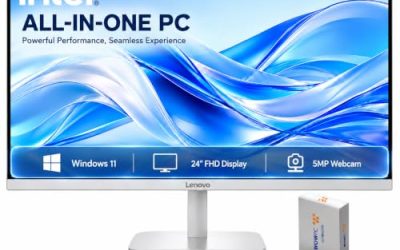
| Lenovo 24-inch FHD AIO (16GB) | All-round study use | 8-core i3, 16GB RAM, 512GB PCIe SSD |
| Lenovo IdeaCentre 24-inch AIO (8GB) | Light coursework with a good screen | 4-core processor, 512GB SSD, anti-glare IPS |
| 24-inch Core i5 AIO (16GB) | Multitasking on a fixed budget | i5 up to 3.3 GHz, 16GB RAM, 256GB SSD |
| 22-inch G5400 AIO | Basic writing and browsing | G5400, 16GB RAM, 512GB SSD |
| Dell 27-inch AIO | Larger shared desks and long sessions | Core 5 120U, 16GB DDR5, Wi-Fi 6E |
The 7 Best Options
MECHAZER 19-Inch All-in-One
The MECHAZER is the smallest machine here and the easiest to fit on a cramped dorm desk or a corner of a shared bedroom. The title lists a 19-inch screen with a 1080p TN panel, a Core i5 processor, 8GB of RAM, a 256GB SSD, WiFi 6, Bluetooth 5.3 and a bundled mouse and keyboard. That bundle matters for a first-year student who does not already own peripherals, because it removes one more purchase from the move-in list.
Strengths
- The compact 19-inch footprint saves desk space that a 24-inch model would take.
- WiFi 6 and Bluetooth 5.3 are both listed, which helps with campus networks and wireless headphones.
- A keyboard and mouse are included, so the machine works out of the box.
Trade-offs
- A TN panel typically has narrower viewing angles than the IPS screens on other models, so colors shift when you sit off-center.
- 8GB of RAM and a 256GB drive leave little headroom for many browser tabs and a growing lecture-notes folder.
Think of it as a first-year machine for a student who mostly writes, reads and streams, and who may later add a laptop for lectures. The listing stays honest about being a compact, entry-level desktop, which is useful because expectations match what the hardware can deliver.
Skip it if your coursework includes design, video or large datasets, or if you plan to keep the machine for four years. It is best treated as a writing and research station. Compared with the Qehi that follows, you give up screen area and a stated webcam in exchange for a much smaller footprint.
Qehi 24-Inch All-in-One
The Qehi is the pick for students whose week is mostly video lectures, group calls and shared documents. The title lists a 24-inch business-style AIO with a 23.8-inch FHD 1080P display, a Core i5 processor, 16GB of RAM, a 256GB SSD, an HD webcam described as giving clear calls, and WiFi 6. It pairs a generous screen with enough memory for the combination of a browser, a video call and a note-taking app open at once.
Strengths
- 16GB of RAM suits students who keep dozens of tabs and several apps running together.
- The built-in HD webcam removes the need for a separate camera for remote classes.
- The 23.8-inch FHD screen offers comfortable room for side-by-side windows.
Trade-offs
- The 256GB SSD fills up quickly once large course files, software installs and updates pile up.
- The title does not name the exact Core i5 model, so performance is harder to judge than on a model with a stated clock speed or core count.
For a remote-learning schedule, the combination of memory, screen and camera in a single package is the real value here. A student who attends several video seminars a day will appreciate not having to clip a webcam to the top edge of a monitor and run extra cables.
Skip it if you store large media libraries locally and do not plan to add an external drive. Next to the Lenovo 24-inch model, the Qehi matches the memory but offers half the storage; the Lenovo wins on drive space, while the Qehi leads on its listed webcam.
Lenovo 24-Inch FHD All-in-One (16GB RAM)
This IdeaCentre configuration is the strongest all-rounder in the group on paper. The title lists a 24-inch FHD display, 16GB of RAM, a 512GB PCIe SSD, an Intel 8-core Core i3 processor that runs up to 3.8 GHz, and Wi-Fi 6, sold as a business-style AIO. Having both 16GB of memory and a 512GB drive at the same time is rarer than it sounds, and it is exactly the balance a student needs for four years of coursework.
Strengths
- 16GB RAM plus a 512GB PCIe SSD is the most balanced memory and storage pairing here.
- An 8-core processor with a listed boost up to 3.8 GHz handles multitasking comfortably for office and study work.
- A well-known brand name makes driver and support lookups straightforward.
Trade-offs
- A Core i3 sits below Core i5 in the naming ladder, so heavy video editing is not its strength.
- The visible title does not mention a webcam, so confirm it on the full listing before relying on it for classes.
This is the configuration to shortlist first if the machine has to cover coursework, a part-time job and family use in the same year. It does not specialize in anything, which is the point: it avoids the memory and storage shortfalls that hold back many cheaper machines.
Skip it if you need a bundled webcam stated up front or you edit video as part of your degree. Against the 8GB Lenovo IdeaCentre next in line, this one doubles the memory for the same 512GB of storage, which is the upgrade most students feel in daily use.
Lenovo IdeaCentre 24-Inch All-in-One (8GB RAM)
This second Lenovo targets the student who cares more about the screen and the brand than about raw memory. The title lists 8GB of RAM, a 512GB SSD, an Intel 4-core processor, a 24-inch FHD anti-glare IPS display, Wi-Fi 6, Bluetooth 5.2 and Windows. The anti-glare IPS panel is the standout detail, since long reading and writing sessions under a dorm ceiling light are easier on a matte screen with wide viewing angles.
Strengths
- The anti-glare IPS display is comfortable for long text-heavy study sessions.
- A 512GB SSD gives much more room for files than the 256GB drives on other models.
- Wi-Fi 6 and Bluetooth 5.2 cover modern wireless needs.
Trade-offs
- 8GB of RAM is workable for light use but tight for heavy multitasking.
- A 4-core processor is a lighter configuration than the 8-core Lenovo above.
This model suits a literature, law or history student who reads on screen for hours and values a calm, glare-free display more than extra processor cores. The larger drive also helps with scanned readings and saved PDFs.
Skip it if you keep many browser tabs and a video call going together, since the memory ceiling arrives sooner. Compared with the unbranded 24-inch i5 that follows, the Lenovo offers a better-described screen and double the storage, while the i5 offers double the memory.
24-Inch Core i5 All-in-One (16GB RAM, 256GB SSD)
This unbranded 24-inch machine aims at buyers who want a Core i5 and 16GB of RAM at a modest budget tier. The title lists an i5 CPU running up to 3.3 GHz, 16GB of RAM, a 256GB SSD, an external WiFi 6 and Bluetooth adapter, integrated graphics and a space-saving AIO design. The processor description gives a clearer picture of clock speed than the Qehi title does.
Strengths
- 16GB of RAM supports multitasking across documents, browsers and calls.
- A 24-inch screen offers plenty of workspace for split windows.
- The listing is straightforward about integrated graphics, so expectations are clear.
Trade-offs
- WiFi comes from an external adapter, which is one more small part to plug in and keep track of.
- 256GB of storage runs out faster than the 512GB models.
The appeal is a larger screen and a Core i5 with 16GB of RAM in one box. Before buying, check the warranty terms and return window, because lesser-known listings can differ widely in how support is handled.
Skip it if you want a recognizable brand with an established support channel, or if you dislike dongles. The next model, the 22-inch G5400, trades the Core i5 and the larger screen for a bigger drive.
22-Inch G5400 All-in-One (16GB RAM, 512GB SSD)
The G5400 machine is the memory-and-storage-first choice for light work. The title lists a 22-inch FHD display, a G5400 processor, 16GB of RAM and a 512GB SSD, sold for home and office use in a single-piece design. A G5400-class chip sits in the entry tier, so this is a model for writing papers, reading PDFs, streaming lectures and web research rather than software that stresses the processor.
Strengths
- 16GB of RAM and a 512GB SSD together are a generous allotment for the entry tier.
- The 22-inch screen is a middle size that suits small and medium desks.
- The all-in-one design keeps the cable count low.
Trade-offs
- An entry-tier processor will feel slower than the Core i5 and i3 models on demanding tasks.
- The title does not name a brand, a webcam or the wireless generation.
It makes sense as a family homework computer or a student desk where the work is document-based. The generous memory keeps many pages open smoothly, even if the processor limits peak speed for heavier tasks.
Skip it if your major involves programming, design or video work. In the lineup, it competes with the 8GB Lenovo on storage but beats it on RAM, while the Dell that follows sits a clear step higher on processor and memory type.
Dell 27-Inch All-in-One Desktop
The Dell is the premium pick, aimed at students who want one machine to last through a degree and then pass to a sibling. The title lists a 27-inch FHD display, an Intel Core 5 120U processor, Windows 11 Home, Intel graphics, a 512GB SSD, 16GB of DDR5 memory, Wi-Fi 6E, Bluetooth, and a keyboard and mouse. The 27-inch screen is the largest on this page, and Wi-Fi 6E is the newest wireless standard among the seven.
Strengths
- 16GB of DDR5 RAM paired with a 512GB SSD gives long-term headroom.
- Wi-Fi 6E and Bluetooth cover the newest wireless options on campus.
- A bundled keyboard and mouse make setup quick.
Trade-offs
- The 27-inch size needs a deep desk and is not suited to the smallest dorm furniture.
- The “U” in the processor name marks a low-power part, so it favors efficiency over peak speed.
Students in engineering, business or media studies who run several windows at once will enjoy the extra screen area. It is also the easiest model here to share between two people, since both can sit comfortably in front of a 27-inch display.
Skip it if desk space is tight or the budget is firmly at the entry tier. Compared with the Lenovo models, the Dell offers the biggest display and the newest memory standard, which makes it the one to choose if the machine will be shared or kept for years.
Why an All-in-One Makes Sense for Students
An all-in-one removes the clutter that makes a small desk hard to use. The trade-off is that you cannot easily swap the screen or processor later, so you should buy a little more capacity than today’s coursework needs. Think of it as a study appliance with a keyboard on one side and a textbook on the other.
Shared rooms and small desks
If you share a room, a single-cable machine avoids tangles and tripping hazards. A 19- or 22-inch model leaves space for a notebook, while the 27-inch Dell calls for a deeper surface. Measure the desk before you buy, and allow room behind the stand.
Remote classes and group projects
Models with a stated webcam, like the Qehi, save you from buying and positioning an external camera. Others may include one but do not mention it in the title, so check the full listing. Wi-Fi 6 or 6E helps when many people share a campus network.
Parents buying for the whole family
Because AIO computers include the display, one purchase covers a homework station that younger siblings can also use. The larger 24- and 27-inch screens are easier on the eyes for shared reading and homework, and the single power cable keeps the area tidy. A bundled keyboard and mouse, as on the MECHAZER and Dell, reduce setup friction for a household that does not already own spares. Integrated graphics handle casual and older titles, so an AIO is fine for a break between assignments, though serious gaming calls for a dedicated gaming desktop.
How to Choose an All-in-One for College or School
RAM: 8GB is the floor, 16GB is the target
Browsers use a lot of memory, and video calls add more. 8GB works for writing and reading but fills up when you open many tabs and a conferencing app together. 16GB, as on the Qehi, the Lenovo 16GB model, the 22-inch G5400 and the Dell, gives breathing room for the next few years. Because an AIO is hard to upgrade, buy the higher amount at purchase time. DDR5, as listed on the Dell, is the newer memory type and gives the machine a longer useful life than older generations.
As a practical threshold, count how many things you keep open on a typical day. If it is a browser, a note app and a music player, 8GB is survivable. If it adds a video call, a spreadsheet and a PDF reader, 16GB is the safer target.
Storage: favor 512GB if you can
256GB looks fine on day one and becomes cramped once Windows updates, course software and downloaded readings settle in. A 512GB SSD gives roughly double the room and improves long-term comfort. Cloud storage can fill the gap, but a larger drive means fewer awkward cleanups mid-semester. Also confirm the drive is an SSD rather than a slow hard disk.
A rough rule is to add up the operating system, the programs your degree needs and a semester of downloaded readings, then double the total. If the result exceeds about 200GB, the 256GB models will feel tight from the beginning, and the 512GB listings from Lenovo, the G5400 model and the Dell become the more comfortable options.
Processor: match it to your coursework
For writing, research and streaming, an entry chip is acceptable. For spreadsheets, light programming and multitasking, a Core i5 or an 8-core Core i3 is a more comfortable choice. For design, video or data work, look at the Dell’s Core 5 class processor or consider a desktop tower. Remember that integrated graphics, as listed on several models, will not run demanding creative software smoothly.
Screen: size, panel type and finish
24 inches is a sweet spot for most desks, with FHD resolution as the baseline. An IPS panel gives better viewing angles than TN, and an anti-glare finish reduces reflections from windows and overhead lights. A 19-inch TN screen is serviceable but narrow, while 27 inches suits a shared or large desk. Sit at arm’s length from the screen when you can; a 24-inch panel at that distance is sharp enough for FHD, whereas a very large panel at the same resolution can look softer.
Connectivity, webcam and ports
Wi-Fi 6 is a good minimum, and Wi-Fi 6E adds more headroom. Bluetooth is useful for headphones and keyboards. Check for a webcam, USB ports for drives and a headphone jack. Models that rely on an external WiFi adapter use up a USB port.
What to ignore, and where budget models cut corners
Ignore unexplained marketing words and focus on RAM, SSD size and processor naming. Budget models typically trim the screen panel, the number of ports, the speaker quality and the build of the stand. Treat a lack of detail in a title as a reason to verify the full listing and warranty terms before ordering. Read what the box includes, since a missing keyboard, mouse or stand can quickly erase the savings from a cheaper listing.
All-in-One vs Laptop vs Mini PC: What Students Compare
Most students weigh an AIO against a laptop or a mini PC with a separate monitor. The right answer depends on whether you move between locations or study at one fixed desk.
| Factor | All-in-one | Laptop | Mini PC plus monitor |
|---|---|---|---|
| Portability | Fixed to one desk | Carry to class and library | Fixed to one desk |
| Screen size for the space | Large built-in screen | Smaller unless docked | Choose any monitor |
| Cable count | Often one power cable | Charger only | Several cables |
| Upgrade options | Limited | Limited | Easier, parts are separate |
| Best for | Dorm or home study hub | Students who move daily | Students who want flexibility |
When the all-in-one wins
Choose an AIO if you do most work at one desk and want a large screen, a clean look and a single device to set up. It also suits a family study area where several people share a machine. You trade away mobility, so pair it with a tablet or a cheap laptop if you attend in-person lectures.
When a laptop or mini PC is smarter
If you carry your computer to class, a laptop is the practical choice. If you want to upgrade the screen or the memory later, a mini PC with a monitor offers that flexibility. For a student who takes notes in lectures and studies at a fixed desk, an AIO plus a low-cost laptop is a combination worth weighing. Whichever you choose, consider how often you will actually move the machine, because the answer usually decides the category before any spec does.
Setup, Compatibility and Upgrade Tips
What to check before buying
Measure the desk depth and width, then compare against the screen size and stand. Confirm the operating system and whether the machine includes a webcam, speakers and a keyboard and mouse. Check the return window and the warranty terms, because an AIO is harder to repair than a laptop. Confirm that your campus network works with Wi-Fi 6 or 6E. Look at how the screen tilts and whether it can adjust in height, since a screen that sits too low strains the neck over long sessions.
What to upgrade first
Install all system updates, then set up a backup to cloud storage or an external drive. If the machine feels slow, adding an external SSD for large files helps more than any single tweak. On models with 8GB of RAM, close unused browser tabs and limit startup apps. A wireless keyboard and mouse can improve comfort if the bundled ones feel basic. If you write a lot, a better keyboard is the single most noticeable upgrade for a few minutes of effort.
Common compatibility traps
Some listings do not mention a webcam, microphone or enough USB ports. Models that rely on an external WiFi adapter use a USB port and may be more awkward to move. Software for engineering or design may require a dedicated graphics card that these integrated graphics machines do not offer. Check your course requirements before buying, and ask the department which operating system and software versions are required.
Which One Fits Your Situation
You live in a small dorm room
The MECHAZER 19-inch AIO keeps the footprint low and includes a keyboard and mouse, which suits a first-year student with a tiny desk. Plan to add an external drive later if files accumulate.
Most of your classes are online
The Qehi 24-inch AIO offers a stated HD webcam, 16GB of RAM and a generous screen for lectures and group calls. Add a pair of headphones with a microphone if the room is noisy.
You want one machine for four years
The Lenovo 24-inch FHD AIO with 16GB of RAM and a 512GB PCIe SSD is the most balanced configuration, while the Dell 27-inch is the step up if your desk is large. Both pair a 512GB drive with 16GB of RAM, which is the combination that ages best.
You mainly write papers and browse
The 22-inch G5400 AIO or the Lenovo IdeaCentre with 8GB of RAM and a 512GB SSD cover these tasks, and either keeps the budget modest. Choose the G5400 for more memory or the Lenovo for a better-described screen.
Common Mistakes
- Buying an 8GB model for a four-year degree and finding it sluggish by sophomore year.
- Assuming every AIO includes a webcam, speakers and a keyboard and mouse.
- Choosing a 256GB drive and then running out of space during exam season.
- Ignoring desk dimensions and ending up with a 27-inch screen that sits too close.
- Expecting integrated graphics to run design or video software smoothly.
- Skipping a backup plan because the machine feels new.
Related guides
- What Is The Best Budget Most Responsive Gaming Mouse Wired
- Low Latency Gaming Headphones Usb-C 2.4 Ghz Wireless
- Mechanical Gaming Keyboards Competitive Pc Gaming
Frequently Asked Questions
Is 8GB of RAM enough for a student?
8GB works for writing, reading and light browsing, but it fills up quickly with many tabs and video calls. If you can, choose 16GB, since AIO memory is hard to upgrade later.
Do all-in-one desktops come with a webcam?
Many do, but not every title mentions one. The Qehi lists an HD webcam, while others require you to check the full product page.
Is a 24-inch screen better than a 19-inch one?
A 24-inch screen gives more room for side-by-side windows and is more comfortable for long study sessions. A 19-inch screen is better only when desk space is the main limit.
Can I play games on these machines?
They use integrated graphics, which handles casual and older games but not demanding titles. A gaming desktop with a dedicated graphics card is a better fit for that purpose.
How much storage do I need?
256GB is the minimum, while 512GB is more comfortable for a degree-length machine. Add cloud or external storage if you work with large files.
Is Wi-Fi 6E worth having?
Wi-Fi 6E helps on crowded networks if your router supports it. Wi-Fi 6 is perfectly adequate for most dorm and home connections.
Final Words
The best all-in-one for a student is the one that fits the desk, the coursework and the length of time you plan to keep it. The Lenovo 24-inch with 16GB of RAM and 512GB of storage is the balanced choice, the Qehi suits video-heavy schedules, the MECHAZER rescues tiny desks and the Dell rewards larger spaces. Buy the highest memory and storage you can afford, check that the webcam and ports are included, and keep a backup habit from the first week. A machine that fits your desk and your schedule will serve better than one with the longest spec list.