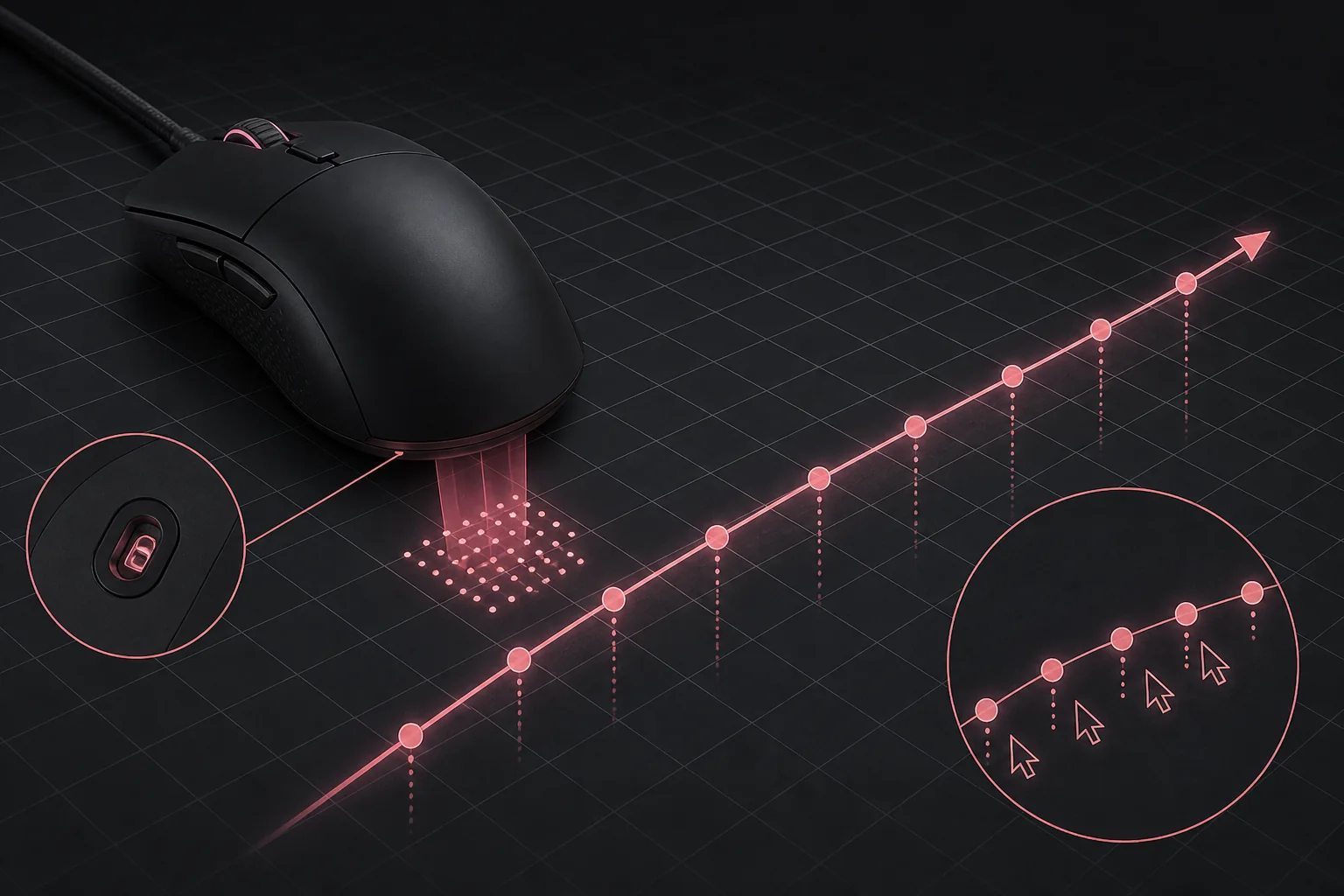
DPI and polling rate are the two numbers printed biggest on every gaming mouse box, and they are also the two most commonly misunderstood. DPI controls how fast your cursor moves relative to your hand, while polling rate controls how often the mouse reports its position to your PC, and neither one is a direct measure of accuracy or quality. This guide breaks down exactly what each number does, the math behind how they combine with sensitivity, and where the real-world returns stop.
Our Top Picks
 Razer DeathAdder Essential Ergonomic Wired Gaming Mouse5.01 x 2.86 x 1.69 Inches0.3 PoundsCheck on Amazon


Top 3 picks at a glance
What DPI and CPI actually measure
DPI, short for dots per inch, describes how many counts the sensor reports for every inch the mouse physically travels across a surface. A mouse set to 800 DPI reports 800 counts per inch of movement, while the same physical inch of movement at 1600 DPI reports 1600 counts, meaning the cursor moves twice as far on screen for the identical hand motion.
As an Amazon Associate we earn from qualifying purchases at no extra cost to you.





![Redragon M602 Gaming Mouse, Ergonomic RGB Gaming Mouse Wired with 7200 Adjustable DPI, 9 Programmable Buttons, Professional Software for Gamer Office [Black]](https://m.media-amazon.com/images/I/4189L2UBl9L._SL160_.jpg)

Technically, the more precise term is CPI, counts per inch, since DPI originally referred to printer resolution, but mouse manufacturers adopted DPI as marketing shorthand and the terms are now used interchangeably in virtually all gaming mouse product listings and software.
The sensor itself, typically a PixArt optical module like the PAW3395 or PAW3950 in current mice, has a maximum DPI it can report, often 26,000 or higher on flagship sensors, but this ceiling is a specification limit, not a recommendation. The sensor tracks accurately across nearly its entire range, but almost no player benefits from running anywhere near the maximum.
Raising DPI does not make the sensor more precise or more accurate at detecting movement, it only scales how far the reported movement translates to cursor distance on screen. A sensor with excellent tracking accuracy at 800 DPI has that same tracking accuracy at 3,200 DPI, just multiplied by four in terms of screen distance covered.
This distinction matters because marketing around maximum DPI numbers, sometimes reaching 30,000 or higher on recent flagship mice, implies a performance benefit that does not exist for the sensitivity ranges the vast majority of players, including nearly all professional esports competitors, actually use.
How DPI translates to actual cursor speed
The relationship between DPI and cursor movement is straightforward multiplication: DPI times inches of physical mouse movement equals dots, or pixel-equivalent counts, of cursor movement, before any additional in-game or Windows sensitivity scaling is applied on top.
At 800 DPI, moving your mouse 4 inches across the pad produces 3,200 counts of movement. At 1600 DPI, that same 4-inch movement produces 6,400 counts, doubling how far the cursor travels for identical physical hand motion. This is why doubling DPI while halving in-game sensitivity produces a nearly identical final feel, since the two numbers multiply together.
Windows also applies its own pointer speed setting on top of the raw DPI signal, found in mouse settings, which most competitive players set to the default middle value and leave alone, since adjusting it introduces an additional acceleration curve on some Windows versions that most competitive setups specifically want to avoid.
In games, sensitivity settings apply a further multiplier on top of DPI, meaning the same DPI setting can feel completely different between two games depending on how each one scales its internal sensitivity value, which is exactly why comparing raw DPI numbers between players using different games is not meaningful without also knowing their in-game sensitivity.
This is also why changing DPI mid-session using onboard DPI buttons, common for switching between fast general navigation and precise aiming moments, is popular among some players, though many competitive shooter players prefer a single fixed DPI to keep muscle memory fully consistent instead.
eDPI: comparing sensitivity across different games
Because DPI and in-game sensitivity multiply together, and because different games scale their internal sensitivity numbers differently, raw DPI alone cannot be used to compare how “fast” two players’ mouse setups actually feel. Effective DPI, or eDPI, solves this by multiplying DPI by in-game sensitivity into one comparable number.
For example, a player running 800 DPI with an in-game sensitivity of 2.0 has an eDPI of 1,600, while a player running 400 DPI with an in-game sensitivity of 4.0 also has an eDPI of 1,600, and despite using completely different raw numbers, both players’ mouse movement feels identical in terms of cursor speed relative to hand movement.
The table below shows typical eDPI ranges reported among competitive players in popular shooters, useful as a rough starting reference point rather than a rule, since personal preference and monitor resolution both shift where an individual player lands within these ranges.
| Game | Typical eDPI range | Common playstyle association |
|---|---|---|
| Valorant | 150-320 | Lower sensitivity favors precise flicks |
| Counter-Strike 2 | 400-900 | Wide range, varies by crosshair placement style |
| Apex Legends | 1,200-2,400 | Higher sensitivity supports fast tracking and movement |
| Overwatch 2 | 1,600-3,200 | Faster turning for close-range dueling |
These ranges reflect community-reported averages rather than a single correct value, and plenty of top-level players sit outside them. The point of tracking eDPI is consistency for yourself across games and mouse changes, not matching a specific professional player’s exact number, since hand size, grip style, and mousepad size all shift what feels controllable for a given individual.
When switching to a new mouse, calculating your current eDPI first and then adjusting the new mouse’s DPI to match it is the fastest way to preserve your existing aim muscle memory rather than starting sensitivity tuning from scratch.
Polling rate: how often the mouse reports its position
Polling rate, measured in Hz, describes how many times per second the mouse sends its position data to the PC. At 125Hz, an older USB default still found on some budget peripherals, the mouse reports position every 8 milliseconds. At 1,000Hz, now the standard baseline on virtually every gaming mouse, it reports every 1 millisecond.
Recent flagship mice, including the Razer Viper V3 Pro and Pulsar X2V2, push polling rate to 4,000Hz or 8,000Hz with a compatible dongle, reporting position every 0.25 or 0.125 milliseconds respectively, which reduces the theoretical delay between physical movement and the PC receiving that movement data even further.
The practical, perceivable jump happens most clearly between 125Hz and 500-1,000Hz, where cursor movement visibly smooths out and input delay drops in a way most players can feel immediately. The jump from 1,000Hz to 4,000Hz or 8,000Hz produces a far smaller, often imperceptible difference for the average player, since 1,000Hz already reports position within a single millisecond, well below most players’ reaction time variance.
Higher polling rates increase how much data the mouse sends to the PC every second, which raises CPU usage slightly for processing that data, generally negligible on modern systems but worth checking if you notice any performance dip after enabling 4,000Hz or 8,000Hz polling on an older or budget PC.
Some mice let you set polling rate per-axis or use a “polling rate booster” mode that only activates during active movement, reducing average power draw and CPU load compared to running maximum polling rate constantly, which is worth exploring in the mouse’s software if battery life on a wireless mouse matters to you.
How sensor type factors into DPI accuracy
The sensor itself determines how accurately physical movement gets converted into DPI counts in the first place, separate from what DPI value you choose to run. Modern PixArt optical sensors like the PAW3395 and PAW3950 maintain accurate 1:1 tracking, meaning no unwanted acceleration or smoothing, across nearly their full DPI range on properly matched mousepad surfaces.
Older or budget sensors can introduce minor inconsistencies at very high DPI settings or very fast hand speeds, which is part of why competitive players generally stick to moderate DPI values even on capable modern sensors, since it keeps tracking well within the range where accuracy is most consistently verified.
For a full breakdown of sensor types, lift-off distance, and how sensor choice fits into overall mouse buying decisions, see our guide on how to choose a gaming mouse, which covers sensor selection as one part of the broader purchase decision alongside shape, weight, and grip fit.
Mousepad surface also interacts with sensor accuracy: hard, glass-like surfaces sometimes reveal minor tracking inconsistencies with older sensors that a cloth surface would not, which is one reason competitive players often stick with well-reviewed cloth or hard pads specifically tested against their exact sensor and DPI combination.
Mouse acceleration and why competitive players disable it
Mouse acceleration is a setting, present in Windows and in many games, that scales cursor movement distance based on how fast you physically move the mouse, so a fast flick travels disproportionately farther on screen than the same distance moved slowly. This can feel intuitive for general desktop use but actively works against consistent aim in competitive gaming.
With acceleration enabled, the exact same physical hand movement produces different cursor distances depending on how quickly you happened to move that time, which breaks the consistent muscle memory that precise aiming depends on. A flick that lands perfectly at one speed might overshoot or undershoot at a slightly different speed with acceleration active.
Windows includes a built-in acceleration curve, sometimes called “Enhance Pointer Precision,” found in mouse settings, which the vast majority of competitive gaming guides recommend disabling entirely alongside disabling any acceleration option within individual games’ own settings menus.
Raw input mode, offered in most modern games, bypasses the Windows pointer processing pipeline and its acceleration curve entirely, reading directly from the mouse driver instead, and enabling this option alongside disabling in-game acceleration gives the most consistent 1:1 movement translation available.
Some players do intentionally use acceleration for specific non-competitive use cases, such as general productivity work where covering large multi-monitor distances quickly is more valuable than aim consistency, but this is a deliberate tradeoff rather than something competitive gaming setups should default to.
Practical starting settings by use case
For players unsure where to start, the table below offers reasonable defaults by use case, meant as a starting point to adjust from rather than a fixed prescription, since personal comfort ultimately determines the right setting.
| Use case | Suggested DPI | Suggested polling rate | Notes |
|---|---|---|---|
| Competitive FPS (tactical) | 400-800 | 1,000Hz | Lower DPI supports precise flick control |
| Competitive FPS (fast-paced) | 800-1600 | 1,000-4,000Hz | Higher DPI supports fast tracking and movement |
| General desktop and browsing | 1600-3200 | 500-1,000Hz | Comfortable multi-monitor cursor speed |
| Creative work (photo/video editing) | 800-1600 | 1,000Hz | Precision matters more than raw speed |
These starting points assume in-game sensitivity is adjusted alongside DPI to reach a comfortable overall feel, since DPI alone does not determine final cursor speed without factoring in whatever sensitivity multiplier the game or OS applies on top.
A common practical method is to pick a DPI once, such as 800, and then only adjust in-game sensitivity from that point forward when switching games, which keeps your physical hand-to-DPI relationship constant and limits sensitivity tuning to the one variable that actually changes game to game.
Finding your ideal sensitivity through cm/360 measurement
Cm/360, meaning how many centimeters of physical mouse movement it takes to complete a full 360-degree turn in a game, is the most reliable practical measurement for comparing and tuning sensitivity, since it directly reflects real physical mousepad distance rather than abstract DPI or eDPI numbers.
To measure your own cm/360, most games with built-in crosshair or turning practice modes let you turn a full circle and note the physical distance traveled on your mousepad, often using a ruler placed alongside the pad, or using dedicated sensitivity-finder tools available for popular competitive shooters.
Competitive FPS players commonly land between 20-50cm/360 for tactical shooters emphasizing precise, controlled aim, while faster-paced shooters and battle royale titles often see wider ranges from 15-40cm/360 depending on individual preference for tracking speed versus flick precision.
A larger mousepad is a practical prerequisite for a lower, more precise cm/360 setting, since a very low sensitivity requires physically moving the mouse a greater distance to turn the same amount, and running out of pad space mid-turn is a common frustration for players who lower sensitivity without also sizing up their pad.
Once you find a cm/360 that feels controllable and precise for you, that measurement transfers across games and even across DPI changes, since you can always recalculate the DPI or in-game sensitivity needed to hit the same physical distance regardless of which numbers a specific game uses internally.
What to do if your cursor feels inconsistent at different DPI settings
If cursor movement feels smooth at low DPI but jittery or imprecise at higher DPI settings, first confirm mouse acceleration is fully disabled in both Windows settings and the game itself, since acceleration artifacts often become more noticeable at higher DPI values where small hand movements translate to larger, more visible cursor jumps.
If jitter persists with acceleration confirmed off, check your mousepad surface for wear, dust, or a worn-through top layer, since older or heavily used cloth pads can develop texture inconsistencies that affect sensor tracking more noticeably at higher DPI settings where the sensor is scaling small surface variations into larger cursor movements.
If you recently changed DPI and movement feels “off” compared to before, this is very often simply an adaptation period rather than a technical problem, since your hand has built muscle memory around a previous sensitivity, and even a well-calibrated new DPI setting typically takes several days of regular play to feel natural again.
If inconsistency appears specifically at very high DPI settings above 10,000, consider whether you actually need a DPI that high, since dropping back to a more standard 800-3200 range paired with adjusted in-game sensitivity often resolves the issue entirely while producing an identical final cursor speed.
Related guides
- Open Back Vs Closed Back Gaming Headsets
- Mechanical Keyboard Switches Explained
- How To Set Up A Streaming Microphone
Frequently asked questions
What DPI should I actually use for gaming?
Most competitive FPS players settle between 400 and 1600 DPI combined with an in-game sensitivity multiplier, since raw DPI above roughly 1600 stops improving tracking accuracy and only makes the cursor move faster for the same hand distance, so pick a base DPI you can pair with a comfortable in-game sensitivity rather than chasing a high number.
Does a higher polling rate actually make a difference?
Going from 125Hz to 1,000Hz produces a clearly noticeable reduction in input delay and cursor stutter, but going from 1,000Hz to 4,000Hz or 8,000Hz produces a much smaller, often imperceptible improvement for most players, so 1,000Hz remains a solid baseline and higher rates are a marginal gain mainly relevant to top-level competitive players.
What is eDPI and why do competitive players use it?
eDPI, or effective DPI, is your mouse DPI multiplied by your in-game sensitivity multiplier, giving a single comparable number even though different games use different sensitivity scales internally, which is why pro players and settings databases report eDPI rather than raw DPI when comparing sensitivity across different titles.
Should I turn off mouse acceleration for gaming?
Yes, nearly all competitive players disable mouse acceleration in both Windows settings and in-game options, because acceleration makes the same physical hand movement produce different cursor distances depending on speed, which breaks the consistent muscle memory needed for precise aim.
Is a higher maximum DPI sensor actually better?
Not for typical use, since a sensor rated for 30,000 DPI is not more accurate than one rated for 16,000 DPI at the low sensitivities most players actually use, and the practical benefit of a higher maximum DPI ceiling only appears for users who deliberately run very high sensitivity settings, which is uncommon in competitive play.