
The Short Answer
It depends on how you use your ultrawide, but for most people the answer is yes if you regularly use it in a dim or dark room for more than an hour at a time. If you only use your ultrawide in a bright, well-lit office during the day, you can skip it. That one condition — dark-room use — is the entire decision. Bias lighting exists to raise the ambient light level around the screen so your eyes are not constantly adapting between a bright 34 to 49-inch panel and a black wall behind it. On a standard 24-inch monitor the contrast is manageable, but an ultrawide throws a much larger, wider field of bright light at your face, which makes eye strain, headaches, and the washed-out look of blacks more noticeable at night.
If you game, watch movies, or work late with the lights off or low, a simple 6500K white strip behind the monitor is one of the cheapest comfort upgrades you can make. If your room is already evenly lit with a ceiling light or desk lamp that washes the wall behind the monitor, you already have bias lighting and do not need to add more.
As an Amazon Associate we earn from qualifying purchases at no extra cost to you. Product prices and availability are accurate as of the date shown and are subject to change.

What You Actually Get
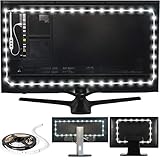
Bias lighting is not a backlight for aesthetics, though it can look nice. It is a low-brightness, neutral-white light source placed on the back of your monitor that reflects off the wall behind it to create a soft halo. The goal is to reduce the perceived contrast ratio between the screen and its surroundings without adding glare on the screen itself.
A proper bias light for monitors is D65 white, which is 6500K daylight white. That color temperature matches the reference white point that monitors are calibrated to, so it does not tint your perception of colors while you edit photos, grade video, or just browse. RGB strips set to blue or purple defeat the purpose for eye comfort, though they work for decoration.
For an ultrawide, coverage matters more than it does on a 16:9 display. A 34-inch ultrawide measures roughly 31.7 inches wide and 13.5 inches tall without the stand, and a 49-inch super-ultrawide is about 47.2 inches wide. To get an even halo you need a strip that runs along three or four sides of the chassis, not just a short bar at the center. Most kits for this purpose draw 2 to 5 watts over USB 5V, weigh between 1.5 and 4 ounces including the controller, and include 30 to 40 inches of adhesive-backed LEDs on a flexible strip. They are powered directly from your monitor’s USB port or a TV USB port so they turn on and off with the display, with no extra brick or outlet needed.
Two common reference points shoppers see in this category show what pricing looks like. A basic true-white adhesive strip sized for monitors up to 24 inches typically lists in the $14 to $18 range, while a larger kit with a remote, multiple color options, and 10 brightness levels for 30 to 40-inch displays lists around $16 to $22. Neither is designed to fully wrap a 49-inch super-ultrawide on its own, so owners of larger ultrawides often need a 45 to 60-inch strip or an extension to avoid dark gaps at the far edges.
Installation takes five to ten minutes. You clean the back of the monitor, stick the strip a half-inch in from the edge to keep LEDs out of direct view, and route the USB cable to the monitor hub. Brightness should be subtle — about 10% of the monitor’s peak brightness reflecting off the wall is the target. If the wall glow is brighter than the screen itself, it is too bright.
Pros
- Reduces eye fatigue during long night sessions. By lifting the ambient light level around a large bright panel, your pupils do not have to constantly constrict and dilate between the screen and a dark room, which helps prevent that tired, dry-eye feeling after 2 to 3 hours of use.
- Makes blacks look deeper on IPS and VA ultrawides. Perceived contrast goes up when the wall behind the monitor is not pitch black. The halo tricks your visual system into seeing letterbox bars and dark scenes as blacker, even though the panel’s measured contrast has not changed.
- Preserves color accuracy when you use 6500K white. Unlike warm desk lamps at 2700K to 3000K or colored LEDs, a D65 bias light does not shift your white balance, which is important if you do any photo or video work where you need to trust what you see.
- Extremely low cost and power draw. Most USB-powered kits use less than 5 watts, cost less than $25, and last 20,000 to 30,000 hours. As of 2026, it remains one of the few sub-$20 ergonomic improvements that does not require replacing furniture or peripherals.
- No glare or screen reflections when installed correctly. Because the LEDs face the wall and sit 0.5 to 1 inch from the edge of the chassis, they add ambient light without putting a direct light source in your field of view or on the screen coating.
- Helps with focus for productivity. A softly lit wall behind a 34-inch or larger display reduces the tunnel-vision effect that comes from working in the dark, making ultrawide multitasking with two or three side-by-side windows feel less harsh.
Cons
- Limited benefit in bright rooms. If you already have overhead lighting at 150 to 300 lux on the wall behind the monitor, an additional strip adds little. Bias lighting is specifically for low-light environments.
- Adhesive and cable management can be fiddly on curved ultrawides. Many ultrawides have a deep curve (1800R to 1000R) and a textured plastic back. Strips may lift at the corners over time, and the USB cable can interfere with monitor arms if not routed cleanly along the stand.
- One-size kits rarely fit super-ultrawides well. A strip marketed for up to 24-inch monitors will leave 12 to 20 inches of unlit wall on a 34-inch ultrawide, creating an uneven glow. You need to measure the perimeter and buy the right length, which often means going up a size.
- Cheap RGB kits often get the white point wrong. Kits that advertise 15 colors and remotes sometimes produce a cool-blue “white” around 7500K to 9000K or a warm white near 4000K, which tints the wall and undermines the accuracy benefit. Look for kits that explicitly state 6500K true white.
- Light-colored or distant walls reduce the effect. If your desk is 18 to 24 inches from the wall or the wall is dark gray or brown, the reflected halo will be dim and uneven. A white or light-gray wall 4 to 12 inches behind the monitor gives the best diffusion.
- Can expose dust and wall imperfections. A bright halo will highlight scuffs, cable clips, and dust behind your monitor that you never noticed before, so you may end up cleaning and repainting that section of wall.
Who Should Buy It
You should buy bias lighting if your setup matches any of these patterns. You work or game after sunset with the ceiling light off and the ultrawide is the only light source in the room. You own an IPS ultrawide and notice that blacks look gray and the corners glow in the dark. You experience eye strain, mild headaches, or difficulty falling asleep after late-night screen time and you have already tried lowering brightness to 80 to 120 nits with no relief. You use your ultrawide for color-sensitive work and want a neutral surround that does not throw off your perception.
It is especially worthwhile for 34-inch curved and 38 to 49-inch super-ultrawide owners who sit 24 to 36 inches from the screen. At that distance the panel fills 60 to 80 degrees of your horizontal field of view, so the contrast with a dark wall is much more pronounced than with a small monitor.
Who Should Skip It
You can skip bias lighting if your monitor faces a bright window or you always keep a room light on that already illuminates the wall behind the display. If your desk is flush against a bookshelf or the back of the monitor is less than 2 inches from a dark, non-reflective surface, there is nowhere for the light to diffuse and you will get a harsh line instead of a soft glow.
Skip it as well if you are highly sensitive to any light behind the screen while watching movies in a fully darkened home theater setup where you want total blackout, or if you have already solved the problem with a well-placed desk lamp that washes the wall with 400 to 650 lumens of diffuse light. In those cases a strip adds clutter without extra comfort.
Cheaper Alternatives
| Option | Cost | Trade-off |
|---|---|---|
| Small desk lamp or floor lamp bouncing off wall behind monitor | $15 to $35 | Easy to position and bright enough to replace bias lighting, but takes desk space, may create glare if not aimed correctly, and most bulbs are 2700K to 3000K warm white which tints color perception |
| DIY USB LED strip cut to length (6500K, no remote) | $8 to $15 | Cheapest way to get correct length for 34 to 49-inch ultrawides, but adhesion and color accuracy vary, no brightness control, may flicker with cheap controllers |
| Monitor light bar on top bezel | $30 to $70 | Lights your desk rather than wall, reduces eye strain without wall reflection, but does not create halo effect and can reflect in glossy ultrawide coatings |
| Smart bulb in existing room fixture set to 6500K at low dim | $10 to $20 per bulb | No adhesive or cables on monitor, whole room benefits, but light is less localized behind the monitor and may be too bright for night use unless dimmed to 10% to 30% |
FAQ
What brightness and color should I set for an ultrawide?
Use 6500K true white and aim for the wall glow to be roughly 10% as bright as your screen’s white. In practice that means setting the strip to 25% to 50% of its max and dimming your monitor to 80 to 120 nits for night use. If the halo overpowers the image or you can see individual LEDs reflected on the wall, turn it down. For color-critical work, keep it at 6500K only; avoid cycling through colors.
Will any cheap USB strip work on a 34-inch or 49-inch ultrawide?
Not without checking length. A strip sized for under 24-inch displays is about 20 to 28 inches long and will leave dark gaps on an ultrawide that needs 35 to 55 inches for three-side coverage. Measure the top and two sides of the back panel, add 2 to 4 inches for routing, and buy that total length. A kit marketed for 30 to 40-inch TVs usually fits a 34-inch ultrawide, while super-ultrawides often need a 60-inch or larger kit.
Does bias lighting fix IPS glow or backlight bleed?
No, it does not fix the panel itself, but it makes those flaws less noticeable to your eyes. IPS glow and minor bleed are most visible when a bright screen is surrounded by total darkness. Adding a soft 6500K halo raises the black floor of the room, so the glow blends into the surround and blacks look more uniform. If bleed is severe and visible even in a bright room, that is a panel defect and lighting will not correct it.
Where exactly should I place the strip on a curved ultrawide?
Place it 0.5 to 1 inch in from the outer edge on the flat central area of the back, not on the extreme curved lip where adhesive fails. Run it across the top and down both sides for a U-shape; you can skip the bottom edge since the stand and desk block the light. Keep LEDs facing straight back at the wall and keep the USB cable tied along the monitor arm with clips so it does not pull the strip loose when you adjust height or tilt.
