Most office workers, remote professionals, and gamers assume that choosing a dual monitor stand is as simple as matching the screen size of their monitors to the compatibility label on the box. This single assumption is how desks end up permanently gouged, monitors end up sagging, and necks end up strained by the end of a long workday. When you transition to a dual-screen setup, you are shifting hundreds of dollars of delicate electronics onto a single mechanical anchor point. Buying the wrong stand can lead to catastrophic failures, but more commonly, it leads to daily frustration: monitors that drift out of alignment, arms that wobble when you type, and power cords that pull taut when you try to adjust your viewing angle.
To find the perfect setup, you need to understand the mechanical realities of monitor mounting. The market is flooded with options ranging from simple wooden risers to complex, counterbalanced mechanical arms. Understanding exactly what to look for in a dual monitor stand will save you from making costly buying mistakes and help you build a comfortable, highly productive, and ergonomically sound workspace that will serve you well for years to come.
As an Amazon Associate we earn from qualifying purchases at no extra cost to you.




Our Top Picks
 VIVO STAND-V002F Dual LED LCD Monitor Free-Standing Desk13" - 27" screens17.5 x 11.4 x 3.8 Inches4.48 poundsCheck on Amazon
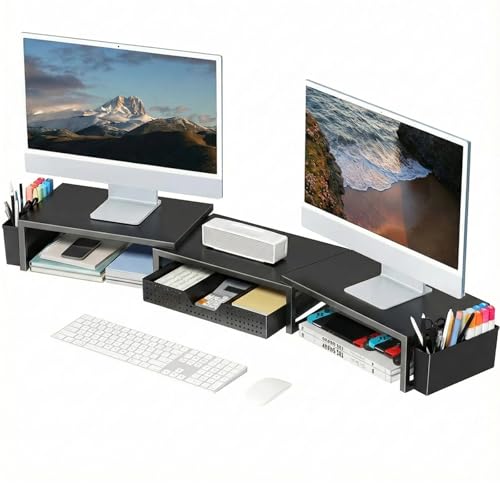 OPNICE Desk Organizers and AccessoriesWith drawer and pen holder10 x 3.62 x 16.06 Inches7.5 poundsCheck on Amazon


Top 3 picks at a glance
Decide These 3 Things First
Before diving into weight capacities, bolt configurations, and VESA patterns, you must make three fundamental decisions about how your workspace is structured and how you intend to use it.
1. Mounting Style: Clamp/Grommet, Freestanding, or Desk Riser?
The mounting style dictates how much desk space you reclaim and how permanent your setup feels.
- C-Clamp and Grommet Mounts: These attach directly to the edge of your desk or through a pre-drilled cable hole. They offer the absolute best desk-space savings because the entire structural footprint is reduced to a single point of contact (usually about 4 by 4 inches). However, they require a sturdy desk surface.
- Freestanding Mounts: These rely on a heavy, wide weighted base (often made of steel or tempered glass) that sits directly on top of your desk. They are incredibly easy to install and move, making them perfect for rental spaces or glass desks, but they occupy valuable physical real estate directly in your primary workspace.
- Desk Risers: These are wooden, metal, or plastic shelves that raise both monitors at a fixed height while providing storage drawers or slots underneath. They offer no independent screen adjustment but are highly stable and require zero assembly expertise.
2. Adjustability Needs: Static Articulating vs. Gas/Mechanical Spring
Ask yourself how often you plan to move your screens. If you are the sole user of your desk and always sit in the same position, a static, pole-mounted articulating stand is highly cost-effective. You set the height once using a hex key, clamp it in place, and leave it. However, if you use a sit-to-stand desk, share your workspace with a partner, or like to push your monitors out of the way to review physical paperwork, you need dynamic gas or mechanical spring arms. These allow you to adjust the height, tilt, and depth of each monitor independently with the push of a single finger.
3. Your Desk’s Material and Construction
This is where many buyers suffer catastrophic failures. A dual monitor arm holding two 27-inch screens concentrates roughly 20 to 35 pounds of leverage onto a tiny surface area.
- Solid Wood or Thick MDF: Ideal for any mount style, including heavy-duty C-clamps.
- Hollow-Core or Paper-Honeycomb Desks (e.g., budget flat-pack furniture): The structural skin of these desks can easily crush under the clamping pressure of a dual monitor arm. If you have one of these desks, you must use a reinforcement plate, opt for a freestanding base, or use a wide desk riser.
- Tempered Glass Desks: You should never use a C-clamp on a glass desk, as the concentrated pressure can shatter the entire surface. A freestanding stand or a dedicated desk shelf is your only safe option.
1. Screen Size Limits vs. Actual Weight Capacity
Monitor mount manufacturers prominently advertise maximum screen sizes, such as “supports screens up to 32 inches.” However, screen size is a secondary metric; weight is what actually matters. A modern, ultra-thin 27-inch monitor might weigh only 8 pounds without its factory stand, while an older 27-inch model or a premium color-accurate design for graphic designers might weigh 18 pounds.
When shopping in 2026, always check the weight capacity per arm. If you buy a gas-spring arm, pay close attention to both the minimum and maximum weight ratings. If your monitor is too light (for example, a 3-pound portable monitor mounted on an arm rated for 5 to 20 pounds), the internal tension of the gas spring will cause the arm to pop up to its maximum height constantly. Conversely, if the monitor exceeds the maximum weight rating, the arm will droop to the desk surface, no matter how much you tighten the tension screw.
Additionally, make sure your monitors are VESA-compliant. The industry standard is a square screw pattern on the back of the monitor, measuring either 75x75mm or 100x100mm. If your monitor has a smooth, curved back with no screw holes, you will need to purchase a specialized VESA adapter kit, which adds weight and alters the monitor’s center of gravity.
2. Material and Structural Build Quality
The materials used in a dual monitor stand directly impact its stability, durability, and aesthetics. Cheap stands rely heavily on thin, stamped sheet metal and structural plastic at critical, high-stress pivot joints. Premium stands utilize die-cast aluminum, heavy-gauge cold-rolled steel (often designated as SPCC), and powder-coated finishes that resist scratching.
Pay close attention to the joints and collar clamps. On pole-mounted stands, the collar that holds the dual-arm bracket to the center pole must be heavy-duty steel or aluminum with a thick rubber or plastic interior sleeve to prevent slipping. If this collar is made of thin plastic, it will gradually stretch and slide down the pole over time under the weight of your screens. If you choose a freestanding stand with a tempered glass base, ensure the glass is at least 8mm (0.31 inches) thick and is paired with non-slip silicone feet to properly distribute weight and prevent sliding.
3. Ergonomic Adjustability and Motion Ranges
To prevent neck strain, the top third of your monitor screens should sit at or slightly below eye level, and the screens should be positioned roughly an arm’s length away (20 to 28 inches) from your face. A quality dual monitor stand must offer precise adjustment ranges to achieve this layout.
- Tilt: Look for a tilt range of at least -45 degrees to +45 degrees. Tilting the screen slightly upward is crucial for reducing glare from overhead light fixtures.
- Swivel: A swivel range of 180 degrees at the monitor bracket allows you to angle the screens inward toward each other, creating a seamless curved workspace that maintains a consistent focal distance for your eyes.
- Rotation: A full 360-degree rotation is essential if you plan to use one of your monitors in portrait orientation. Portrait mode is highly beneficial for reading long PDF documents, coding, or monitoring live vertical feeds.
- Height Travel: Dynamic gas-spring arms should provide at least 10 to 13 inches of toolless vertical height adjustment to accommodate the difference between sitting and standing postures.
4. Desk Compatibility, Clamping, and Cable Management
A dual monitor stand should integrate cleanly with your desk without damaging it or leaving a tangled mess of cords dangling behind your workspace.
First, check the C-clamp clearance specs. A standard C-clamp should accommodate desk thicknesses ranging from 0.4 inches up to 3.3 inches. If your desk has a metal support frame running directly underneath the rear edge, a standard C-clamp may not be able to grip the desk securely. In this scenario, look for a stand that supports a grommet mount, which requires drilling a small hole (usually 0.39 inches to 2.36 inches in diameter) through the desktop to bolt the stand directly down.
Second, evaluate the cable management system. High-quality stands feature integrated cable channels running along the underside of the arms, secured by removable plastic or metal covers. Avoid stands that rely solely on cheap, stick-on plastic clips that easily snap off. A proper cable channel should be wide enough (at least 0.5 inches deep by 1 inch wide) to comfortably route two thick power cables and two display cables (such as DisplayPort or HDMI) without pinching or restricting the motion of the arms.
5. Price Tiers and What You Actually Get
The price of dual monitor stands varies widely based on weight capacity, adjustability, and materials. Knowing what to expect at each price point helps you avoid overpaying or buying an inadequate product.
Budget ($20 to $40): In this price range, you will find static, single-pole steel stands with articulating arms, or basic wooden/plastic desk risers with simple drawers. These stands are incredibly durable because they have very few moving parts, but they require manual tool adjustments to change the height. They are perfect for budget-conscious users with identical monitors who rarely need to adjust their screens.
Mid-Range ($40 to $100): This is the sweet spot for the vast majority of office workers and gamers. Here, you will find reliable gas-spring arms and premium freestanding stands featuring tempered glass bases. These units offer independent height adjustment for each monitor, built-in cable routing channels, and toolless tension adjustment. They provide excellent stability for standard monitors up to 27 or 32 inches.
Premium ($100 to $300+): At this tier, you are paying for aircraft-grade polished aluminum construction, heavy-duty gas or mechanical springs capable of supporting massive ultrawide or curved monitors (up to 35 pounds or more per arm), and advanced features. These stands often include built-in USB pass-through ports at the base, quick-release VESA plates for effortless installation, and commercial-grade durability designed to withstand constant daily adjustments in corporate environments.
6. Warranty and Long-Term Durability
A dual monitor stand is a long-term investment. While a static steel stand can easily last a lifetime, any stand with moving parts—especially gas-spring cylinders—will eventually experience wear and tear. Over several years of use, cheap gas cylinders can slowly lose their pressurized gas, causing the arms to sag under the weight of your monitors.
When evaluating a stand, look for brands that offer at least a 3-year to 5-year warranty on their mechanical components. Commercial-grade manufacturers often run their stands through cycle tests (e.g., 10,000 continuous adjustment cycles) to ensure the internal springs do not fatigue. A longer warranty is a strong indicator of the manufacturer’s confidence in their joint construction and gas cylinder quality.
Spec Checklist
Use this quick-reference table to compare standard specifications across budget, mid-range, and premium dual monitor stands to determine which tier fits your technical requirements.
| Specification | Budget Tier ($20–$40) | Mid-Range Tier ($40–$100) | Premium Tier ($100–$300+) |
|---|---|---|---|
| Adjustment Type | Static / Manual Pole Clamp | Gas Spring / Mechanical Spring | Heavy-Duty Gas Spring / Counterbalanced |
| Weight Capacity (Per Arm) | Up to 17.6 lbs (8 kg) | 4.4 to 19.8 lbs (2 to 9 kg) | Up to 33–40 lbs (15–18 kg) |
| Max Screen Size Supported | Up to 27 inches | Up to 32 inches | Up to 35–49 inches (Ultrawide) |
| Materials | Stamped Steel & Plastic | Cold-Rolled Steel & Aluminum | Aircraft-Grade Polished Aluminum |
| Cable Management | External Plastic Clips | Integrated Snap-On Channels | Hidden Internal Routings / Cable Sleeves |
| Warranty | 90 Days to 1 Year | 2 to 3 Years | 5 to 10 Years |
Red Flags
Avoid buying a dual monitor stand if you spot any of the following warning signs during your research:
- Plastic Load-Bearing Joints: If the tilt or swivel joint directly behind the VESA plate is made of plastic rather than cast aluminum or steel, it will eventually warp or crack under the constant forward leverage of the monitor.
- No Minimum Weight Rating for Gas Springs: If a manufacturer lists a maximum weight capacity for a gas-spring arm but fails to list a minimum weight requirement, the arm’s internal tension may be too high for standard lightweight monitors, rendering the height adjustment feature useless.
- Lack of Independent Height Adjustments for Dual Mismatched Monitors: Avoid fixed, single-crossbar dual stands if you plan to use two different monitor models. Because the VESA mounting holes are located at different heights on different monitor brands, a fixed crossbar will force your screens to sit permanently misaligned.
- Exceedingly Small Base Dimensions on Freestanding Models: If a freestanding dual stand designed for 32-inch monitors has a base narrower than 12 inches, it is highly prone to tipping forward when the arms are fully extended.
FAQ
Can I mix and match different monitor sizes on a dual stand?
Yes, you can absolutely mix and match different monitor sizes, but you must avoid fixed-arm or crossbar stands. To align mismatched monitors correctly, you need a dual stand with independent articulating arms. This allows you to adjust the height, tilt, and depth of each monitor individually to ensure their bezels line up perfectly, regardless of differences in screen size, cabinet depth, or VESA hole placement.
Do I need a special desk to use a heavy-duty dual monitor mount?
You do not need a specialized desk, but you must ensure your desk is structurally solid. Solid wood, thick plywood, and high-density MDF desks are perfectly suited for C-clamp and grommet mounts. However, if your desk is made of hollow-core paperboard, thin particleboard, or glass, you should avoid heavy-duty C-clamps. Instead, use a freestanding stand with a wide weighted base, or use a metal reinforcement plate to distribute the clamping pressure across a wider surface area.
What is VESA compatibility and how do I check it?
VESA compatibility refers to a standard square or rectangular four-hole screw pattern on the back of monitors used for mounting purposes. The most common sizes for desktop monitors are 75x75mm and 100x100mm. To check your monitor, look at the back of the screen for four screw holes arranged in a square. If you do not see them, they may be hidden behind the monitor’s original factory stand attachment point, or your monitor may require a specialized VESA adapter bracket.
Is a gas spring arm worth the extra money over a static stand?
A gas spring arm is absolutely worth the investment if you change your working position throughout the day, use a sit-stand desk, or share your desk with someone else. The ability to adjust your monitors’ height and tilt instantly without tools is vital for maintaining proper ergonomics. However, if you are the sole user of your desk, always sit at the same height, and have a fixed desk setup, a budget-friendly static pole stand will work perfectly fine once it is locked into place.
Related guides
- Best Ultrawide Gaming Monitors: Six Screens Sized Against Real Desks: 6 Compared (2026)
- Best Game Room Neon Lights: Ten Signs and Icon Lamps Compared: 10 Compared (2026)
- 10 Best 75% Hot-Swappable Mechanical Keyboards (October 2026)
- Best Mini-LED Monitor: Five Listings From a Renewed KTC to a 5K LG, Compared by Pixels and Ports (2026)