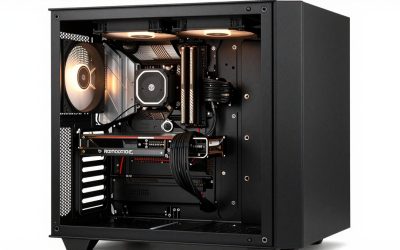
You buy a keyboard, a mouse, some light strips, and a case fan kit, and suddenly your desk is a chaos of clashing colors that will not sync. The problem is RGB ecosystems: each brand runs its own lighting software, and getting everything to pulse in unison takes a little planning. Here is how RGB sync ecosystems work and how to avoid a rainbow mess.
The core problem
RGB lighting is controlled by software, and most major brands built their own walled-garden app to run only their products. A keyboard from one brand and a mouse from another each need their own program, and those programs do not talk to each other by default. That is why one device breathes blue while another cycles rainbow, no matter how much you tweak them separately.
The major ecosystems
| Ecosystem | Runs | Notes |
|---|---|---|
| Razer Chroma | Razer gear + partner devices | Large partner network |
| Corsair iCUE | Corsair peripherals, fans, RAM, coolers | Deep hardware integration |
| ASUS Aura Sync | ASUS boards, GPUs, and Aura partners | Strong for ASUS-based builds |
| MSI Mystic Light | MSI boards and compatible parts | Motherboard-centric |
| Open-source (OpenRGB) | Many brands via one app | Community tool, unifies mixed gear |
How to get everything in sync
Strategy 1: Stick to one ecosystem
The cleanest path is to buy peripherals and components that all support the same lighting platform. If your motherboard is ASUS, choosing Aura Sync-compatible RAM, fans, and strips lets one app control the whole build. Brand loyalty here genuinely pays off in effortless synchronization.
Strategy 2: Use partner compatibility
The big ecosystems have partner programs, so a third-party light strip or fan kit may advertise “works with Razer Chroma” or “Aura Sync compatible.” Check the box for these badges before buying if you want a device to join an ecosystem you already run. This lets you mix brands while keeping one control app.
Strategy 3: Unify with third-party software
When you already own a mix of brands, a universal tool can bridge them. Open-source projects like OpenRGB detect and control devices from many manufacturers in one interface, and some plugins connect one brand’s software to another’s. It takes more setup and is not always perfect, but it can bring an otherwise incompatible collection into a single lighting scheme.
Practical tips
Running multiple RGB apps at once can cause conflicts, stuttering effects, or one program overriding another, so close ones you are not using. Lighting software also runs in the background and uses a little RAM and CPU; if you value performance during gaming, keep only the app you actually need active. And remember that RGB draws very little power, 5–20 W across a whole setup, so the cost of all this glow is negligible.
FAQ
Can I sync different brands without extra software?
Sometimes, if the devices support a shared standard or a partner program, but often not. Different brands’ proprietary apps usually cannot control each other directly. Your realistic options are to buy within one ecosystem, choose partner-certified gear, or use a universal tool like OpenRGB to bridge them.
Does RGB software slow down my PC?
The impact is small but real. Lighting apps run in the background using a bit of RAM and CPU, and running several at once can cause minor stutters or effect glitches. Keep only the software you need open, and the performance cost is negligible for most systems.
Will mixing ecosystems damage anything?
No, running gear from different RGB ecosystems is perfectly safe, it is purely a software coordination problem, not an electrical one. The worst outcome is mismatched colors or two apps fighting over one device. Keep only the software you need running to avoid conflicts, and nothing is at risk beyond your color scheme.
Bottom line
RGB devices clash because each brand runs its own software. To sync everything, either buy within one ecosystem like Chroma, iCUE, or Aura Sync, choose partner-certified gear, or bridge a mixed collection with a universal tool like OpenRGB. Plan your ecosystem before buying and you skip the rainbow chaos, with a power cost so small it never shows on your bill.
Related guides
- Best Ultrawide Gaming Monitors: Six Screens Sized Against Real Desks: 6 Compared (2026)
- Best Game Room Neon Lights: Ten Signs and Icon Lamps Compared: 10 Compared (2026)
- 10 Best 75% Hot-Swappable Mechanical Keyboards (October 2026)
- Best Mini-LED Monitor: Five Listings From a Renewed KTC to a 5K LG, Compared by Pixels and Ports (2026)