A controller stand with charging looks like a simple accessory, but the wrong one can create more clutter than it solves. Common mistakes include buying a dock that only fits one controller generation, choosing a stand that needs a separate wall adapter, assuming every USB-C port supports the same charging speed, or overlooking how much desk space a headset-and-controller organizer actually occupies.
The best choice depends on whether you want a dedicated charging dock for one console, a compact stand for a shared desk, or a larger charging hub that organizes controllers, headphones, phones, and cables. In 2026, there are plenty of inexpensive options, but the useful differences are still basic: fit, electrical design, stability, charging method, and how many devices you truly need to keep within reach.
As an Amazon Associate we earn from qualifying purchases at no extra cost to you.


Our Top Picks



Top 3 picks at a glance
Decide These 3 Things First
- Count the devices you charge every week. For two PlayStation 5 controllers, a purpose-built dual dock is usually the cleanest answer. If you also charge a phone, wireless headset, handheld console, or tablet, consider a multi-device station with at least three USB ports and one USB-C port.
- Measure the available surface. A basic two-controller dock commonly needs about 7 to 10 inches wide and 4 to 6 inches deep. A combination headset stand and charging hub can occupy 10 to 14 inches wide, 6 to 9 inches deep, and 12 to 16 inches of vertical space.
- Choose between direct-contact docking and cable charging. Dedicated docks use controller-specific contact points and are easy to use one-handed. Universal stands typically rely on USB cables; they fit more equipment but leave more visual clutter and may not include charging cables or a power adapter.
Size and Desk Footprint
Start with the stand’s footprint, not its product photos. A charging station can look compact online while extending farther behind the controllers than expected. Leave at least 2 inches of clearance behind the unit for power cables and 3 inches above a controller if you need to lift it straight off a dock.
For a small console shelf or narrow side table, look for a two-controller dock under 10 inches wide and under 6 inches deep. These stations generally weigh 0.5 to 1.5 pounds, making them easy to move but also easier to slide when unplugging a controller. A non-slip base is especially valuable on glossy desks.
Combination organizer stands need more planning. A headset hook or elevated headphone arm can bring the overall height to 14 inches or more. Measure the clearance beneath wall shelves, monitor risers, and cabinets before ordering. If your desk is 20 inches deep, a stand that is 8 inches deep can be manageable; on a 16-inch-deep desk, that same product may crowd your keyboard and mouse area.
Consider cable routing, too. A rear-facing cable exit works best when the stand sits against a wall. A side exit may be more practical if the station lives beside a monitor or on an open shelf. Avoid placing a charging dock directly in front of a console exhaust vent, even if the dimensions technically fit.
Controller Compatibility and Charging Design
A controller stand is only convenient if it fits your exact controller. Dedicated PS5 charging docks should clearly state compatibility with DualSense wireless controllers. Do not assume that a dock designed for a PS4 controller, Xbox controller, or third-party gamepad will work with a DualSense unit simply because the controller shape seems similar.
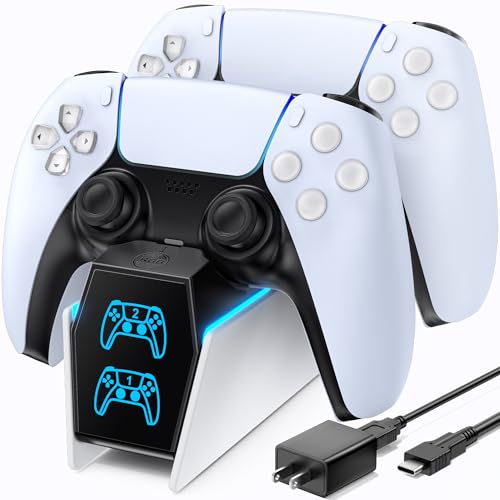
For a console-specific station, contact charging is usually preferable to plugging in a cable every time. The PowerA Twin Charging Station is an example of the dedicated approach: it is designed for two DualSense controllers and is priced around $21. This type of dock is a sensible choice when the priority is keeping two console controllers charged without adding a larger desktop organizer.
Third-party PS5 docks, such as the OIVO charging station listed around $16, can cost less and may include features such as indicator lights or a bundled AC adapter. Before buying, verify whether the dock connects through the controller’s intended charging contacts rather than a loose USB-C plug or a proprietary insert. Small plug-in adapters can be easy to lose and may interfere with protective controller cases.
For universal USB stations, look beyond the number of ports. A “4-port” hub may share one power supply across all ports. A useful baseline is 20 watts of total USB output for light mixed-device charging; 30 to 45 watts is better when charging several phones, accessories, or a tablet at once. Read the fine print to see whether the stated wattage is total output or per-port output.
Material and Finish
Most affordable controller stands use ABS plastic, which is lightweight, impact-resistant, and easy to clean. That is not a drawback by itself. A well-made ABS base with rubber feet can be more practical than a heavier decorative stand that scratches a desk or offers poor cable management.
Look for thicker plastic around controller cradles, headset hooks, and cable exits. Thin molded arms can flex over time, particularly if you hang a 0.7- to 1-pound wireless headset on one side every day. For combination stands, metal reinforcement or a steel internal base improves stability. A good multi-device unit should stay planted when you remove a headset with one hand.
Matte black plastic hides fingerprints better than high-gloss finishes. White stands can match a PS5 setup nicely but tend to show dust and scuffs sooner. If RGB lighting is important, choose a unit with a physical button or a remembered setting; otherwise, you may need to cycle through several colors every time power is restored.
The KAFRI RGB gaming headphone stand, listed around $38, illustrates why materials and finish matter more in a premium desk organizer. At that price, buyers should expect a stable headset support, neatly positioned ports, and a finish that looks intentional rather than like a cluster of adapters built into a plastic tower.
Construction and Stability
Examine how the stand supports the controller. The best cradles hold the controller securely without forcing pressure onto the analog sticks, triggers, or USB-C port. The controller should settle into place with minimal alignment, especially in dim rooms. A dock that requires repeated wiggling is more frustrating than plugging in a cable.
For a two-controller dock, four rubber feet are better than two narrow strips, provided all four feet make contact with the desk. A base width of roughly 6 inches or more helps prevent tipping when only one controller is docked. Wider is even better for headset stands, which are naturally top-heavy.
Cable strain relief is another construction detail worth checking. The power cable should exit through a recessed channel or reinforced opening rather than bend sharply at the base. If the cable is detachable, a common USB-C input is easier to replace than a proprietary barrel connector, though dedicated console docks often use their own included power setup.
The KDD multi-device charging station, priced around $21, is the type of product where layout matters as much as port count. A station with 3 USB-A ports and 1 USB-C port can be useful, but only if larger plugs do not block adjacent ports and the headset/controller holders remain stable when every slot is in use.
Everyday Performance and Ease of Use
“Fast charging” is not a universal standard for controller stands. Controller batteries, dock electronics, and the power source all affect charging time. Rather than trusting a broad marketing claim, look for clear compatibility information, overcharge protection, and status lights that are easy to read without lighting up the whole room.
Indicator lights should tell you whether a controller is charging, fully charged, or not seated correctly. Bright blue or red LEDs can be distracting in a bedroom, so a dimmable light, subtle side indicator, or switchable LED is a practical advantage. Avoid docks with vague lights that remain one color regardless of charging status.
Think about your normal routine. If you play in short sessions, a dock that lets you drop controllers in place is more likely to keep them charged than cables tucked behind a console. If you use silicone grips, trigger extenders, or a bulky controller shell, measure carefully: accessories can prevent proper contact with some fitted charging docks.
For shared spaces, a charger with a low-profile base is usually more comfortable to live with than a tall RGB tower. For a dedicated gaming desk, a larger station can be worthwhile if it replaces a headset hook, phone charger, cable tray, and controller storage in one area.
Price Tiers and What You Get
Budget: $15 to $25. This range covers many basic dual-controller docks and small USB charging stands. Expect ABS plastic, a compact footprint, simple status LEDs, and charging for one or two controllers. The OIVO-style PS5 dock at about $16 is typical. It can be a strong value if it includes a reliable power adapter and supports your controller without extra attachments.
Mid-range: $25 to $45. Here, look for better base stability, cleaner cable routing, multiple USB ports, a headset holder, or a more polished finish. The PowerA DualSense station at roughly $21 may fall just below this band in price, but its official licensing and dedicated fit can make it preferable to a more feature-heavy generic option. A mid-range stand should solve a specific organization problem, not merely add LEDs.
Premium: $45 to $80. Premium pricing is justified when a station includes meaningful electrical capacity, sturdy headset support, well-spaced ports, replaceable cables, and a substantial weighted base. Be cautious above $80 unless the product also functions as a high-quality powered USB hub or furniture-grade desk organizer. RGB alone does not make a charging stand premium.
Warranty, Safety, and Support
Look for at least a 1-year limited warranty on a dedicated charging dock. For a powered USB hub with AC outlets, 18 to 24 months of coverage is preferable because there are more components that can fail. Keep the receipt and packaging until you confirm that both controller slots work reliably.
Check whether the power adapter is included and rated for your region. A dock that draws 10 to 15 watts does not need a huge power brick, but it should use a properly matched adapter. If a product includes AC outlets, like some desk organizer models, do not overload them with heaters, power tools, or high-wattage appliances. These stands are for low-draw desk accessories, not a replacement for a surge protector.
Clear instructions, accessible support information, and a realistic warranty are better signs than vague claims about “smart protection.” Useful safety features include overcurrent, overvoltage, overheating, and short-circuit protection, but those claims should be accompanied by normal operating guidance and a specified input rating.
Delivery and Assembly
Most dedicated controller docks arrive nearly ready to use: connect the power cable, place the dock on a flat surface, and seat the controllers. Setup should take less than 10 minutes. Larger organizer stands may require attaching a headset arm, controller hooks, or a weighted base with 2 to 6 screws.
Before assembling, inspect for warped plastic, loose ports, cracked LED panels, or missing rubber feet. If the stand uses adhesive cable clips, wait 24 hours after applying them before loading the cable with tension. For wall-adjacent desks, plan for a 3- to 6-foot power cable; a 1-meter cable can be too short once routed behind furniture.
Do not overtighten screws in plastic housings. Tighten until the part no longer wobbles, then stop. If a headset arm still flexes noticeably after correct assembly, return it rather than expecting the joint to improve with use.
Spec Checklist
| Spec | Budget | Mid | Premium |
|---|---|---|---|
| Typical price | $15–$25 | $25–$45 | $45–$80 |
| Controller capacity | 1–2 controllers | 2 controllers plus headset or phone | 2 controllers plus 3–5 devices |
| Footprint | 7–10 in. W; 4–6 in. D | 8–12 in. W; 5–8 in. D | 10–14 in. W; 6–9 in. D |
| Power output | Dedicated controller charging | 15–30W total USB output | 30–45W total USB output |
| Base construction | ABS plastic with rubber feet | Thicker ABS or weighted base | Weighted or metal-reinforced base |
| Warranty target | 90 days–1 year | 1 year | 18–24 months |
Red Flags
- No exact controller compatibility listed.
- “Fast charging” claims without input or output wattage.
- Controller cradles that require permanent plug-in adapters.
- A headset stand with a narrow, unweighted base.
- USB ports placed so closely that standard cable heads overlap.
- Bright LEDs with no on/off control for a bedroom setup.
- AC outlets without a stated electrical rating or safety information.
- No warranty details, support contact, or clear return instructions.
FAQ
Do controller charging stands damage batteries?
A properly designed dock should not damage a controller battery during normal use. Choose a model with overcharge protection and correct controller compatibility. Avoid damaged cables, loose contact pins, and off-brand power adapters that do not match the dock’s required input.
Is a dedicated dock better than charging with USB-C?
For one or two compatible console controllers, yes: a dedicated dock is tidier and easier to use. USB-C charging is more flexible when you use different controller types, protective cases, phones, or other accessories at the same station.
How much desk space should I reserve?
Reserve at least 10 by 8 inches for a basic two-controller charging area, including cable clearance. For a headset stand with multiple ports, reserve roughly 14 by 10 inches and at least 16 inches of height.
Should I buy a stand with AC outlets?
Only if you need low-draw desk power and the unit has clear ratings and safety information. For most buyers, USB charging ports and a separate quality surge protector are a simpler, more flexible arrangement.
Related guides
- Best Ultrawide Gaming Monitors: Six Screens Sized Against Real Desks: 6 Compared (2026)
- Best Game Room Neon Lights: Ten Signs and Icon Lamps Compared: 10 Compared (2026)
- 10 Best 75% Hot-Swappable Mechanical Keyboards (October 2026)
- Best Mini-LED Monitor: Five Listings From a Renewed KTC to a 5K LG, Compared by Pixels and Ports (2026)