Running two or three monitors usually means one cable per screen back to your PC, cluttering the desk and using up ports. DisplayPort daisy-chaining promises a tidier path: connect monitor 1 to the PC, then monitor 2 to monitor 1, and so on. It works, but only under specific conditions. Here is what daisy-chaining actually requires and where its limits lie.
How daisy-chaining works
The feature is called MST (Multi-Stream Transport), part of the DisplayPort standard. With MST, a single DisplayPort output from your graphics card feeds the first monitor, which passes the signal along through its DisplayPort output to the next monitor. This turns a string of screens into one clean line instead of multiple cables running back to the tower.
What you need
- A graphics card with DisplayPort 1.2 or newer (nearly all modern GPUs qualify).
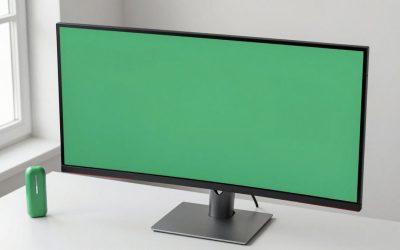
- Monitors with both a DisplayPort input and a DisplayPort output. The output port is the key requirement most monitors lack.
- MST enabled in the monitors’ on-screen menu.
The catch is the DisplayPort output. Many affordable monitors have DisplayPort in but no DisplayPort out, so they can be the last screen in a chain but cannot pass the signal onward. Check the port list before assuming a monitor supports it.
The bandwidth ceiling
Daisy-chaining shares one cable’s bandwidth across every screen in the chain, so total resolution and refresh rate are capped by the DisplayPort version.
| DisplayPort version | Max bandwidth | Realistic daisy-chain |
|---|---|---|
| DP 1.2 | ~17.3 Gbps | 2x 1080p 60Hz, or 1x 1440p |
| DP 1.4 | ~25.9 Gbps | 2x 1440p 60Hz, or 2x 1080p 144Hz |
| DP 2.0/2.1 | ~77–80 Gbps | Multiple 4K high-refresh screens |
This is why daisy-chaining is popular for productivity (two or three 1080p or 1440p panels at 60Hz) but limiting for gaming. Two 1440p 144Hz screens or any 4K high-refresh combo will exceed DP 1.4’s budget, forcing lower refresh or resolution on one screen.
Daisy-chain vs USB-C hub vs separate cables
If your goal is a clean single-cable laptop dock, a USB-C hub or Thunderbolt dock may serve you better because it also carries power, USB, and Ethernet. Daisy-chaining only moves video. For a desktop where each monitor sits near the PC, plain separate cables give each screen full bandwidth and are the simplest, most reliable choice. Reserve MST for when cable tidiness across spread-out monitors matters more than maxing refresh rate.
FAQ
Can I daisy-chain over HDMI?
No. HDMI has no equivalent of MST, so it cannot pass a signal from one monitor to the next. Daisy-chaining is a DisplayPort-only feature. If your monitors only have HDMI outputs, you will need a separate cable per screen or a splitter that mirrors rather than extends.
Why does one monitor go black when I unplug the first?
In a chain, every downstream screen depends on the one before it. If the first monitor loses power or its cable, all screens after it drop too. This dependency is the main downside of daisy-chaining versus independent cables, where each screen stands alone.
Does daisy-chaining add input lag?
No meaningful lag is added by MST itself; the signal passes through nearly instantly. The real trade-off is bandwidth sharing, which can force a lower refresh rate, not latency. If you notice sluggishness, it is almost always the refresh rate dropping because the chain exceeded the cable’s capacity, not the daisy-chain adding delay.
Bottom line
Yes, you can daisy-chain monitors with DisplayPort MST, but only if each pass-through screen has a DisplayPort output and your total resolution stays within the cable’s bandwidth. It shines for tidy multi-monitor productivity at 60Hz. For high-refresh gaming or 4K, separate cables keep full bandwidth per screen and remain the safer bet.
Related guides
- Best Ultrawide Gaming Monitors: Six Screens Sized Against Real Desks: 6 Compared (2026)
- Best Game Room Neon Lights: Ten Signs and Icon Lamps Compared: 10 Compared (2026)
- 10 Best 75% Hot-Swappable Mechanical Keyboards (October 2026)
- Best Mini-LED Monitor: Five Listings From a Renewed KTC to a 5K LG, Compared by Pixels and Ports (2026)