The best USB hub for PC gaming is a powered desktop hub with its own adapter, such as the Sabrent HB-B7C3 for 5Gbps peripherals or a 10Gbps model from ACASIS or RSHTECH if you move files to external SSDs, while your mouse, keyboard and wireless dongles stay plugged straight into the motherboard. That split matters more than the brand name on the box, because most “laggy hub” complaints come from putting the wrong devices on a shared upstream link or starving a bus-powered hub of current.
As an Amazon Associate we earn from qualifying purchases at no extra cost to you.


Our Top Picks
 SABRENT 10-Port Powered USB 3.0 Hub10-Port - 7 USB 3.0 + 3 Charging5.7 x 1.9 x 0.94 Inches0.1 PoundsCheck on Amazon
 RSHTECH 10-Port Powered USB 3.2/USB C Data Hub10-Port6.73 x 1.85 x 0.68 inches1 poundsCheck on Amazon




Top 3 picks at a glance
What a Hub Actually Changes on a Gaming PC
Every port on a hub shares one cable back to the PC. A 7-port USB 3.0 hub is still one 5Gbps connection, and a 4-port bus-powered hub still draws from a single motherboard port that is only required to supply 900mA (4.5W) under the USB 3.0 spec. A hub does not add bandwidth or power to your PC; it divides what one port already has, unless it brings its own power adapter.
For gaming, this creates three practical rules:
- Latency-sensitive input goes direct. A 4,000Hz or 8,000Hz mouse and a high-polling keyboard should use rear motherboard ports. A good hub adds very little delay, but it adds a shared controller and another point of failure for no benefit.
- Wireless receivers stay away from USB 3.x traffic. USB 3.0 signaling produces broadband noise in the 2.4GHz range. A mouse or headset dongle placed right next to a busy SuperSpeed port or drive can drop packets. Put dongles on a USB 2.0 port or a short extension cable pointed toward the desk.
- Power-hungry devices need a powered hub. Webcams, RGB headset stands, controllers charging and external drives can easily exceed what one host port supplies.
Polling Rates, Latency and Hubs: The Details
High-polling-rate mice and keyboards are the main reason gamers worry about hubs. Understanding how polling works explains why the “plug input devices directly” rule exists.
A 1,000Hz mouse reports its position every millisecond; an 8,000Hz mouse reports every 0.125 milliseconds. Each report is a tiny amount of data, so bandwidth is never the problem. The concern is timing. Every hub adds a small scheduling step between the device and the PC’s USB controller, and when several devices share that hub, their traffic is interleaved. For a 1,000Hz device the effect is negligible. At 4,000Hz and 8,000Hz, the timing budget is so tight that any extra contention can show up as inconsistent intervals, and the device’s maker usually advises a direct rear port for that reason.
High polling rates also place more load on the CPU, because each report generates an interrupt. On some systems, an 8,000Hz mouse can cost a few frames per second in CPU-limited games regardless of where it is plugged in. If you notice that, dropping to 2,000Hz or 4,000Hz is a reasonable compromise.
The rear ports themselves are not all equal. Some motherboards route certain rear ports through an internal hub chip or share a controller with onboard devices. The manual’s block diagram or port description shows which ports connect directly to the CPU or chipset. For a high-polling mouse, those direct ports are the best choice.
Front Panel Ports or a Desk Hub?
Case front panel ports seem like a free hub, but they connect through internal header cables that run past fans, the power supply and the graphics card. Those cables are a common cause of random disconnects, especially at 10Gbps. A front-panel USB-C port also depends on the motherboard having the matching internal header. For anything you rely on, a powered desk hub connected to a rear port is typically more dependable than the front panel, and it puts ports where your hands are rather than where the case sits.
Power Budget: When a Bus-Powered Hub Fails
Here is a typical desk load on a single hub. The draw figures are representative for each device class, not maxima.
| Device | Typical draw | Running total |
|---|---|---|
| 1080p webcam | 250-500mA | 500mA |
| Wired headset with RGB | 200-400mA | 900mA |
| Controller charging | 500mA-1A | 1.9A |
| Portable 2.5-inch HDD | 500-900mA (spin-up peak higher) | 2.8A |
That desk needs roughly 2.8A at 5V, about 14W. A bus-powered hub can pass along only 4.5W from a USB 3.0 port, so the drive will disconnect during spin-up or the controller will charge at a crawl. A powered hub with a 36W to 60W adapter covers this load several times over. The rule of thumb: if anything on your list charges, spins or lights up, buy a hub with a power brick.
The Best USB Hubs for Gaming Setups
| Hub | Data ports | Speed | Power | Best for | Price tier |
|---|---|---|---|---|---|
| Sabrent HB-B7C3 | 7 data + 3 charging | 5Gbps | External adapter, per-port switches | Peripherals, controllers, webcams | Budget to mid-range |
| RSHTECH 10-port 10Gbps | 10 (USB-A and USB-C) | 10Gbps | 60W adapter | Mixed USB-A/USB-C desks with SSDs | Budget to mid-range |
| ACASIS 16-port 10Gbps | 16 | 10Gbps | 96W adapter, per-port switches | Streamers and capture-heavy setups | Mid-range |
| Anker 4-Port USB 3.0 Ultra Slim | 4 | 5Gbps | Bus-powered | Flash drives and low-draw gear | Budget |
| CalDigit TS4 | Multiple USB-A/USB-C plus Ethernet, display | Thunderbolt 4 (40Gbps) | Own power supply, 98W laptop charging | Gaming laptop docking | Premium |
Sabrent HB-B7C3: the practical peripheral hub
Seven 5Gbps data ports and three dedicated charging ports cover a full gaming desk, and the individual power switches let you cut a device without unplugging it, which is handy for resetting a misbehaving capture card or webcam. At 5Gbps it is not built for fast SSD transfers, but nothing in a typical peripheral stack needs more.
RSHTECH 10-port 10Gbps: for USB-C gear and SSDs
Mixing USB-C and USB-A ports with a 10Gbps upstream makes this class of hub a better fit for a desk that also hosts a portable NVMe drive. Plug it into a USB 3.2 Gen 2 (10Gbps) port on the motherboard; on a 5Gbps port it will run at half speed.
ACASIS 16-port: maximum ports with switching
Sixteen 10Gbps ports and a 96W adapter suit streamers running a capture card, stream controller, lights, microphones and drives at once. The upstream is still 10Gbps total, so treat it as a port expander, not a way to run several SSDs at full speed simultaneously.
Anker 4-Port Ultra Slim: small and cheap
A bus-powered 4-port hub is fine for a USB stick, a game controller cable used for wired play, and a low-draw headset. It belongs in a laptop bag or a secondary desk, not as the main hub for a full setup.
CalDigit TS4: for gaming laptops
If your gaming PC is a laptop with Thunderbolt 4 or USB4, a dock replaces a hub, adding Ethernet, display output and charging over one cable. On a desktop it is overkill unless your motherboard has Thunderbolt headers.
Plugable 7-Port USB 3.0 Hub with 36W adapter: the reliable all-rounder

Plugable’s 7-port hub is the pick for players who want a powered, no-fuss hub from a company known for good driver and compatibility support. It offers seven 5Gbps USB-A ports and ships with a 36W power adapter, so a webcam, headset, controller and external drive can run at once without leaning on the PC’s port for power. The ports also support battery charging for phones and controllers.
The design is simple: no per-port switches or lighting, just a compact desktop body that can sit behind a monitor or stick to the underside of a desk. That simplicity is the point. Plugable has a long record of publishing compatibility notes and troubleshooting advice, which helps when a specific capture card or VR headset is fussy about hubs.
Strengths: adequate power for a full peripheral desk, solid compatibility record, compact size. Drawbacks: 5Gbps only, USB-A only, and no individual power switches. Compared with the Sabrent HB-B7C3, it has fewer ports and no dedicated charging ports, but it is a cleaner, smaller option for a seven-device desk in the budget to mid-range tier.
Sabrent 7-Port USB-C Hub (HB-3A4C): for desks with USB-C peripherals

Many newer devices, from webcams and microphones to wired controllers and portable SSDs, now ship with USB-C cables. The Sabrent HB-3A4C mixes three USB-A ports with four USB-C ports, all at 5Gbps, and comes with a 48W power adapter. That lets you plug USB-C gear in natively without a pile of adapters.
It suits a modern desk where the PC has a USB-C port on the rear I/O and most new accessories use USB-C. Because the ports run at 5Gbps, it is aimed at peripherals rather than fast NVMe enclosures, the same role as the HB-B7C3 but with a different port mix. Check that your PC has a free port that matches the hub’s upstream cable, or use the adapter the listing specifies.
Strengths: native USB-C downstream ports, generous adapter power for its size, and a mid-range price. Drawbacks: 5Gbps limits external SSD speed, and fewer total ports than the 10-port Sabrent HB-B7C3. If you need USB-C ports and faster transfers, the RSHTECH 10Gbps hub covered above is the step up.
ACASIS 10-Port 10Gbps Hub with 48W adapter: fast transfers in a mid-size hub

The ACASIS 10-port fills the gap between the 16-port ACASIS model and the 5Gbps peripheral hubs. Every port runs at USB 3.2 Gen 2 speed of 10Gbps, and it ships with a 48W adapter. For a gamer who moves recorded clips and game backups to an external SSD while also running a webcam, stream deck and headset, it offers the faster link without the size of a 16-port unit.
As with every hub, the 10Gbps figure is the shared upstream total. One external NVMe drive can use most of it, so expect slower transfers if two drives copy at once. Connect it to a rear 10Gbps USB port to get full speed; on a 5Gbps port it will run at half rate, as described in the RSHTECH section above.
Strengths: 10Gbps on all ports, a sensible mid-size port count, and a powered design. Drawbacks: the 48W adapter is less generous than the 16-port model’s, so heavy charging loads are better spread across dedicated chargers.
Atolla 8-Port Powered USB 3.0 Hub: budget hub with per-port switches

The Atolla 8-port is a frequent budget pick in gaming hub roundups. It gives seven 5Gbps data ports plus one smart charging port, a power adapter, and an on/off switch for each port. The switches are the same handy feature found on the Sabrent HB-B7C3: you can reset a frozen capture card, webcam or VR sensor without reaching behind the desk.
It is the closest budget alternative to the HB-B7C3 for a typical gaming desk with a headset, webcam, controller charger and a few flash drives. The charging port is separate from the data ports, which suits controllers you only need to top up.
Strengths: budget pricing, per-port switches, powered operation and a dedicated charging port. Drawbacks: 5Gbps only, USB-A only, and fewer charging ports than the Sabrent 10-port. Good for peripheral expansion, not for fast storage.
CalDigit TS5: the Thunderbolt 5 dock for new gaming laptops

The CalDigit TS5 is the successor to the TS4 covered above, built for laptops with Thunderbolt 5. It offers 15 ports and ships with a 240W power supply, enough to charge a demanding laptop while powering a full desk of peripherals. Thunderbolt 5 doubles the base bandwidth of Thunderbolt 4 to 80Gbps in each direction, with a boost mode of up to 120Gbps for display-heavy setups.
For gaming laptops, the main benefit is one-cable docking with more headroom for high-resolution, high-refresh external monitors alongside fast storage and wired Ethernet. On a laptop with only Thunderbolt 4 or USB4, the TS5 still works but at the lower speed of the host port, so the TS4 remains the better value for those machines.
Strengths: the fastest docking standard available, generous power, and CalDigit’s strong reputation for dock stability. Drawbacks: premium tier, and its advantages need a Thunderbolt 5 laptop to show. On a desktop without Thunderbolt, a powered USB hub is far better value.
More Hubs Compared
| Hub | Ports | Speed | Power | Best for | Price tier |
|---|---|---|---|---|---|
| Plugable 7-port | 7 USB-A | 5Gbps | 36W adapter | Reliable peripheral expansion | Budget to mid-range |
| Sabrent HB-3A4C | 3 USB-A + 4 USB-C | 5Gbps | 48W adapter | USB-C peripherals | Mid-range |
| ACASIS 10-port | 10 | 10Gbps | 48W adapter | External SSDs plus peripherals | Mid-range |
| Atolla 8-port | 7 data + 1 charging | 5Gbps | External adapter, per-port switches | Budget desks | Budget |
| CalDigit TS5 | 15 | Thunderbolt 5 | 240W power supply | Thunderbolt 5 gaming laptops | Premium |
USB Names Decoded
USB naming has changed several times, and listings often mix old and new labels. This table maps them so you can compare hubs and motherboard ports correctly.
| Marketing name | Other labels you may see | Speed | Typical real-world transfer |
|---|---|---|---|
| USB 2.0 | Hi-Speed | 480Mbps | About 35–40MB/s |
| USB 5Gbps | USB 3.0, USB 3.1 Gen 1, USB 3.2 Gen 1 | 5Gbps | About 400–450MB/s |
| USB 10Gbps | USB 3.1 Gen 2, USB 3.2 Gen 2 | 10Gbps | About 900–1,000MB/s |
| USB 20Gbps | USB 3.2 Gen 2×2 | 20Gbps | About 1,800–2,000MB/s, USB-C only |
| USB4 40Gbps / Thunderbolt 4 | USB4 Gen 3 | 40Gbps | Around 3,000MB/s for storage |
| USB4 80Gbps / Thunderbolt 5 | USB4 Version 2.0 | 80Gbps (up to 120Gbps boost) | Highest available |
Two practical notes follow from this. First, the connector shape tells you nothing about speed: a USB-C port can be USB 2.0 and a USB-A port can be 10Gbps. Check the motherboard manual to see which rear ports run at which speed; they are often color-coded or labeled. Second, almost no USB hubs support 20Gbps downstream, so for gaming desks the meaningful choice is 5Gbps for peripherals or 10Gbps for storage.
Bandwidth Check: Will a Hub Slow Your Drives?
A 5Gbps link delivers roughly 400-450MB/s in real transfers after protocol overhead; a 10Gbps link manages around 900-1,000MB/s. If you copy a 100GB game folder to an external NVMe drive, that is about 4 minutes on a 5Gbps hub versus under 2 minutes on a 10Gbps hub, assuming nothing else is busy. Two drives copying at once split that bandwidth roughly in half. Webcams are the other heavy user: an uncompressed 1080p stream or capture card can consume a large slice of a 5Gbps link, which is why capture devices should get their own motherboard port when possible.
How to Choose a Gaming USB Hub: Six Checks
- Power source. Anything that charges, spins or lights up needs a powered hub. Look for an adapter of at least 36W for a full peripheral desk, and 48–60W if you charge several devices.
- Upstream speed. Match the hub to the port you will use. A 10Gbps hub on a 5Gbps port wastes money; a 5Gbps hub is fine for mice, keyboards, headsets and webcams.
- Port mix. Count USB-A and USB-C devices separately. Adapters work but add bulk and failure points.
- Dedicated charging ports. Charge-only ports deliver more current to controllers and phones without tying up data ports.
- Per-port switches. Useful for resetting capture cards, VR sensors and webcams without unplugging cables, and for cutting power to RGB gear overnight.
- Placement and cable length. Decide where the hub will sit. Some hubs include mounting holes or adhesive pads for the underside of a desk; a 1–2m upstream cable is ideal for most desks.
Hubs for VR, Sim Racing and Consoles
VR headsets
Tethered PC VR headsets and their tracking hardware are sensitive to bandwidth and power. Most headset makers recommend connecting directly to a motherboard port rather than a hub. If you must use one, choose a powered hub, keep the headset as the only heavy device on it, and use a rear 10Gbps port. Base stations for lighthouse tracking need only power, not USB data.
Sim racing rigs
Wheel bases, pedals, shifters, handbrakes and button boxes can add five or more USB devices. Direct-drive wheel bases typically use their own power supply, so the hub mainly carries data. A powered hub with per-port switches mounted on the rig keeps one cable running to the PC. Plug the wheel base directly into the PC if you see dropouts, since it is the most latency-sensitive device.
Consoles
PS5 and Xbox Series consoles accept USB hubs for controllers charging, storage and some accessories. External game storage on consoles should connect directly to the console’s rear port for reliability. A powered hub is useful mainly for charging several controllers and headsets at once.
Which Hub Fits Your Setup
| Your situation | What to buy | Connect it to |
|---|---|---|
| Not enough ports for headset, webcam, controllers | Powered 5Gbps hub (Sabrent HB-B7C3 class) | Any rear USB 3.0 port |
| Regularly move games or clips to an external SSD | Powered 10Gbps hub | Rear USB 3.2 Gen 2 port |
| Streaming with capture card and stream deck | 16-port powered hub, capture card direct to motherboard | 10Gbps rear port |
| Front-panel ports are far from your desk | Powered hub on the desk with a quality 1-2m cable | Rear port, not the front-panel header |
| Gaming laptop on a desk | Thunderbolt 4 dock | Thunderbolt/USB4 port |
Hub or PCIe USB Card?
A desktop with a spare PCIe slot has another option: a USB expansion card that adds ports with their own controller. That is a real advantage over a hub, which shares one upstream link.
| Factor | Powered USB hub | PCIe USB card |
|---|---|---|
| Bandwidth | Shared across all ports from one upstream link | Its own PCIe lanes, often 10Gbps or 20Gbps per controller |
| Location of ports | On the desk, within reach | Rear of the PC |
| Power for devices | From the hub’s adapter | From the PC’s power supply, often via a SATA or Molex lead |
| Install | Plug in | Open the case, fit the card, possibly install drivers |
| Best for | Peripherals, charging, convenience | VR headsets, capture devices, multiple fast drives |
Many setups benefit from both: a PCIe card gives VR or capture hardware a dedicated controller at the back of the PC, while a powered hub on the desk handles the everyday plug-and-unplug devices. Check that your board has a free slot that will not reduce the graphics card’s lanes before buying a card.
Compact Hubs for Laptops and Handheld PCs
Gaming laptops and handheld PCs often have only one or two USB-C ports. A small bus-powered hub is the right tool for travel and LAN parties, provided you keep its load light.
UGREEN 4-Port USB-C 10Gbps Hub: compact and fast for USB-C machines
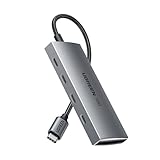
This UGREEN hub turns one USB-C port into four USB-C data ports running at up to 10Gbps, in an aluminum body small enough for a laptop bag. It is a data-only hub without charging pass-through, so it suits a handheld or laptop running on battery or with its charger plugged into a separate port, carrying a portable SSD, a wired controller and a USB-C headset.
Because it is bus-powered, it shares the host port’s limited power. That is fine for a controller and a low-draw headset, but a spinning hard drive or several power-hungry devices will exceed what the port can supply, which is exactly the trap described in the power budget section above. For a full desk, use one of the powered hubs instead.
Strengths: 10Gbps speed in a pocketable body, all-USB-C ports for modern accessories. Drawbacks: no power input or charging pass-through, no USB-A ports, and limited power for multiple devices. Think of it as the USB-C counterpart to the Anker Ultra Slim covered above.
Setup Tips That Prevent Problems
- Use rear I/O for the hub upstream. Front-panel ports run through internal cables that add signal loss and are a common source of random disconnects.
- Keep the upstream cable short. Stay under about 2m for 10Gbps; longer passive cables can drop the link to 5Gbps or cause dropouts.
- Disable USB selective suspend if devices sleep. In Windows power plan advanced settings, turning off USB selective suspend stops hubs from powering down idle ports, which fixes headsets that cut out after inactivity.
- Do not daisy-chain hubs. USB allows it, but every tier adds failure points and shared bandwidth.
- Use charging-only ports for charging. Many powered hubs have charge ports that do not carry data; they are ideal for controllers you only top up.
Troubleshooting Common Hub Problems
Most hub issues have simple causes. Work through these before deciding a hub is faulty.
- Devices randomly disconnect. Usually a power shortfall or a weak upstream link. Make sure the power adapter is plugged in, move the upstream cable to a rear port, and try a shorter cable. External drives that disconnect at spin-up are a classic sign of not enough power.
- A drive runs at USB 2.0 speed. Check that the hub’s upstream cable is fully seated and is a USB 3.x cable. A worn or cheap cable often falls back to USB 2.0. In Windows Device Manager, the device should appear under a USB 3.x controller.
- Wireless mouse or headset stutters. Move the 2.4GHz receiver away from the hub and any external drive, or put it on a short USB extension cable pointed toward the desk. USB 3.x traffic can interfere with nearby 2.4GHz signals.
- Headset cuts out after idle time. Disable USB selective suspend in the Windows power plan, as noted above, and in Device Manager untick “Allow the computer to turn off this device to save power” on the USB Root Hub entries.
- The hub is not recognized at boot. Some hubs connect after Windows loads, so BIOS keyboards should plug directly into the motherboard. Update the motherboard BIOS and chipset drivers if the hub is not detected at all.
- A device works directly but not through the hub. Some capture cards, VR headsets and audio interfaces need a dedicated controller or more power. Leave them on a motherboard port and use the hub for everything else.
- Charging is slow. Data ports on hubs typically supply less current than dedicated charging ports. Use the hub’s charging ports or a separate USB-C charger for phones and controllers.
If problems persist on every port and cable, test the hub on another PC. A hub that fails on two systems is defective; one that works elsewhere points to a power, port or driver issue on the original PC.
Three Example Hub Setups
| Setup | Plug directly into the motherboard | Put on the hub | Hub type |
|---|---|---|---|
| Competitive FPS desk | 8,000Hz mouse, keyboard, wireless receiver on a USB 2.0 port or extension | Headset stand, webcam, controller charging, flash drive | Powered 5Gbps hub with charging ports |
| Streaming desk | Capture card, mouse, keyboard, USB microphone | Stream deck, webcam, key lights, external SSD for recordings | Powered 10Gbps hub with per-port switches |
| Sim racing rig | Wheel base | Pedals, shifter, handbrake, button box | Powered hub mounted on the rig |
The pattern is the same in every case: the devices where latency or bandwidth matter most go straight to the PC, and the hub carries everything that only needs a connection and some power.
Where to Put the Hub
Placement decides how useful a hub is day to day. On most desks, the best spot is under the front edge or at the side of the desk, where you can reach ports without leaning over, but the hub is out of sight. Many hubs include adhesive pads or mounting holes for this. Keep the hub at least a short distance away from wireless receivers, and run its upstream cable along the same path as the rest of your cable trunk to the PC’s rear I/O. If you choose a hub with per-port switches or LED indicators, mount it where you can see and reach those switches. Avoid placing the hub’s power brick in a sealed cable box with other warm adapters; an open tray under the desk keeps it cooler.
Charging Through a Hub: What to Expect
Hub ports fall into three categories. Standard USB 3.x data ports supply modest current, enough for peripherals but slow for charging a phone. Dedicated charging ports, often marked with a lightning symbol or labeled as smart charging, deliver more current and are best for controllers, earbuds and phones. A few hubs offer USB Power Delivery on a USB-C port for faster charging of compatible devices, but desktop gaming hubs rarely provide high-wattage laptop charging; that is a job for a dock like the CalDigit models or a dedicated USB-C charger. Remember that every device charging through the hub draws from the same adapter, so a 36W hub charging three controllers has less power left for an external drive.
FAQ
Does a USB hub add input lag?
A quality hub adds a negligible amount of latency for normal devices, but there is no reason to accept any extra variable for your primary mouse and keyboard. Plug them directly into the motherboard and use the hub for everything else.
Is USB-C better than USB-A for a gaming hub?
The connector shape does not set speed; the USB generation does. A USB-A 10Gbps port and a USB-C 10Gbps port perform the same. Choose by which plugs your devices actually use.
How many ports do I really need?
Count your devices, add two for things you plug in temporarily such as flash drives and controllers, and buy the next size up. Most single-PC desks are comfortable with seven data ports.
Can a USB hub damage my PC or devices?
A quality powered hub from an established brand is safe. Problems usually come from cheap hubs with poorly designed power circuits that can back-feed power into the PC’s port. Stick to known brands and use the adapter that came with the hub.
Should I use the motherboard’s USB-C port or a hub for my headset?
For a USB headset, a direct motherboard port is most reliable, especially if you notice crackling or dropouts. A powered hub works fine for most headsets, but if audio issues appear, moving the headset off the hub is the first test.
Do I need a 10Gbps hub for gaming?
Only if you move large files to external SSDs or use a high-bandwidth capture device on the hub. Mice, keyboards, controllers, headsets and webcams are well served by 5Gbps, and many use far less.
Can I use a laptop USB-C hub with a gaming desktop?
Yes, if your desktop has a USB-C port. Laptop-style hubs with HDMI output need DisplayPort Alt Mode on the PC’s USB-C port to drive a monitor, which many desktop motherboards lack. For a desktop, a powered desktop hub is usually the better fit.
Is a monitor’s built-in USB hub good enough?
For a keyboard, a wireless receiver, or a webcam, a monitor hub is a tidy option because it shortens cable runs on the desk. It usually runs at 5Gbps and shares power with the monitor, so it is less suited to charging several devices or running external drives.
Why does my external SSD run slower through the hub than directly?
Either the hub’s upstream is slower than the drive’s direct connection, or other devices on the hub are using bandwidth at the same time. A 10Gbps drive on a 5Gbps hub is capped at roughly half speed. Plug fast drives into a 10Gbps hub connected to a 10Gbps rear port, or directly into the PC.
Can I connect a USB hub to a monitor’s USB port?
You can, but it adds another hub tier and shares the monitor’s upstream link. It works for low-bandwidth devices such as a keyboard or receiver. For drives, webcams and charging, connect a powered hub directly to the PC instead.
Related guides
- Best Ultrawide Gaming Monitors: Six Screens Sized Against Real Desks: 6 Compared (2026)
- Best Game Room Neon Lights: Ten Signs and Icon Lamps Compared: 10 Compared (2026)
- 10 Best 75% Hot-Swappable Mechanical Keyboards (October 2026)
- Best Mini-LED Monitor: Five Listings From a Renewed KTC to a 5K LG, Compared by Pixels and Ports (2026)