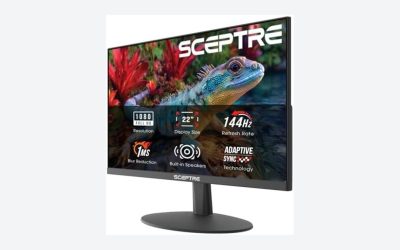
For most 240Hz monitors, a DisplayPort 1.4 cable at the length you actually need is enough, and the UGREEN listings built around 32.4 Gbps are the sensible picks for 1440p240. The DisplayPort 2.1 cables with 54 or 80 Gbps in their titles only matter if your graphics card and monitor both support those faster link rates, which narrows it to a few 4K 240Hz and higher-resolution panels. Ten listings follow, from a 1.6 foot UHBR20 cable to a 16 foot 54 Gbps one, plus two cables that are a different connector type altogether. The sections below show what each number in the titles means for a 240Hz screen.
Top picks at a glance
| Model | Key point from the title | Price tier | Best for |
|---|---|---|---|
| DP 1.4, 6.6 ft | 32.4 Gbps, 4K@240Hz claim, DSC 1.2a | Budget | 1440p240 at a typical desk |
| DP 1.4, 10 ft | Same specs, longer run | Budget | Tower on the floor, monitor on a riser |
| DP 2.1, 3.3 ft, 54 Gbps | VESA Certified wording, 8K@240Hz claim | Mid | Short runs, newer 4K high-refresh panels |
| DP 2.1, 16 ft, 54 Gbps | Long 54 Gbps listing | Mid | Far-apart PC and monitor |
| DP 2.1 UHBR20, 10 ft | 80 Gbps, 16K@60Hz claim | Premium | Top-end GPU and monitor pairs |
| DP 2.1 UHBR20, 16 ft | 80 Gbps, longest run | Premium | Large rooms, with caution |
| DP 2.1 UHBR20, 1.6 ft | 80 Gbps, VESA Certified wording | Premium | Short hops, docks, compact builds |
| DP 2.1 right angle, 6.6 ft | 80 Gbps, angled connector | Premium | Monitors close to a wall |
| Mini DP to DP, 6.6 ft | DP 1.4, 4K@240Hz claim | Budget | Mini DP graphics cards, laptops |
| USB C to DP 2.1, 6.6 ft | 40 Gbps, Thunderbolt 5/4/3 wording | Mid | Laptops and tablets, not desktop GPUs |
What is changing in this category
DisplayPort cable titles used to say little more than a version number. Now they list link rates in gigabits, mention certification classes and quote resolutions up to 16K. Those headline numbers are the cable’s ceiling, not what any monitor delivers, and a 240Hz screen sits far below the ceilings quoted here.
What actually moved is the choice of link class. DisplayPort 1.4 sits at 32.4 Gbps raw. The 2.1 generation introduced three faster rates, commonly written UHBR10, UHBR13.5 and UHBR20, at 40, 54 and 80 Gbps raw. The 54 Gbps listings here map to the middle class and the 80 Gbps ones to the top class. Support on the graphics card and monitor determines whether a cable at that class helps at all.
Link classes in plain terms
| Spec concept | What the title shows | What it means for 240Hz |
|---|---|---|
| DisplayPort 1.4 | 32.4 Gbps, DSC 1.2a | Covers 1440p240 and 4K with compression |
| 2.1 mid class | 54 Gbps | Adds room for uncompressed 4K at high refresh |
| 2.1 top class (UHBR20) | 80 Gbps | Headroom beyond current 240Hz needs |
| DSC | DSC 1.2a | Compresses the signal so a mode fits |
| VRR wording | FreeSync, G-Sync, VRR | Set by monitor and GPU, not by the cable |
How the list was put together
Every listing was read for the connector type, version, quoted bandwidth, resolution and refresh claims, length and any certification wording in the title. The basis is published specifications, manufacturer documentation and buyer reviews. Nobody on the team used or measured these units. Where a title is ambiguous, such as a broken bracket in one VESA mention, it is flagged.
The ten listings
UGREEN DisplayPort 1.4 Cable, 6.6 ft, 32.4 Gbps
The baseline cable of the set. The title lists 32.4 Gbps, 8K@60Hz and 4K@240Hz, HDR, HDCP, DSC 1.2a, FreeSync and G-Sync wording and an aluminum braided jacket. At this link rate, 1440p at 240Hz is comfortable at 8-bit color and workable at higher depths with DSC. The 4K@240Hz line should be read as a DSC-dependent claim, since uncompressed 4K at that rate needs far more than 32.4 Gbps.
Six and a half feet suits a desk where the tower sits beside or under the monitor. A question worth asking: does your monitor run its highest refresh rate only over DisplayPort, not HDMI? Many do.
Pros
- Right class for 1440p240
- DSC listed for higher modes
- Most common length
Cons
- Not future-proof for UHBR monitors
- Resolution claims depend on compression
UGREEN DisplayPort 1.4 Cable, 10 ft
A near-duplicate of the 6.6 ft cable: identical spec text, longer run. The only real change is the three extra feet, which helps if the tower sits across the room or the monitor is wall-mounted. At 32.4 Gbps, a 10 ft passive cable is a mainstream product and a reasonable gamble for 1440p240.
If your desk fits the shorter cable, take the shorter one. Excess length adds clutter and slightly more signal risk with no benefit. Buyers who need the length should check the monitor shows all its refresh options after connecting; the monitor menu will say which mode is active.
Pros
- Extra reach at the same class
- Same DSC and sync wording
- Braided jacket
Cons
- No benefit over 6.6 ft if reach is fine
- Longer runs are less forgiving
UGREEN DisplayPort 2.1 Cable, 3.3 ft, 54 Gbps, VESA Certified
The middle class: 54 Gbps, 8K@240Hz and 1080p@540Hz in the title, with DSC 1.2a, HDR, HDCP and VESA Certified wording. For a 240Hz monitor the extra bandwidth is mostly headroom. The use case is a short run from a graphics card to a monitor that supports the faster rates, such as a 4K high-refresh panel with an uncompressed mode.
Three feet is tight; it fits a monitor placed close to the case or a small-form-factor build. Question before buying: does the monitor spec sheet say it supports UHBR13.5 or higher? If it lists only DisplayPort 1.4, the cable will be limited by the monitor.
Pros
- 54 Gbps class headroom
- Certification wording in the title
- Short length helps signal quality
Cons
- Short reach limits placement
- Wasted on DP 1.4 hardware
UGREEN DisplayPort 2.1 Cable, 16 ft, 54 Gbps
The same 54 Gbps and 8K@240Hz language as the 3.3 ft version, stretched to 16 feet, and notably without the VESA Certified wording in its title. That absence is worth noticing. At sixteen feet, a passive cable running a fast link class is the sort of setup where certification and silicon quality matter, so check the listing for how the manufacturer describes the cable.
It suits an unusual layout: a PC in a closet or a far corner and a monitor across a room. For ordinary desks, a shorter cable is a safer bet.
Pros
- Long reach at 54 Gbps class
- Full DSC and sync wording
Cons
- No certification wording in the title
- Length increases risk at high link rates
UGREEN 80Gbps DisplayPort 2.1 UHBR20 Cable, 10 ft
This is the top link class in the group: 80 Gbps, UHBR20, 16K@60Hz and 1080p@540Hz in the title, with HDCP 2.3, DSC 1.2a, FreeSync and G-Sync, and mentions of RTX 5090 and 4090 graphics cards. The 16K figure is a marketing ceiling; no 240Hz desktop monitor needs it.
Think of it as insurance for a very high-end build where the graphics card and an upcoming display both reach the top class. Question before buying: does your monitor list UHBR20? If not, this cable runs at whatever the weaker end offers, and the price premium buys nothing today.
Pros
- Highest class in the set
- HDCP 2.3 listed
- Room for future displays
Cons
- Overkill for 1440p240
- Ten feet is long at the top rate
UGREEN 80Gbps DisplayPort 2.1 UHBR20 Cable, 16 ft
It shares all the specs of the 10 ft version and adds six feet. That makes it the most demanding combination here: the top link class and the longest run. Passive cables at the highest rates generally get less forgiving with length, and this title does not mention certification. Treat the listing’s notes as essential reading.
It might suit a presentation room or a big home office where a PC cannot sit near the display. In an ordinary gaming room, take a shorter cable and keep things safer.
Pros
- Longest 80 Gbps option
- Same feature wording as the shorter UHBR20 cable
Cons
- No certification wording in the title
- Highest chance of signal trouble in the set
UGREEN 80Gbps DisplayPort 2.1 UHBR20 Cable, 1.6 ft, VESA Certified
The shortest in the set at about half a meter, with UHBR20, 1080p@540Hz and VESA Certified wording. That pairing makes physical sense: top-class links are easiest to keep stable over short runs. It fits a dock, a mini PC placed right behind a monitor or a handheld hub.
It is rarely the right cable for a standard tower on the floor. Question before buying: is the distance between the two ports really under 1.6 feet once the bend radius is counted? If not, move up to the 3.3 ft or 6.6 ft cable.
Pros
- Certification wording
- Top class at a safe length
- Good for tight builds
Cons
- Almost no reach
- Few desks can use it
UGREEN 80Gbps DisplayPort 2.1 Right Angle Cable, 6.6 ft
Same 80 Gbps class as above, with a right angle connector and a 6.6 ft length. The title mentions 16K@60Hz, 1080p@540Hz, 8K@240Hz, VRR, HDR and DSC. The angled plug earns its place when a monitor sits flush to a wall or on a short-depth arm, where a straight plug sticks out and bends the cable.
Check which way the plug turns before ordering: up, down or sideways. The title does not say, and an incorrect direction can leave you worse off than a straight connector.
Pros
- Saves space behind the monitor
- 6.6 ft is practical
- VRR and DSC listed
Cons
- Plug direction not stated
- Premium class may exceed your hardware
UGREEN Mini DisplayPort to DisplayPort Cable, 6.6 ft, DP 1.4
Different plug, same 1.4 class. The title says bi-directional, 4K@240Hz, HDR, HDCP 2.3 and compatibility with Thunderbolt 2/1 and MacBook. It matters if your graphics card or laptop has a mini DisplayPort jack. Its VESA mention comes with a broken bracket, so confirm the wording against the listing page.
If your source has a full-size DisplayPort jack, buy one of the other DP 1.4 cables instead. This one is for compatibility, not for extra performance.
Pros
- Fits mini DisplayPort sources
- Bi-directional per the title
- 1.4 class suits 1440p240
Cons
- Niche connector
- Messy title formatting
UGREEN USB C to DisplayPort 2.1 Cable, 6.6 ft, 40 Gbps
The odd one out. This is a USB-C source to DisplayPort display cable, unidirectional, aimed at laptops, tablets and phones, with Thunderbolt 5/4/3 compatibility wording. The title quotes 16K@30Hz and 8K@120Hz, with no 240Hz claim, so it is a weaker fit for the keyword than the others.
It is still useful for a laptop that drives a 240Hz monitor through its USB-C port, provided the port supports DisplayPort output and the monitor mode fits the link. Check the laptop spec for video output before buying.
Pros
- Connects USB-C laptops directly
- Thunderbolt-friendly wording
Cons
- No 240Hz claim in the title
- One direction only, and not for desktop graphics cards
How to choose a DisplayPort cable for 240Hz
The bandwidth maths
The table gives rough estimates under stated assumptions: active pixels times refresh rate times bits per pixel, plus about 8 percent for reduced blanking. Real timing varies by monitor. The usable rate after encoding is about 25.9 Gbps for DisplayPort 1.4 and about 97 percent of the raw rate for the 2.1 classes.
| Mode | Estimated need | DP 1.4 (about 25.9 usable) | 54 Gbps class (about 52 usable) | 80 Gbps class (about 77 usable) |
|---|---|---|---|---|
| 1440p 240Hz, 8-bit | About 23 Gbps | Fits | Fits | Fits |
| 1440p 240Hz, 10-bit | About 29 Gbps | Needs DSC | Fits | Fits |
| 4K 144Hz, 8-bit | About 31 Gbps | Needs DSC | Fits | Fits |
| 4K 240Hz, 10-bit | About 64 Gbps | Needs DSC | Needs DSC | Fits |
Match versions at both ends
A cable sets a ceiling; the graphics card and the monitor set the real link. If either end is DisplayPort 1.4, a faster cable adds nothing. Read the monitor’s technical sheet for the link class it supports, and the same for the graphics card.
Length and certification
Choose the shortest length that reaches without strain. For the highest rates, certification wording in the title is a plus, and the shortest 80 Gbps listing is the one that states it alongside the 3.3 ft 54 Gbps cable.
Connector shape
Right angle plugs fix clearance trouble. Mini DisplayPort and USB-C ends are about the source device, not performance.
Which cable for which setup
| Your setup | Look at | Why |
|---|---|---|
| 1440p 240Hz, DP 1.4 monitor | DP 1.4 at 6.6 ft | Matches the class |
| Same, with PC far from the desk | DP 1.4 at 10 ft | Extra reach at a safe class |
| 4K 240Hz with UHBR13.5 monitor | 54 Gbps, 3.3 ft | Fits the class, certified wording |
| UHBR20 GPU and display | 80 Gbps, 6.6 ft right angle or 1.6 ft | Top class at safe lengths |
| USB-C laptop to monitor | USB C to DP 2.1 | Native connector |
Worked example: upgrading to a 1440p 240Hz monitor
Assume a new 1440p monitor with a DisplayPort 1.4 input, a graphics card with DisplayPort 1.4 or newer outputs, and a tower under the desk about 5 feet from the monitor. The monitor is set to 240Hz at 10-bit color for HDR content, and the player wants no flicker and no black screens.
| Step | Assumption | Result |
|---|---|---|
| Estimate the mode | 1440p, 240Hz, 10-bit, 8 percent blanking | About 29 Gbps |
| Compare with the link | DP 1.4 usable about 25.9 Gbps | Slightly over, so DSC is needed |
| Check the monitor | Spec sheet lists DSC | Mode works |
| Choose length | 5 ft route plus slack | 6.6 ft cable |
| Decide on 2.1 | Neither end lists 2.1 | No benefit, skip it |
The outcome is the 6.6 ft DisplayPort 1.4 listing. At 8-bit color the same mode needs about 23 Gbps and fits without compression, so the 10-bit setting is the only part leaning on DSC. If the same buyer later moves to a 4K 240Hz panel that lists a faster link class, the cable decision should be revisited then, and not before.
Quick decision flow
- Read the monitor spec: does it list DisplayPort 1.4 or 2.1, and which rate class?
- Read the graphics card spec: same question for its outputs.
- Take the lower of the two; pick a cable class at or above it.
- Measure the path from port to port, add slack, and round up to the next stocked length.
- If the length exceeds ten feet at a high link class, look for certification wording or a shorter route.
Signs the cable, not the monitor, is the problem
A DisplayPort link either trains successfully or it does not, and failures tend to look the same whatever the cause. Random black flashes, sparkles across the picture, a monitor that only offers 60Hz or 144Hz when it should offer 240Hz, and a screen that goes dark when a mode changes are all common symptoms. Before replacing anything, work through the cheap checks in order.
- Reseat both ends firmly; DisplayPort plugs have a latch, and a half-seated connector is a classic cause.
- Confirm the monitor’s own menu has the DisplayPort version or DSC setting switched on where it offers one.
- Drop the mode one step, for example from 10-bit to 8-bit, and see whether the problem disappears. If it does, the link is at its limit.
- Try a shorter cable. Length is the usual variable that separates a stable link from a flaky one at high rates.
- Try a different port on the graphics card, and avoid adapters or switches between the card and the display.
If a shorter, lower-class cable fixes it, the long or high-class cable is the suspect. If nothing changes, the monitor or the graphics driver is the more likely cause. Return the cable only if it fails with a known-good source and display.
Mistakes buyers make
| Mistake | Fix |
|---|---|
| Paying for 80 Gbps on a DP 1.4 monitor | Check the monitor link class first |
| Trusting the 16K number | Read the refresh rate at your resolution |
| Buying the longest cable by default | Pick the shortest that reaches |
| Using HDMI by mistake | Plug into DisplayPort on both ends and check the monitor menu |
| Ignoring the source connector | Mini DP and USB-C need their own cable |
One more thing to watch: near-duplicate listings. The two DP 1.4 cables differ only in length, and the three 80 Gbps straight cables differ in length and certification wording, not in link class.
Verdict by use case
For 1440p at 240Hz, the 6.6 ft DisplayPort 1.4 cable is the sensible default, with the 10 ft version when the layout demands it. For a 4K high-refresh monitor with the faster link classes, the 3.3 ft 54 Gbps cable is the balanced choice and the 1.6 ft or 6.6 ft right angle 80 Gbps cables are for the top class. The 16 ft listings are for rooms where distance cannot be avoided. The mini DP and USB-C cables are connector solutions.
Related guides
- What Is The Best Budget Most Responsive Gaming Mouse Wired
- Low Latency Gaming Headphones Usb-C 2.4 Ghz Wireless
- Low Latency Gaming Headphones Usb-C Dongle 2.4 Ghz
Frequently asked questions
Do I need a DisplayPort 2.1 cable for a 240Hz monitor?
Usually not. A 1440p 240Hz panel fits inside a DisplayPort 1.4 link at 8-bit color, and even higher settings stay workable with Display Stream Compression. A 2.1 cable only pays off if your graphics card and your monitor both support the faster link rates, which today means a small group of 4K 240Hz or higher-resolution displays. Check the monitor spec sheet first.
Will a longer DisplayPort cable cause a black screen or flicker?
It can, and the risk rises with link rate and length. A 10 or 16 foot passive cable that is comfortable at 25 Gbps may struggle at the top rates, which shows up as sparkles, dropouts or a monitor that refuses a mode. Use the shortest cable that reaches, and if a long run is unavoidable, look for a listing that states certification for its class.
Does a DisplayPort cable change the frame rate I get?
No. The cable carries the picture; it does not make the graphics card render more frames. What it can do is limit the refresh rate, resolution or color depth a monitor accepts. If the cable has enough bandwidth for the mode, a better cable adds nothing at all. Frame rates are decided by the GPU, the game engine and the graphics settings you choose.
What does DSC mean and is it noticeable?
DSC is Display Stream Compression, a standardized method that squeezes the signal so higher modes fit through a limited link. It is designed to be visually lossless, and most people cannot spot it in games. Some monitors restrict features such as certain scaling or multi-monitor setups when DSC is active, so read the monitor documentation if you plan to run several displays.
Is a right angle or mini DisplayPort cable fine for gaming?
Yes, as long as the listing’s stated speed covers your mode. A right angle connector helps when the monitor sits close to a wall or arm. Mini DisplayPort suits laptops and older graphics cards with that connector. The shape of the plug has no effect on refresh rate, but check the version, because a mini cable at DisplayPort 1.4 will not carry the faster 2.1 modes.
Can the same cable carry audio?
DisplayPort carries audio along with video, so a monitor with speakers or a headphone jack can use it. Whether your monitor exposes that audio depends on the monitor, not on the cable.
Related guides
More from Amazon
Programs that pair well with the guide above. Offers and eligibility are set by Amazon and may change.
Free shipping on eligible items, Prime Video and more. Eligible new members can start with a free trial.
Start a Prime free trialAd-free music streaming. Eligible new subscribers can start with a free trial.
Try Music Unlimited freeA Prime membership for ages 18-24 with a trial period. Eligibility is set by Amazon.
See Prime for Young AdultsAudiobooks and podcasts to listen to on the go. Eligible new members can start with a free trial.
Try Audible freeAs an Amazon Associate we earn from qualifying purchases.