Most people think peripherals are the boring part of building a PC, then they spend an afternoon fighting a sticky keycap or watching their frame rate stutter because a bargain-bin mouse sensor can’t track reliably at high DPI. Looking across everything from budget dusters to premium keypads, the pattern is clear: the right peripheral removes friction from your workflow or your game, while the wrong one quietly taxes your attention every single session.
What separates a genuinely good peripheral from marketing noise in 2026 is specificity. A compressed air duster is not impressive because of its wattage; it is impressive because it clears a mechanical keyboard in one pass without you needing to take the keycaps off. A macro pad is useful only when the software lets you map actions fast enough that you actually bother using them. The eight products below earned their spot because they solve a concrete problem well, not because they have the longest spec sheet.
As an Amazon Associate we earn from qualifying purchases at no extra cost to you.







Our Top Picks
 Razer Tartarus V2 Left-Handed Gaming Keypad6.02x 2.36 x 0.8 Inch2.36 x 7.98 x 6.02 inches0.8 poundsCheck on Amazon
 ColorCoral Cleaning Gel Universal Dust Cleaner for PC5.6 Ounce (Pack of 1)2.69 x 2.69 x 2.35 inches0.35 PoundsCheck on Amazon


Top 3 picks at a glance
Quick Picks
| Product | Best for | Price |
|---|---|---|
| WOLFBOX MegaFlow 50 | Quick keyboard dusting between sessions | Check on Amazon |
| Razer Tartarus V2 | MOBA and MMO players who want thumb access | Check on Amazon |
| ColorCoral Cleaning Gel | Deep-cleaning crevices without disassembly | Check on Amazon |
| VSDINSIDE Macro Keypad | Streamers and productivity users who need visual feedback | Check on Amazon |
| AULA F75 Pro | Budget mechanical keyboard with wireless flexibility | Check on Amazon |
| WOLFBOX MF100 | Heavy-duty cleaning for PC towers and GPU fans | Check on Amazon |
| Logitech G502 Hero | Reliable wired mouse with lots of programmable buttons | Check on Amazon |
| Acer USB Hub | Expanding a single USB port on a thin laptop | Check on Amazon |
How We Compared
We evaluated each product against four criteria: real-world performance against the task it claims to do, build quality at its price point, software or ecosystem friction (how quickly you get from unboxing to productive use), and value relative to the nearest competitor. A peripheral that checks every spec box but annoys you daily fails the last two criteria, and we eliminated accordingly.
The 8 Best PC Peripherals in 2026
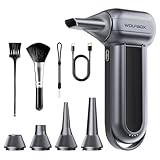
WOLFBOX MegaFlow 50
If you own a mechanical keyboard, you already know the feeling of crumbs and hair caught between switches. The MegaFlow 50 solves that with a compact motor spinning at 110,000 RPM across three adjustable gears. For most people it replaces a can of compressed air entirely: no mess, no refills, no frostbite on your fingers. The low gear works on laptop keyboards without popping keycaps, and the top gear clears full-size boards in under a minute. Its limitation is raw power compared to larger dusters like its own sibling; you will still want a stronger unit for GPU fans and tight heatsink stacks. If your cleaning routine stops at the desk surface, this is the easiest upgrade you can make.
- Pro: Three gears give you precision control over airflow
- Pro: Replaces disposable canned air entirely
- Con: Not powerful enough for deep component cleaning
Skip this if you need one tool for both your keyboard and your PC case internals; buy the MF100 instead.
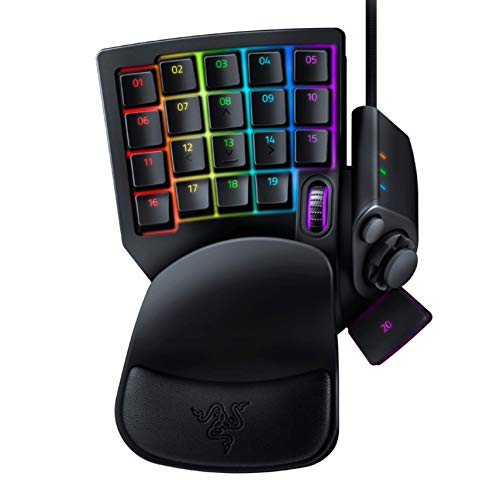
Razer Tartarus V2
The Tartarus V2 is for players who want their left hand doing more than resting on WASD. Thirty-two programmable inputs, including mecha-membrane keys, an 8-way directional thumb pad and a scroll wheel, give you an absurd amount of accessible inputs in a footprint smaller than a standard numpad. Mapping abilities to it transforms MOBAs and MMOs where you are fighting cooldowns; the mecha-membrane keys combine a cushioned press with a light click, which is comfortable over long sessions but not as crisp as full mechanical switches. The Synapse software is powerful but occasionally slow to save profiles, and the device is left-handed only by design. If you have ever felt bottlenecked by keyboard shortcuts during a raid or a ranked queue, this is still the most complete dedicated solution available.
- Pro: Thirty-two programmable inputs, thumb pad included, in one compact layout
- Pro: Cushioned mecha-membrane keys stay comfortable over hours
- Con: Razer Synapse can lag when switching profiles mid-game
Skip this if you play primarily FPS titles where hand position is already optimized.
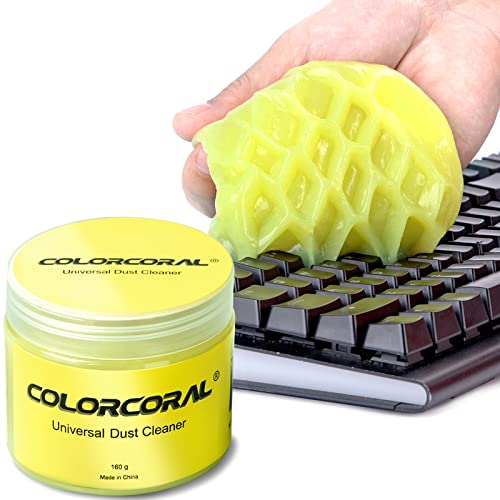
ColorCoral Cleaning Gel
As the most affordable item here, this 160-gram pack of cleaning gel is the most accessible peripheral care product on the list. You press it into keyboard gaps, speaker grilles, and car vents, and the pliable compound lifts dust and crumbs that compressed air only pushes deeper. It works best as a finishing step after a duster pass, pulling out particles that cling to switch stems. The downside is straightforward: the gel eventually degrades and needs replacing, and it does not suit sticky residues or liquid spills. For anyone with a laptop that lives on a couch or a desk that collects pet hair, a tube of this in your drawer eliminates dozens of small frustrations per month without any electronics or batteries.
- Pro: Reaches gaps compressed air cannot
- Pro: Cheapest item on the list by a wide margin
- Con: Reusable only until it darkens, then it needs replacing
Skip this if you already own a high-quality duster and have no hard-to-reach spots.
VSDINSIDE Macro Keypad
Streamers and multitaskers who need visual confirmation of what each button does will appreciate the VSDINSIDE’s eighteen programmable keys with customizable LED icons on top. You assign a shortcut to OBS, YouTube, or a productivity app and the pad shows you a small graphic reminding you what that key triggers, which eliminates the muscle-memory problem of a blank keypad. The included software handles hotkey recording and macro chains without excessive steps. Where it falls short is build quality; the plastic shell flexes under firm presses and the keys feel mushy compared to a dedicated mechanical solution. It is also USB-only, so desk cable management matters. For a content creator who wants a visual control surface without paying premium prices, this is a practical middle ground.
- Pro: Visual keycaps reduce shortcut confusion dramatically
- Pro: Works with OBS, streaming platforms, and general hotkeys
- Con: Plastic housing flexes; keys lack satisfying tactile snap
Skip this if you are a competitive gamer who values click feel above all else.
AULA F75 Pro
At a budget-to-mid-range price, the F75 Pro gives you a genuinely well-built mechanical typing experience that competes with boards twice its price. The pre-lubed Reaper switches arrive smooth out of the box, the PBT keycaps resist shine, and the 75% layout keeps function keys without wasting desk real estate. The rotary knob handles volume and system-level shortcuts, and hot-swap sockets mean you can experiment with different switches later. Connection options include 2.4GHz wireless, Bluetooth 5.0, and wired USB-C, covering every scenario from gaming to couch browsing. Its weakness is the software; AULA’s driver is less polished than Logitech or Razer, and firmware updates occasionally reset settings. Still, if you want a feature-complete wireless mechanical board without moving into premium pricing, this is hard to beat.
- Pro: Pre-lubed switches with hot-swap compatibility out of the box
- Pro: Tri-mode connectivity: 2.4GHz, Bluetooth and USB-C wired
- Con: Companion software is clunky and occasionally resets profiles
Skip this if you require macro-level software integration or RGB sync with a specific ecosystem.
WOLFBOX MF100
The MF100 is the duster you buy when the MegaFlow 50 feels underpowered. A turbo fan rated at 150,000 RPM pushes 45 meters per second of airflow, which is enough to dislodge dust from heatsink fins, GPU fan blades, and the mesh on a case filter without you reaching inside with anything. It runs on a rechargeable battery that lasts through multiple full cleaning sessions, and the nozzle attachment lets you target tight spaces. The tradeoff is noise and bulk; at the highest setting it is loud enough to be unpleasant in a shared room, and the unit itself is noticeably larger than the MegaFlow. If you open your PC quarterly or maintain a multi-GPU workstation, this is the correct tool.
- Pro: 45 m/s airflow clears dust from deep inside components
- Pro: Battery-backed with sufficient capacity for repeated sessions
- Con: Louder and bulkier than smaller dusters
Skip this if your cleaning needs are limited to keyboards and desk surfaces.
Logitech G502 Hero
The G502 Hero remains relevant because it does one thing exceptionally well: it gives you more programmable buttons than any other mouse in its price bracket while maintaining a sensor accurate enough for competitive play. The Hero sensor tracks at high DPI without smoothing or acceleration, the eighteen grams of removable weight let you tune balance, and eleven buttons accommodate everything from FPS keybinds to MMO macros. The shape is divisive; the pronounced hump works for claw and fingertip grips but can feel aggressive for palm grippers. The cable, while braided, adds drag on a fabric pad if you do not use a bungee. At a budget price, little else combines this sensor quality, button count, and software maturity.
- Pro: Hero sensor is among the most accurate in any budget bracket
- Pro: Eleven programmable buttons with extensive G Hub software
- Con: Aggressive shape that does not suit every hand position
Skip this if you prefer a low-profile, lightweight ergonomic for palm grip.
Acer USB Hub
Thin laptops and many mini-ITX desktops ship with too few USB ports, forcing you to unplug your mouse to charge a controller or plug in a headset. The Acer four-port USB 3.0 hub fixes that with a short two-foot cable that routes cleanly behind a monitor or along a desk edge. Each port delivers full USB 3.0 speeds, so external SSDs and capture cards operate without bottlenecks. It draws power from the host bus rather than a wall adapter, which means high-draw devices like mechanical keyboards with heavy RGB or multiple portable drives may cause instability. For typical peripheral loads (mouse, keyboard, headset, flash drive), it is a no-thought budget expansion.
- Pro: Full USB 3.0 speeds on all four ports
- Pro: Two-foot cable length works with most desk setups
- Con: Bus-powered only; struggles with multiple high-draw devices
Skip this if you regularly connect power-hungry peripherals; get a powered hub instead.
More Peripherals That Complete a PC Setup
The eight picks above lean toward input devices and maintenance tools. A complete desk also needs good audio, a camera for calls and streams, a reliable everyday wireless mouse, proper lighting and a surface that gives your mouse room to work. These six fill those gaps without overlapping the products above.
HyperX Cloud III Wired Gaming Headset

The Cloud III is the successor to one of the most widely recommended budget-to-mid-range headsets ever made, and it keeps what made the Cloud line popular: comfort first. It weighs about 308 grams without the mic, uses memory foam ear cushions and a durable aluminum frame, and its closed-back, over-ear design blocks a fair amount of room noise. Inside are 53mm dynamic drivers angled toward the ear, tuned for clear footsteps and dialogue rather than bass-heavy boom.
The detachable 10mm microphone has noise cancellation, an internal mesh pop filter and an LED that lights up when you are muted, which saves you from the classic “you were muted the whole time” moment on calls. Connectivity is the other strong point: a 3.5mm cable for consoles and controllers, plus a USB dongle with USB-C and a USB-C to USB-A adapter for PC. The USB route unlocks DTS Headphone:X spatial audio, included with lifetime activation.
Who it suits: PC gamers who also play on PS5, Xbox or Switch, and remote workers who want one headset for games and meetings.
Strengths: light, comfortable build for long sessions; useful mute LED; works with nearly every platform out of the box.
Drawbacks: wired only, so the cable needs routing; closed-back cups can get warm in summer; spatial audio requires the USB connection.
It pairs naturally with the Acer USB hub above if you are short on ports, though for best stability plug the headset dongle straight into the PC.
Logitech C920x HD Pro Webcam

The C920 family has been the default desk webcam for years, and the C920x keeps that role in 2026 because it is predictable. It records 1080p at 30 frames per second, uses autofocus and automatic light correction to keep your face sharp and evenly exposed, and covers a 78-degree field of view, wide enough for one person and a bit of background without fisheye distortion. Dual microphones on either side of the lens pick up stereo audio, which is fine for calls even if a dedicated microphone sounds better.
The clip fits laptop lids and monitors, and the base has a tripod thread if you prefer to mount it on a stand or arm. It is plug-and-play over USB on Windows and macOS, and works with every major video call app without driver hunting.
Who it suits: remote workers, students and casual streamers who want a dependable upgrade over a built-in laptop camera.
Strengths: consistent image quality; broad compatibility; tripod thread; easy setup.
Drawbacks: 30fps cap means it is not ideal for smooth facecam streaming; low-light performance is acceptable but not great without a light source in front of you. Pair it with a monitor light bar or key light for the best results.
It fills a real gap in the list above: nothing else here helps how you look and sound to others, which matters as much as input latency for anyone who spends the day on calls.
Logitech G305 Lightspeed Wireless Gaming Mouse

If the G502 Hero above is the button-heavy wired option, the G305 is its wireless, minimalist counterpart, and it shows up in almost every value peripheral guide for good reason. It uses Logitech’s HERO sensor at up to 12,000 DPI and connects through the Lightspeed 2.4GHz wireless dongle, which delivers responsive, low-latency tracking suitable for competitive play. It runs on a single AA battery that Logitech rates for up to 250 hours, so there is no cable and no daily charging routine.
The shape is compact and symmetrical with six programmable buttons, and at around 99 grams with the battery fitted it sits in a middle ground between ultralight esports mice and heavier productivity mice. The dongle stores inside the mouse for travel.
Who it suits: laptop users who game on the go, players with small to medium hands, and anyone who wants wireless freedom on a budget.
Strengths: genuine gaming-grade sensor and wireless at a budget tier; long battery life; compact and portable.
Drawbacks: only six buttons, a long way short of the G502; the shape may feel small for large palm-grip hands; it uses AA batteries rather than a rechargeable cell.
Choose the G502 Hero if you need macros and side buttons; choose the G305 if a tidy, cable-free desk matters more.
Quntis Monitor Light Bar with Remote

A monitor light bar is one of those upgrades people rarely think about until they try one. It clips onto the top of your screen and throws light down onto the desk and keyboard, not back at the screen, so you get even task lighting without glare on the display. This Quntis model adds a wireless remote with a touch-slide ring for brightness, so you can adjust it without reaching up to the bar.
Brightness runs from 20 to 100 percent and color temperature adjusts steplessly from a warm 3000K to a cool 6500K. A built-in ambient light sensor can dim the bar automatically as room light changes, and a timer function switches it off after two hours. The weighted clip is designed for flat and curved monitors up to 1000R and fits screens roughly 0.19 to 3.54 inches thick, with room left for a webcam to sit on top. It is powered over USB and certified against blue light hazard under IEC/TR 62778.
Who it suits: late-night gamers and anyone working in a dim room who wants to reduce the contrast between a bright screen and a dark desk.
Strengths: no screen glare; remote control; auto-dimming; webcam-friendly mount.
Drawbacks: needs a spare USB port; the remote uses AAA batteries; it lights the desk rather than your face, so it is not a replacement for a dedicated video light.
SteelSeries QcK XXL Gaming Mouse Pad

A large cloth desk mat is the cheapest way to improve mouse tracking consistency and make a desk look finished. The QcK XXL measures about 900 by 400 millimeters, which covers a full-size keyboard and leaves a wide area for low-sensitivity mouse sweeps. Its micro-woven cloth surface is a long-time favorite for balanced glide and control, and the non-slip rubber base keeps it from shifting during fast movements.
Beyond aiming, the mat protects the desktop from scratches, gives keyboards and wrists a softer surface, and creates a uniform background for the rest of your gear. It also quiets keyboard noise slightly on hard desks.
Who it suits: FPS players who use low sensitivity, anyone with a glass or glossy desk where optical sensors struggle, and people who want a clean, cohesive desk look.
Strengths: huge, consistent tracking surface; proven cloth texture; protects the desk.
Drawbacks: cloth absorbs spills and needs occasional hand washing; it can arrive rolled and take a day to flatten; edges are not as plush as stitched premium mats.
It complements both mice in this guide, especially the corded G502, where a smooth cloth pad reduces the cable drag mentioned above.
FIFINE AmpliGame AM8 USB/XLR Dynamic Microphone

Headset microphones are fine for team chat, but a dedicated microphone makes a dramatic difference for streaming, podcasts and meetings. The FIFINE AM8 is a dynamic cardioid microphone, which means it rejects much of the background noise from keyboards, fans and room echo better than the condenser mics found in many budget kits. It offers both USB-C for simple plug-and-play use on a PC and an XLR output if you later upgrade to an audio interface or mixer.
Controls sit on the body: a tap-to-mute button, a gain knob, a headphone jack with monitoring volume for zero-latency listening, and RGB lighting you can switch off if you prefer a quieter look. It includes a desktop stand and fits standard boom arms.
Who it suits: new streamers, Discord regulars and remote workers in noisy homes who want clearer voice without a complicated setup.
Strengths: dynamic capsule handles noisy rooms well; USB and XLR for future upgrades; handy on-body controls.
Drawbacks: dynamic mics need you to speak close, within a few inches; the included stand is basic, so a boom arm helps; RGB may not suit a professional backdrop.
It works well alongside the VSDINSIDE macro keypad above: map mute, scene switches and soundboard clips to the keypad and leave the microphone at mouth level on an arm.
Buying Guide
Airflow Specifications That Actually Matter
RPM numbers look impressive on a spec sheet, but what determines whether a duster clears your PC is air velocity at the nozzle tip. The MF100’s 45 m/s figure is the kind of number that dislodges caked dust from heatsink fins. Velocity below 30 m/s will handle surface debris and keyboards but leave internal components untouched. Always check whether airflow drops at mid-range settings; some dusters are only fast on the top gear, which is also the loudest.
Programmable Key Software and Profile Switching
The hardware spec (key count, RGB, hot-swap sockets) matters less than how quickly you can assign and reassign actions. A macro pad or mouse is only as good as its software layer. Look for tools that let you create, edit, and switch profiles in under two clicks, and verify the software runs in the background without consuming noticeable resources. Pre-lubed switches with hot-swap sockets add hardware flexibility, but if the firmware is unstable, you will spend more time troubleshooting than enjoying the feel.
Wired Versus Wireless for Competitive and Mixed Use
Wireless mechanical keyboards and mice now match wired latency for the vast majority of users. The AULA F75 Pro’s 2.4GHz mode is indistinguishable from a cable in practical gaming, and Bluetooth covers casual work without the dongle. The Logitech G502 remains wired, which eliminates charging concerns entirely. Choose wireless if desk cable management is a genuine frustration; choose wired if you want zero input-latency anxiety or simply refuse to think about battery levels before a ranked session.
Prioritize What You Touch and Hear Most
When budget is limited, spend first on the peripherals you interact with for every minute of every session: the mouse, keyboard and headset. A better duster or USB hub solves occasional annoyances, but a mouse that fits your hand and a headset that stays comfortable after three hours change every day at the desk. A practical order for most people:
- Mouse and mouse pad: shape and sensor consistency affect both gaming and productivity. A large cloth pad is a small spend that improves any mouse.
- Keyboard: a hot-swappable mechanical board lasts for years and can be refreshed with new switches or keycaps later.
- Audio: a comfortable headset with a clear microphone covers games, music and calls.
- Camera and lighting: essential if you work remotely or stream; optional otherwise.
- Specialist tools: macro pads, dedicated microphones, hubs and cleaning gear once the basics are in place.
Check Ports and Power Before You Buy
Peripherals add up quickly. A typical gaming desk can use a wireless mouse dongle, a keyboard, a headset dongle, a webcam, a light bar, a microphone and a macro pad, which is seven USB connections before you plug in a phone or external drive. Count your free ports and their types (USB-A versus USB-C) before buying, and remember that webcams, microphones and audio dongles behave best when plugged directly into the PC rather than through a bus-powered hub. Move low-draw devices such as the light bar or a wired mouse to the hub instead.
Wireless dongles also benefit from proximity. If your PC sits on the floor under the desk, a short USB extension cable that places the dongle on the desktop near the mouse can remove stutter caused by interference from the metal case.
Ergonomics Over Specs
Spec sheets rarely tell you whether a peripheral will be comfortable. Measure your hand from wrist crease to fingertip: hands under about 17 cm usually prefer compact mice like the G305, while larger hands often suit fuller shapes like the G502. For keyboards, a 75% layout such as the AULA F75 Pro keeps the mouse closer to your body than a full-size board, reducing shoulder reach. For headsets, look at weight and clamping force rather than driver size, and choose memory foam or velour pads if you wear glasses.
Platform and Software Ecosystem
Staying within one software ecosystem, such as Logitech G Hub or Razer Synapse, means fewer background apps and easier profile management. That is not essential, but if you already own one brand’s mouse, a headset or keypad from the same brand will usually integrate more smoothly. For console players, check that headsets offer a 3.5mm connection and that microphones work over USB on both PC and console.
Comparison Table: Additional Peripherals
| Product | Category | Connection | Key strength | Best for | Price tier |
|---|---|---|---|---|---|
| HyperX Cloud III | Headset | 3.5mm, USB-C/USB-A dongle | Comfort and mute LED | Multi-platform gamers, calls | Mid-range |
| Logitech C920x | Webcam | USB | Reliable 1080p with autofocus | Remote work, casual streaming | Mid-range |
| Logitech G305 | Wireless mouse | Lightspeed 2.4GHz | Gaming sensor, long AA battery life | Laptop gamers, small hands | Budget |
| Quntis Light Bar with Remote | Lighting | USB power | Glare-free desk lighting | Night sessions, dim rooms | Budget |
| SteelSeries QcK XXL | Mouse pad | None | Large, consistent cloth surface | Low-sensitivity FPS players | Budget |
| FIFINE AmpliGame AM8 | Microphone | USB-C and XLR | Noise-rejecting dynamic capsule | Streamers, noisy rooms | Mid-range |
Sample Peripheral Setups by Use Case
Combining products from this guide gives a few balanced starting points:
- Competitive gamer on a budget: Logitech G305 or G502 Hero, SteelSeries QcK XXL, AULA F75 Pro and HyperX Cloud III. This covers aim, typing and audio with nothing wasted.
- MMO and MOBA player: Razer Tartarus V2 for the left hand, G502 Hero for the right, and the Cloud III for voice chat during raids.
- Streamer and content creator: FIFINE AM8 on a boom arm, Logitech C920x, VSDINSIDE macro keypad for scene control, and the Quntis light bar for desk lighting.
- Remote worker with a thin laptop: Acer USB hub, G305, C920x and the Cloud III or a dedicated microphone, plus a WOLFBOX MegaFlow 50 to keep the keyboard clean.
Keeping Peripherals in Good Shape
A few habits extend the life of everything on your desk. Blow out keyboards every couple of weeks with a duster and finish with cleaning gel for crevices. Wash cloth mouse pads by hand in lukewarm water with mild soap and let them air dry flat. Wipe headset ear pads with a slightly damp cloth and replace them when the foam flattens. Keep firmware and companion software updated, but export your profiles first, since some updates reset custom settings. Finally, unplug or remove batteries from wireless devices you will not use for weeks to avoid leaks and battery drain.
Our Verdict
The WOLFBOX MegaFlow 50 is our top pick: a compact, rechargeable duster with three adjustable gears that replaces canned air and keeps keyboards and desks clean between sessions. If you are upgrading an input device instead, the AULA F75 Pro is the standout, with hot-swap flexibility and tri-mode connectivity at a budget-to-mid-range price. For the tightest budget, the Acer USB Hub solves a port shortage immediately and the ColorCoral gel keeps any setup looking clean. If you run multiple high-draw peripherals or a multi-device workstation, skip the bus-powered Acer hub and step up to a powered model instead.
FAQ
Do I need a compressed air duster if I already have a keyboard cover?
A cover prevents large particles from entering but does nothing about fine dust and hair that migrates inside over time. A duster with adjustable gears lets you clear the board quickly between sessions without removing the cover or taking off keycaps.
Is a macro keypad worth it for non-gamers?
If you spend hours in creative software, spreadsheets, or streaming tools, a macro keypad cuts repetitive keyboard shortcuts down to single presses. The VSDINSIDE’s visual keycaps are specifically designed for people who do not want to memorize a new set of bindings from scratch.
Can a wired mouse outperform a wireless one in competitive games?
Modern wireless sensors match or exceed wired ones in tracking accuracy and latency. The G502’s advantage is consistency without battery management, not raw responsiveness. For any player outside the top competitive tier, the difference is negligible.
Why does my USB hub disconnect high-draw devices?
Bus-powered hubs draw all their power from the host port, which has a fixed output ceiling. When you connect devices that together exceed that budget, individual ports starve and disconnect. Use a powered hub for multiple drives, RGB-heavy keyboards, or charging phones simultaneously.
Which PC peripheral should I upgrade first?
For most people, the mouse and mouse pad give the most noticeable improvement for the least spend, followed by a comfortable headset. If you work remotely, a webcam and lighting can matter more than gaming gear because they affect how you come across on every call.
Is a dedicated microphone better than a headset mic?
Yes, for anything beyond casual voice chat. A dedicated dynamic microphone like the FIFINE AM8 captures a fuller, clearer voice and rejects more background noise. Headset mics remain more convenient for gaming because they stay at a fixed distance from your mouth as you move.
Do I need a 1080p or 4K webcam?
1080p is enough for nearly all video calls, since most meeting apps compress video anyway. 4K webcams help mainly if you crop the image heavily or record content locally. Good lighting improves image quality more than resolution does.
How big should my mouse pad be?
If you use low sensitivity or want your keyboard on the same surface, an extended desk mat around 900 by 400 millimeters works well. If you play at high sensitivity or have a small desk, a medium pad is enough and leaves more space for other gear.
Can I use gaming peripherals for office work?
Yes. Gaming mice and mechanical keyboards are built for long sessions and high durability, which suits office work too. Turn off RGB lighting or set it to a single soft color if you share a workspace, and use software profiles to switch programmable buttons between work shortcuts and game binds.
Are monitor light bars worth it?
They are worth it if you often use your PC in a dim room. A light bar lights the desk and keyboard without reflecting off the screen, which reduces the harsh contrast between a bright display and dark surroundings. It takes up no desk space and draws power from a single USB port.
How often should I replace peripherals?
There is no fixed schedule. Replace a mouse when buttons double-click or the scroll wheel skips, a keyboard when keys chatter and cleaning does not fix it, and headset pads when the foam flattens or cracks. Hot-swappable keyboards and replaceable pads let you repair rather than replace.