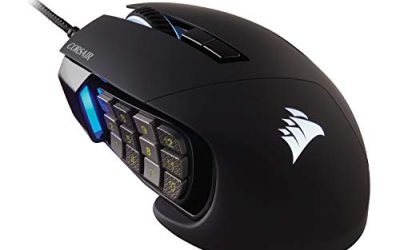
Buying a gaming mouse by scanning a spec sheet for the highest DPI number is the most common mistake new buyers make, and it is the wrong number to chase. The sensor in nearly every mouse released since 2021 is already more accurate than any human hand can exploit, so the real decision points are grip style, shape, weight, and how the mouse fits your specific hand and desk setup. This guide walks through the specs that actually change how a mouse feels in a match, in the order they should matter to your buying decision.
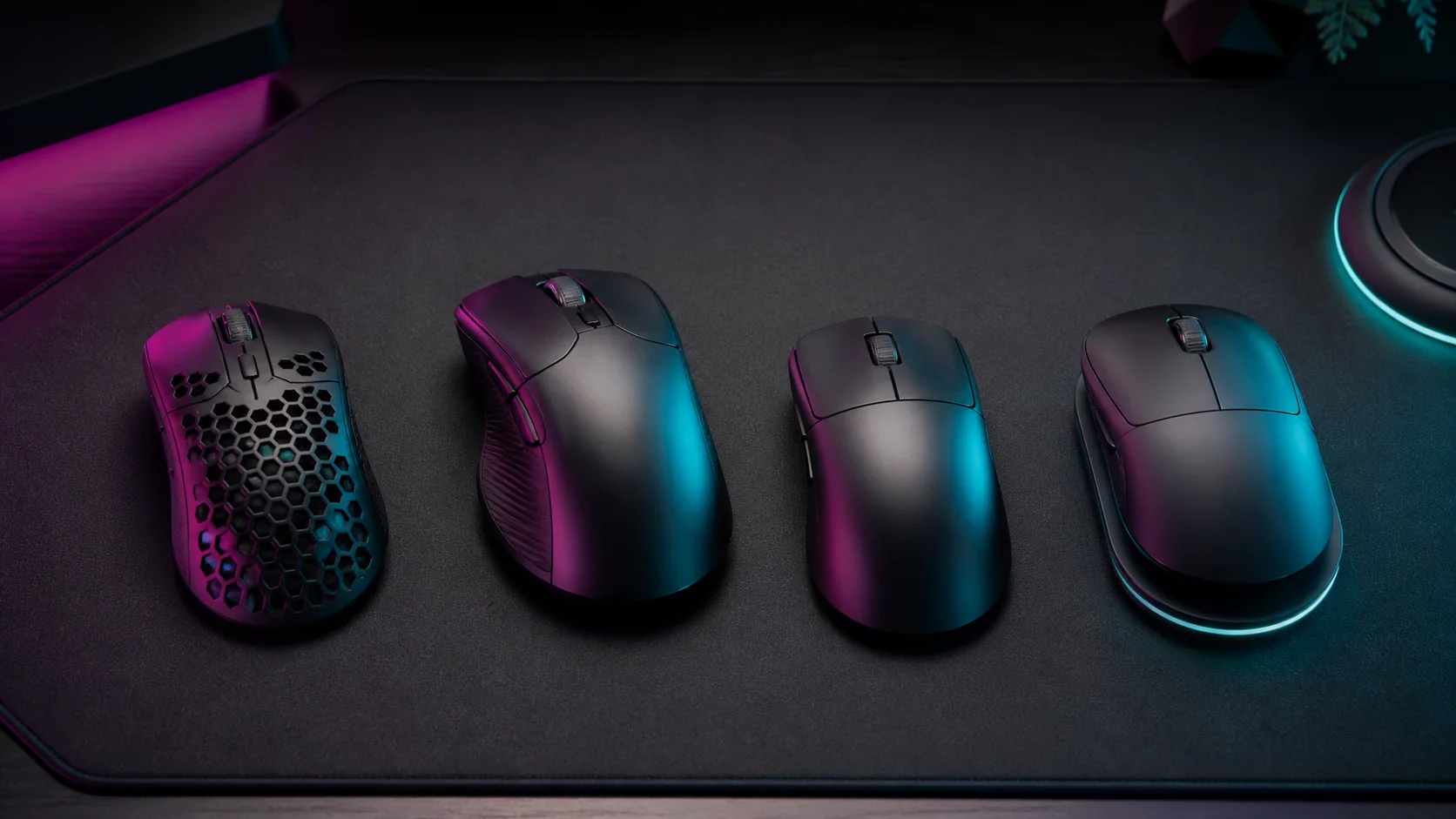
Our Top Picks
 Razer DeathAdder Essential Ergonomic Wired Gaming Mouse5.01 x 2.86 x 1.69 Inches0.3 PoundsCheck on Amazon
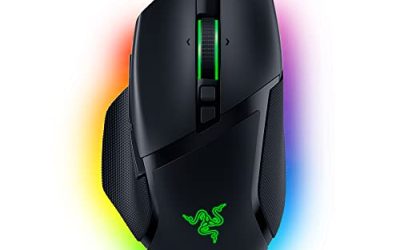
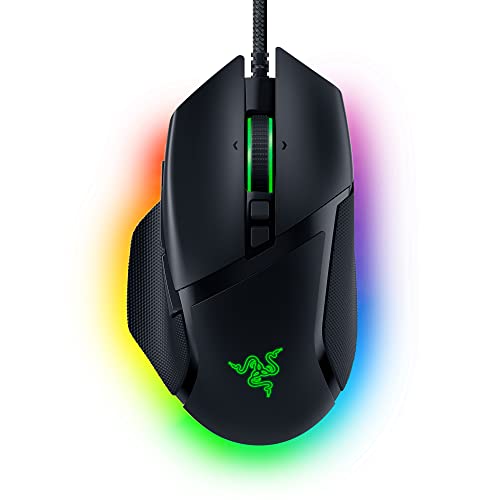 Razer Basilisk V3 Customizable RGB Wired Ergonomic GamingMouse2.96 x 5.12 x 1.67 Inches0.2 PoundsCheck on Amazon


Top 3 picks at a glance


Sensor type: what optical actually means today
Almost every gaming mouse sold today uses an optical sensor, and laser sensors have effectively disappeared from the category because they introduced acceleration artifacts on hard mousepad surfaces that competitive players disliked. The optical sensors that matter now are PixArt modules, and the two you will see most often on mice released between 2022 and 2025 are the PAW3395 and the newer PAW3950, both capable of tracking well past 26,000 DPI and 650 inches per second of hand speed.
As an Amazon Associate we earn from qualifying purchases at no extra cost to you.



In practice, no human moves a mouse anywhere close to 650 inches per second during normal play, so the difference between a PAW3395 and a PAW3950 shows up in power draw and click latency rather than raw tracking accuracy. The PAW3950 sips less power on wireless mice, which is why 2024-2025 wireless releases like the Logitech G Pro X Superlight 2 and Razer Viper V3 Pro lean on it for longer battery life rather than for better aim.
Budget mice in the $20-35 range often use older PixArt sensors such as the PAW3311 or PAW3327, which still track accurately at normal desk speeds and DPI settings under 3,200. The sensor tier only becomes a real bottleneck if you deliberately run extreme DPI values above 10,000, which almost no player actually does in competitive titles.
What you should check instead of the peak DPI number is the sensor’s lift-off distance, meaning how many millimeters you can lift the mouse before it stops tracking. A lift-off distance around 1-2mm suits low-sensitivity FPS players who lift and reset the mouse constantly, while a higher lift-off distance around 3-4mm can cause unwanted cursor jumps during resets.
Some manufacturers let you tune lift-off distance in software, which is worth checking before purchase if you play at low sensitivity in a shooter like Counter-Strike or Valorant. A mouse locked to a single lift-off value with no adjustment removes one variable you might otherwise want to control.
Sensor placement inside the shell also affects how the mouse tracks rotation around your wrist. Centered sensors under the middle of the shell, which is now the industry standard on most symmetric shapes, reduce tracking drift when you pivot the mouse rather than glide it in a straight line.
DPI, polling rate, and why the numbers on the box are misleading
DPI, or dots per inch, describes how many counts the sensor reports per inch of physical movement, and a higher number simply moves the cursor faster for the same hand motion. It is not a measure of accuracy or quality, and mice advertising 30,000 DPI are not more precise than ones capped at 16,000, since almost nobody plays above 3,200 DPI in a first-person shooter.
Polling rate is a separate spec measured in Hz, describing how often the mouse reports its position to your PC. A 1,000Hz polling rate reports every 1 millisecond, and newer mice like the Razer Viper V3 Pro and Pulsar X2V2 push to 4,000Hz or 8,000Hz with a compatible USB dongle, cutting click latency further but requiring more CPU overhead than most systems notice.
For a deeper breakdown of how DPI, CPI, and polling rate interact with in-game sensitivity settings, see our dedicated guide on mouse DPI and polling rate explained, which covers the eDPI math competitive players use to compare sensitivity across games.
The practical takeaway for a first purchase is to ignore the maximum DPI number on the packaging entirely and instead confirm the mouse supports at minimum a 1,000Hz polling rate, which is now standard even on $30 mice. Anything below that on a mouse marketed for gaming is a sign of an outdated or budget-cut sensor stack.
Software matters here too. Mice from Logitech, Razer, and SteelSeries let you set DPI in fine increments and save multiple profiles, while some budget brands limit you to four or five fixed steps. If you like to fine-tune sensitivity to an exact number, check the software’s DPI granularity before buying.
Grip style: palm, claw, and fingertip
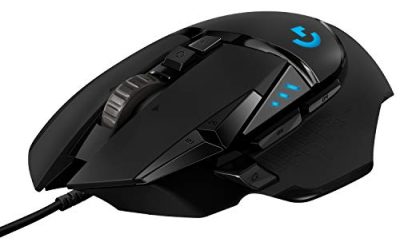
Grip style is the single biggest factor in whether a mouse shape will feel right, and most players fall into one of three categories. Palm grip rests the whole hand flat on the shell with fingers relaxed over the buttons, and it suits taller, longer mice like the Logitech G502 X or Razer Basilisk V3, which give the palm a full arch to rest against.
Claw grip arches the fingers so only the fingertips and the base of the palm touch the mouse, which works best with mid-height shells that have a steep front slope, such as the Zowie EC2-C or Logitech G Pro X Superlight 2. This grip trades some palm comfort for faster finger flicks and quicker button access.
Fingertip grip lifts the palm entirely off the shell and controls the mouse with fingertips alone, favoring small, light shells under 65 grams like the Finalmouse Starlight-12 or Pulsar X2 Mini. This grip style gives the fastest micro-adjustments but tires the hand faster during long sessions and works poorly with heavier mice above 80 grams.
To find your grip style, place your hand naturally on any mouse you currently own and note whether your palm touches the shell (palm), your fingers are bent with only fingertips and palm heel touching (claw), or your palm floats above the shell (fingertip). Most players use a hybrid between palm and claw rather than a pure form.
Mismatching grip and shape causes real problems: a fingertip player on a tall palm-grip shell has to reach awkwardly for the front buttons, while a palm-grip player on a tiny fingertip mouse runs out of shell to rest their hand on. Manufacturers list recommended grip styles on product pages now specifically because this mismatch is the top cause of returns.
Shape and size: matching the shell to your hand
Once you know your grip style, match it against your hand length, measured from the base of your palm to the tip of your middle finger. Hands under 17cm generally do best with small shells like the Pulsar X2 Mini or Logitech G Pro X Superlight 2 in its compact form, while hands over 19cm often feel cramped on the same shells and need something like the Razer Basilisk V3 Pro or Logitech G502 X Plus.
Shape also splits into symmetric and ergonomic designs. Symmetric shells like the Zowie FK series work for both left and right-handed players and suit claw or fingertip grips, while ergonomic shells like the Logitech G502 or Razer Basilisk curve to fit a right hand specifically and tend to favor palm grip with a raised ring-finger rest.
Hump position, meaning where the tallest point of the shell sits, changes where your palm makes contact. A rear hump close to the back of the mouse suits palm grip players who want maximum palm support, while a center or forward hump suits claw and fingertip grips that need a lower front profile for finger movement.
Side grip texture and thumb rest shape matter more than most buyers expect, especially for players who rely on side buttons for abilities or utility binds in games like Apex Legends or Overwatch 2. A thumb rest that is too shallow makes reaching the side buttons uncomfortable during fast peeks.
Many manufacturers now publish exact millimeter dimensions, including length, width, and height at the hump, on their spec pages. Cross-referencing these numbers against a ruler on your own hand takes five minutes and prevents most fit-related returns before you even open the box.
Weight and shell construction
Mouse weight has dropped dramatically over the past five years, driven mostly by perforated or honeycomb shells and smaller batteries. Flagship lightweight mice like the Logitech G Pro X Superlight 2 sit around 60 grams, the Razer Viper V3 Pro around 54 grams, and ultra-light niche models from Finalmouse and Pulsar dip under 50 grams, compared to mainstream mice from a decade ago that commonly weighed 100-120 grams.
Lighter mice reduce fatigue during long sessions and make fast flick shots easier in fast-paced shooters, which is why nearly every competitive FPS player now uses something under 65 grams. The tradeoff is that very light mice can feel less stable during slow, precise tracking movements common in tactical shooters or MOBAs, where some players still prefer 70-90 gram mice for a steadier feel.
Solid-shell mice without perforations, like the Zowie EC2-C, tend to sit in the 70-75 gram range and remain popular specifically because some players find the extra mass helps control fast wrist flicks rather than hinder them. There is no universal correct weight, only a range worth testing against your own play style.
Shell material also affects grip and long-session comfort. Most modern shells use matte-textured ABS or PBT plastic, with PBT resisting shine and oil buildup from hand sweat better over months of use. Grip tape add-ons are common on mice with slicker ABS shells if you find your palm sliding during intense matches.
Battery placement in wireless mice affects weight distribution, not just total weight. A mouse with the battery centered under the palm, common in newer designs, feels more balanced during flicks than older designs that concentrated weight toward the rear, even at the same total gram figure.
Buttons, macros, and software programmability
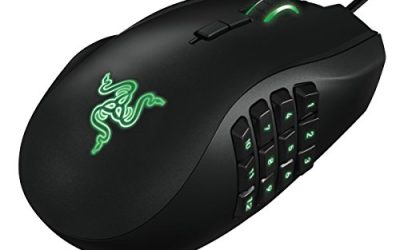
A standard gaming mouse has five buttons: left click, right click, scroll wheel click, and two thumb side buttons, which covers the needs of most FPS and action game players. MMO and MOBA players often want more, and mice like the Logitech G600 or Razer Naga V2 Pro add 6-12 extra side buttons for spell rotations and inventory management that would otherwise require keyboard reaches.
Companion software from Logitech G Hub, Razer Synapse, and SteelSeries GG lets you remap every button, create per-game profiles that switch automatically, and in some cases bind macros that fire multiple inputs from one click. Check whether macro settings save to onboard memory on the mouse itself, since profiles stored only in software disappear if you use the mouse on a different PC without reinstalling the app.
Scroll wheel quality varies more than buyers expect. Higher-end mice use a stepped ratchet scroll for precise weapon-switching in shooters, while some also offer a free-spin mode useful for scrolling through long web pages or spreadsheets, toggled by a button underneath the wheel.
Side button placement and shape affect misclicks. Buttons that are too close to the thumb rest cause accidental presses during normal grip, especially on smaller hands, so check user reviews specifically for misclick complaints rather than trusting the button count alone.
If your interest leans toward MMO-scale button counts and macro depth, our companion piece on the best gaming mice by category breaks down specific models suited to that use case alongside FPS-focused picks.
Switches and click durability
The clicking mechanism under the left and right buttons is a separate component from the sensor, and it wears out first on most mice. Budget mice commonly use Huano or Kailh mechanical switches rated for 20-50 million clicks, while premium mice increasingly use optical switches, which use a light beam instead of physical metal contacts and push rated life to 70-100 million clicks with less risk of the accidental double-click failure that plagues aging mechanical switches.
Double-clicking, where a single press registers as two clicks, is the most common failure mode on mice past the two-year mark and stems from worn switch contacts rather than software issues. If your current mouse has started double-clicking, it is a hardware wear problem, not something a driver update will fix.
Some manufacturers, including Logitech on select models, offer aftermarket or user-replaceable switches, letting you swap in fresh mechanical switches yourself rather than replacing the whole mouse. This is a niche feature mostly relevant to enthusiasts who enjoy testing different click feel.
Actuation force, meaning how hard you need to press before a click registers, typically sits between 50-70 grams-force on gaming mouse switches. Lighter actuation suits rapid clicking in click-intensive games, while some players specifically want heavier actuation to avoid accidental clicks during fast mouse movement.
Warranty length is a reasonable proxy for expected switch durability, since manufacturers calibrate warranty periods against failure data. Most gaming mice carry one or two year warranties, and mice marketed specifically toward esports players sometimes extend to two years given the higher click volume those users generate.
Connection type at a glance
Connection type is a large enough topic that it deserves its own decision framework, and we cover the full latency, battery, and cost comparison in wired vs wireless gaming peripherals. The short version for mouse buying specifically: 2.4GHz wireless dongles used by Logitech Lightspeed and Razer HyperSpeed technology add no perceptible latency over wired in blind testing, and most flagship wireless mice now last 40-95 hours per charge depending on RGB lighting and polling rate settings.
Bluetooth mode, offered as a secondary connection on many wireless mice, trades a small amount of latency and polling rate ceiling for the ability to connect without a USB dongle, useful for laptops with limited ports. Competitive players should stick to the 2.4GHz dongle mode rather than Bluetooth when one is available.
Charging behavior differs between models: some mice like the Logitech G Pro X Superlight 2 charge via USB-C cable only, while others include a charging dock that doubles as extra weight or a stand. If desk space is tight, a cable-only charging model keeps your setup simpler.
Wired mice remain the cheapest entry point and eliminate battery anxiety entirely, which matters for budget builds or backup mice kept for tournament settings where charging is inconvenient. A quality wired mouse in the $25-35 range still uses the same sensor tier as many wireless mice twice the price.
Cable drag, a friction issue on wired mice during fast movements, has been mostly solved by modern braided or paracord-style cables that flex more freely than older rubber cables, so the wired-versus-wireless feel gap has narrowed considerably since 2020.
Budget tiers and where your money actually goes
Understanding what changes at each price tier helps avoid overpaying for specs you will not use. The table below breaks down what a typical buyer gets at four common price points based on 2024-2025 market offerings.
| Price range | Typical sensor | Typical weight | Connection | Example use case |
|---|---|---|---|---|
| $20-35 | PixArt PAW3311/3327 | 75-95g | Wired | Casual play, first upgrade from an office mouse |
| $40-60 | PixArt PAW3370/3395 | 60-75g | Wired or entry wireless | Regular gaming, budget-conscious FPS players |
| $70-100 | PixArt PAW3395/3950 | 55-65g | Wireless (2.4GHz + Bluetooth) | Competitive FPS, streamers wanting clean desks |
| $120-160 | PixArt PAW3950, high polling | 45-58g | Wireless with 4,000-8,000Hz dongle | Esports-level competitive play, enthusiasts |
The jump from the $20-35 tier to the $40-60 tier is where most of the real-world improvement happens, since it typically upgrades both the sensor and the weight class. Above $70, you are mostly paying for lower weight, better wireless efficiency, and higher polling rate ceilings that matter primarily to players already competing at a high level.
Extra spending on RGB lighting, premium packaging, or brand name alone does not translate to better in-game performance. If your budget caps out around $40, prioritize a mouse with an accurate mid-tier sensor and a shape that matches your grip over one with flashy lighting and a weaker sensor.
What to do if your gaming mouse feels inconsistent or double-clicks
If your cursor skips or jitters, first check the mousepad surface for dust or oil buildup, since sensors read the surface texture and a dirty pad throws off tracking more often than a failing sensor does. Wipe the pad with a slightly damp cloth and let it dry fully before testing again.
If double-clicking appears on a single press, this is almost always worn switch contacts rather than a software bug, and reinstalling drivers will not fix it. Some manufacturers offer a debounce delay setting in their software that can mask minor switch wear by ignoring rapid repeat signals, which is a temporary workaround rather than a real fix.
Cursor lag or stutter on wireless mice is frequently a Bluetooth or Wi-Fi interference issue rather than a mouse fault, especially in crowded apartment buildings with many 2.4GHz networks. Switching the mouse’s USB dongle to a rear I/O port farther from other wireless devices, or using a USB extension cable to bring the dongle closer to the mouse, often resolves it.
If a wireless mouse suddenly disconnects mid-session, check the battery level first, since most wireless mice cut polling rate or switch to a power-saving mode below roughly 10-15% charge before shutting down entirely. Keeping a charging cable at your desk avoids mid-match disconnects.
Frequently asked questions
What is the single most important spec when buying a gaming mouse?
Fit matters more than any spec sheet number. A mouse that matches your hand size and grip style will feel controllable even with a mid-tier sensor, while a flagship sensor in a mouse that is too big or too heavy for your hand still feels sluggish, so try before you buy or check exact millimeter dimensions against your palm length.
Do I need a wireless gaming mouse or is wired still better?
Modern wireless mice using 2.4GHz dongles match wired latency closely enough that competitive players cannot reliably tell the difference in blind tests, so choose wireless for a cleaner desk and choose wired only if you want to avoid charging altogether or you are on a strict budget below $30.
How much should I spend on a gaming mouse?
$25-40 buys a competent wired mouse with a decent optical sensor, $50-80 buys a lightweight wireless mouse with a flagship sensor like the PixArt PAW3395, and $100-160 buys the lightest shells with the newest PAW3950 sensor and premium switches, though the jump from $60 to $150 rarely changes actual aim performance.
What DPI should I use for gaming?
Most competitive players run between 400 and 1600 DPI paired with in-game sensitivity adjustments, since raw sensor DPI above 1600 rarely improves tracking accuracy and only increases cursor speed, so pick a DPI you can move comfortably across a mousepad without lifting repeatedly.
How long does a gaming mouse switch last before it wears out?
Rated switch life ranges from 20 million clicks on entry Huano switches to 80-100 million clicks on optical switches used in some Logitech and Razer models, which at a heavy 3,000 clicks a day still works out to roughly 20-90 years, though double-click failure can appear earlier on humid or dusty desks.