A spare tablet can become a genuinely useful second screen for chat, reference material, music controls, or a system monitor, but only if it sits at the right height and angle beside your main display. The stand you choose decides whether the tablet feels like an integrated panel or an afterthought that keeps sliding around. Here is how to build a tablet second-screen setup that actually works, at a budget or mid-range cost depending on how permanent you want it.
Our Top Picks


Top 3 picks at a glance
Quick picks by setup style
- Cheapest way to start: a folding desktop stand such as the Lamicall Ultra-Slim, ideal for testing whether a tablet second screen suits your workflow.
- Monitor height without clamping: the COOPER TabStand 20″, which telescopes to line up with a typical monitor.
- Small desk: a jointed clamp arm such as the LISEN or OMOTON GH03, which keeps the desk surface clear.
- Deep desk or ultrawide monitor: the TeQable long arm, which reaches the edge of a wide screen.
- Permanent, monitor-like result: the VIVO MOUNT-UVM02 VESA adapter on a spare monitor arm.
Each pick is covered in detail below, followed by software options, a setup walkthrough and fixes for common problems.
Match the stand to how you mount the tablet
Desktop stands
A weighted desktop stand is the simplest option. Aim for one rated to hold a device up to 13 inches and around 1.5 to 2 pounds, since large tablets are heavy and top-heavy. The cradle should reach near-vertical, roughly 70 to 90 degrees, so the tablet aligns with your monitor rather than lying back like a picture frame.
Clamp arms
A clamp-mounted gooseneck or articulating arm frees desk space and lets you float the tablet right next to your monitor at matching height. Check the clamp fits your desk thickness, usually up to about 2 inches, and that the cradle grips your tablet width. Arms are the best choice on a cramped desk because the tablet hovers above the surface.
| Mount | Desk space used | Height match to monitor | Price tier | Best for |
|---|---|---|---|---|
| Weighted desktop stand | Medium | Limited | Budget | Occasional use |
| Clamp gooseneck arm | None | Good | Budget to mid-range | Small desks |
| VESA arm + adapter | None | Excellent | Mid-range | Permanent second screen |
| Monitor-side attachment | None | Excellent | Budget to mid-range | Laptop plus tablet combos |
Tablet stands and mounts worth considering
The mounting styles above narrow the field, but the specific stand still matters: clamp width, height range, case compatibility and how steady the tablet stays when you tap it. These six options cover each mounting style, from an ultra-slim desk stand to a long clamp arm and a VESA adapter for monitor arms. They are listed roughly from simplest to most permanent.
Lamicall Adjustable iPad Stand (Ultra-Slim Foldable, 360° Rotation)
As an Amazon Associate we earn from qualifying purchases at no extra cost to you.

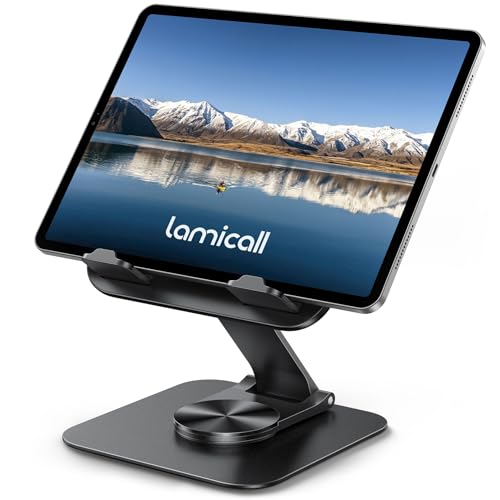
Lamicall stands show up in almost every tablet-stand roundup because they are simple, cheap and sturdy enough for daily desk use. This newer version adds a 360-degree rotating base and folds down to about 0.59 inches thick, so it also works as a travel stand.
Key specs from the listing: it holds devices from 4.7 to 13 inches, the base and support rod are metal with a plastic cradle panel, and two adjustable hinges control tilt and height. The widened hooks accept devices in cases up to about 0.75 inches thick, so you do not need to strip off a folio or rugged case.
Who it is for: anyone who wants an occasional second screen beside a laptop or monitor, or who moves the tablet between desk, kitchen and couch. The rotating base is handy for turning the screen toward a colleague or flipping between chat and a reference document.
Strengths: low cost, very compact when folded, case-friendly, and stable for landscape use with tapping. It is the budget-friendly way to try a tablet second screen before committing to an arm.
Drawbacks: like most compact stands, it does not reach the height of a monitor. A large 12.9 or 13 inch tablet in portrait mode is top-heavy on a small base, so stick to landscape or add a weighted pad. It is a desktop stand, so it still occupies desk space.
In the context of the table above, this is a classic “weighted desktop stand” for occasional use.
COOPER TabStand 20″ Tall Stand

The biggest weakness of most desktop tablet stands is height: the tablet sits well below the top edge of a monitor. The COOPER TabStand solves that with a telescoping aluminum pole that adjusts from about 13 to 20 inches tall on a weighted metal base, which is enough to line up a tablet’s top edge with a typical 24 or 27 inch monitor.
From the listing: the head rotates 360 degrees and tilts about 45 degrees each way, the spring clamp grips devices roughly 4.7 to 10 inches wide with foam padding, and the current “2X support” version is rated for tablets and portable monitors up to 17 inches and about 4.4 lb. Earlier versions were rated for up to 16 inches, so check the listing details.
Who it is for: people who want a desktop stand (no clamping) but still want the tablet at monitor height, including standing-desk users and anyone who runs the tablet in portrait for chat or a document.
Strengths: real height, quick friction adjustment, and portrait-friendly rotation. The weighted base is steadier than a folding stand for touch input.
Drawbacks: the base is bulky and does not fold flat, and the clamp covers a little of the bezel. It still uses a small patch of desk.
It bridges the gap between the “weighted desktop stand” and “clamp arm” rows in the table: arm-like height without needing a desk edge.
LISEN Tablet Stand Desk Mount with Aluminum Arm

LISEN is a familiar name in desk accessories, and this model is its clamp-on arm for tablets. Instead of a gooseneck, it uses jointed aluminum arm sections, which hold their position better and are less prone to the slow droop that plagues cheap flexible arms.
The listing describes an aluminum arm that rotates 360 degrees, a desk clamp base, and two device clamps for devices from about 4.7 to 15.6 inches, so it can hold a phone, a tablet or a small portable monitor. Check your desk thickness against the clamp opening on the product page before ordering, since this is the one measurement that decides whether any clamp arm will fit.
Who it is for: small-desk setups where you want the tablet floating next to the monitor and the desk surface left clear for a keyboard and mouse.
Strengths: frees desk space completely, offers more height and reach than a desktop stand, and the 15.6-inch upper range means you can reuse it later for a portable monitor.
Drawbacks: clamp arms need an accessible desk edge with no lip or drawer in the way, and they take a few minutes to set up and tension. Full-size 13-inch tablets near the end of a long arm can bounce slightly when tapped.
This is the “clamp arm” row of the table in its most practical form.
TeQable Adjustable Tablet Arm with C-Clamp (30″ Long Arm)

If your desk is deep or the tablet needs to sit above or beside a wide monitor, reach becomes the limiting factor. The TeQable arm has a three-stage articulating arm that the listing says extends up to about 30 inches out and about 31 inches high, much more range than a typical gooseneck.
Other specs from the listing: a ball head that rotates 360 degrees, swivels about plus or minus 90 degrees and tilts about plus or minus 80 degrees; a C-clamp that opens to about 2.16 inches (55 mm); built-in channels that hide the charging cable; and a folded length of about 10 inches. The title lists support for 4.7 to 15.6 inch devices including portable monitors, while one spec field lists 12.9 inches, so treat 13-inch tablets as the comfortable upper limit.
Who it is for: people with large monitors, ultrawides or deep desks who want the tablet positioned exactly at the monitor’s edge, and anyone who also wants to use the same arm at a bedside table.
Strengths: exceptional reach and height, cable management built into the arm, and a ball head that makes precise angle matching easy.
Drawbacks: a long arm amplifies wobble, so expect a bit of bounce when you tap the screen at full extension. It is more arm than a small desk needs.
Choose it over the LISEN when distance, not just desk space, is the problem.
OMOTON GH03 Tablet Holder with Two Clamps

OMOTON’s GH03 is a multi-joint aluminum arm on a C-clamp base, sold with two separate holders: one for phones and one for tablets. That makes it a flexible option for desks where the second screen might be a tablet some days and a phone running a stream or system monitor on others.
OMOTON lists it for 4 to 13 inch devices, including 11 and 13 inch iPad Pro models, iPad Air, iPad mini, Galaxy Tab models and phones. The base rotates 360 degrees and has a tension-control knob so you can stiffen the joints and stop the device from swaying. The plastic clamps grip the device without removing a protective case.
Who it is for: desk setups that want an arm-mounted second screen at a moderate tier, plus the option to swap between tablet and phone.
Strengths: aluminum construction, adjustable joint tension, two holders included, and case-friendly clamps.
Drawbacks: listings for the same model are inconsistent about the base type, so confirm you are getting the C-clamp version if that is what your desk needs. Plastic holders are lighter but less rigid than metal ones.
It sits between the LISEN and TeQable in terms of reach and is a good all-rounder clamp arm.
VIVO MOUNT-UVM02 Universal VESA Mount Adapter

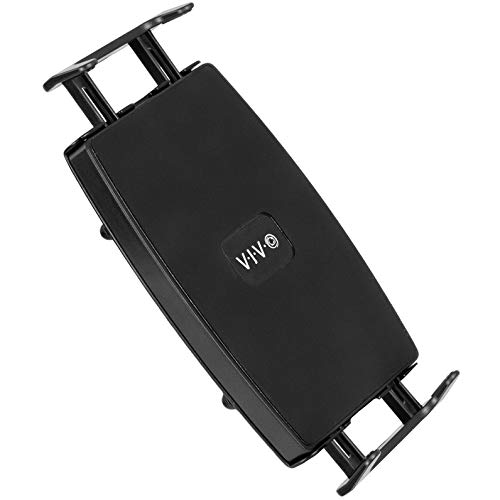
The cleanest permanent tablet second screen is a tablet on its own monitor arm, exactly like a real monitor. The VIVO MOUNT-UVM02 makes that possible: it is a spring-loaded steel clamp with a VESA plate on the back, so you can attach a tablet to any monitor arm or stand that accepts 75x75mm or 100x100mm VESA.
VIVO’s specs: the clamp opens from about 7.5 to 10.3 inches, accepts devices up to 0.75 inches thick, and is rated for up to 5.5 lb. It suits most tablets, 2-in-1 laptops and portable monitors up to about 15.6 inches, although VIVO notes it does not fit 7-inch tablets with a 4:3 aspect ratio. Two thumbscrews lock the clamp once the tablet is in place, and VIVO backs it with a three-year warranty.
Who it is for: anyone who already owns a dual monitor arm or a spare single arm, or who wants the tablet to move in perfect sync with the main screen height. It is the “VESA arm plus adapter” row in the table.
Strengths: the most monitor-like result, very stable, and it reuses hardware you may already have. Steel construction and a low profile keep it unobtrusive behind the tablet.
Drawbacks: you still need an arm, which pushes the total cost toward the upper tier. Measure the edge the clamp will grip, since the 7.5 to 10.3 inch range refers to physical width, not screen diagonal.
For a permanent, polished second screen, this adapter plus a monitor arm is hard to beat.
Tablet stand comparison
| Product | Type | Device range | Height potential | Desk space | Price tier | Best for |
|---|---|---|---|---|---|---|
| Lamicall Ultra-Slim | Folding desktop stand | 4.7 to 13 in | Low | Small footprint | Budget | Occasional use, travel |
| COOPER TabStand 20″ | Telescoping desktop stand | Up to 17 in | High | Medium footprint | Budget to mid-range | Monitor-height without clamping |
| LISEN Aluminum Arm | Clamp arm | 4.7 to 15.6 in | High | None | Budget to mid-range | Small desks |
| TeQable 30″ Arm | Long clamp arm | 4.7 to about 13 in | Very high | None | Mid-range | Deep desks, wide monitors |
| OMOTON GH03 | Clamp arm, two holders | 4 to 13 in | High | None | Mid-range | Tablet and phone flexibility |
| VIVO MOUNT-UVM02 | VESA adapter (needs arm) | Up to 15.6 in | Matches monitor arm | None | Budget adapter, mid-range to premium with arm | Permanent second screen |
Get the software side right
Extend, do not just mirror
To use the tablet as a real second display, connect it as an extended screen. On an iPad with a Mac, Sidecar runs wired or wireless, and over a good connection the lag is low enough for most desk work. On Windows, apps like a USB or Wi-Fi second-screen utility turn a tablet into an extra monitor, and a wired USB-C connection almost always feels smoother than wireless. Keep the tablet plugged in, because running as a display drains the battery quickly.
Position for ergonomics
Set the tablet so its top edge lines up roughly with the top of your main monitor and angle it slightly toward you, around 10 to 15 degrees off vertical. This keeps your neck neutral and reduces glare from overhead lights.
Second-screen software options in 2026
The stand handles the physical side, but the software decides whether the tablet behaves like a real extended display. Here are the main options by platform, with the requirements that trip people up most often.
iPad with a Mac: Sidecar and Universal Control
Sidecar is built into macOS and iPadOS. It needs macOS Catalina or later and iPadOS 13 or later, a reasonably recent Mac and iPad, and both devices signed in to the same Apple Account with two-factor authentication. Wirelessly, the devices must be within about 10 meters (30 feet) with Bluetooth, Wi-Fi and Handoff turned on. Over a cable, the iPad must be set to trust the Mac, and the same cable charges the iPad while it works as a display.
Universal Control is a different feature: the iPad keeps running its own apps, but your Mac’s keyboard and trackpad move across to it. That is ideal when you want the tablet to run a native app, such as a chat client or a music controller, rather than act as a Mac display.
Galaxy Tab with Windows: Samsung Second Screen
Samsung’s built-in Second Screen feature lets supported Galaxy Tab S models act as a wireless display for a Windows PC. Samsung lists the Galaxy Tab S7 series and newer S-series tablets running One UI 3.1 or later, paired with a PC that supports Wireless Display on Windows 10 version 2004 or later, including Windows 11. Open Second Screen from the tablet’s Quick settings, then press Windows + K on the PC and choose Extend. It is wireless only, so keep both devices close and on the same network.
Any tablet with Windows: third-party apps
For Android tablets outside the Galaxy Tab S line, or for iPads paired with a Windows PC, third-party apps fill the gap. Spacedesk installs a driver on a Windows 10 or 11 PC and a viewer app on the tablet; it is free for non-commercial use and supports a USB cable connection on Android, which is more stable than Wi-Fi. Duet Display is a subscription-based alternative that supports Windows and Mac hosts with iPad and Android tablets. Whatever app you choose, prefer the wired mode when it is offered.
Using the tablet as an HDMI monitor
Recent iPads with USB-C on iPadOS 17 or later can display video from a USB capture card through apps such as Orion. Plug an HDMI source, such as a console or a second PC, into a capture card and the card into the iPad, and the tablet becomes a small HDMI monitor. This is not an extended desktop, but it is handy for monitoring a stream preview or a handheld console.
Software comparison
| Option | Host computer | Tablet | Connection | Cost |
|---|---|---|---|---|
| Sidecar | Mac | iPad | Wired or wireless | Built in |
| Universal Control | Mac | iPad (runs its own apps) | Wireless | Built in |
| Samsung Second Screen | Windows 10/11 PC | Galaxy Tab S7 and newer S-series | Wireless | Built in |
| Spacedesk | Windows PC | Android, iPad, others | USB (Android) or network | Free for personal use |
| Duet Display | Windows or Mac | iPad, Android | Wired or wireless | Subscription |
| Capture card app | Any HDMI source | USB-C iPad on iPadOS 17+ | USB capture card | Card plus app |
Cable and power notes
A second-screen tablet should stay powered, so route a USB-C cable through the stand or arm and into a nearby port or charger. If you drive the display over USB-C, a single cable can carry both video and power on many tablets, which keeps the desk clean.
Getting real work out of the second screen
Assign it a job
A second screen only helps if you give it a permanent role, otherwise it becomes a distraction. Good jobs for a 10 to 13 inch tablet panel include a chat window, a reference guide, a music or stream-deck style control surface, or a system monitor showing CPU, GPU, and frame-rate stats while you game. Keeping fixed windows on the tablet frees your main monitor for the game or the task that needs full attention.
Touch versus mouse
Remember the tablet keeps its touchscreen even while acting as a display, so tapping a chat reply or dragging a slider by hand is often faster than reaching across with the mouse. Some second-screen apps also expose the tablet’s stylus, which is handy for quick sketches or marking up a reference image. If lag on wireless bothers you, switch to a wired USB-C link, which typically lowers latency and makes touch feel more immediate.
How to choose a tablet stand for second-screen use
Run through these criteria in order. The first two rule out most wrong purchases.
- Measure the height gap. Measure from your desk surface to the top edge of your main monitor. Your stand needs to raise the tablet so its top edge lands near that line. A folding stand typically gets the tablet only partway; poles, clamp arms and VESA arms close the gap fully.
- Check your desk edge. Clamp arms need a desk edge free of drawers, crossbars and lips, and a thickness within the clamp’s range. Glass desks and very thin tops are poor clamp candidates; use a weighted stand or a VESA adapter on an existing arm instead.
- Match the device range and case. Look at the stand’s supported device size and its clamp or hook depth. Tablets in thick folio or rugged cases need a case-friendly clamp, usually 0.75 inches deep or more.
- Decide on portrait or landscape. Portrait is great for chat, documents and code, but it raises the center of gravity. Choose a weighted base or arm with a rotating head if you plan to use portrait.
- Think about touch. If you will tap and swipe a lot, stiffness matters more than reach. Short arms and heavy bases flex less than long arms at full extension.
- Plan the cable path. A stand that leaves the charging port accessible, plus clips or channels for the cable, keeps the tablet powered without a cable dangling across the desk.
- Consider reuse. Arms and stands rated for 15.6-inch devices can later hold a portable monitor, which makes them a more flexible investment.
Step-by-step: building the setup
- Choose the side. Put the tablet on the side of your dominant hand if you will touch it often, or on the side where the mouse lives if you mainly drag windows to it.
- Mount and level it. Attach the stand or arm, place the tablet so its top edge lines up with the top of your main monitor, and keep the gap between the two screens as small as practical.
- Angle it inward. Turn the tablet toward you so it faces your eyes, similar to how you would angle a second monitor.
- Connect and extend. Plug in the cable, start your second-screen software, and choose Extend rather than Mirror.
- Arrange the displays. In your computer’s display settings, drag the tablet’s screen icon to match its physical position, left or right and at the right height, so the cursor moves naturally between screens.
- Set scaling. Tablets have dense screens; adjust scaling so text is readable at your seated distance without wasting space.
- Assign its permanent apps. Open the chat, reference or monitoring windows you want there and save the layout if your system supports it.
Common problems and fixes
- The tablet slides or tips when tapped. Lower the arm extension, tighten the joints, switch to landscape, or add a rubber mat under a desktop stand.
- Arm slowly droops. Increase joint tension, shorten the arm, or move to a stand with a higher load rating. Gooseneck arms are the most prone to this.
- Lag or stutter. Move from wireless to a cable, close bandwidth-heavy apps on the tablet, and lower the second-screen resolution or frame rate in the app settings.
- Battery health worries. Running as a display all day keeps the tablet plugged in. If your tablet offers a battery protection or charge limit setting, enable it so the battery is not held at 100 percent constantly.
- Tablet gets warm. Remove a thick case during long sessions, avoid stands that press a solid plate against the back, and lower the brightness slightly.
- Screen dims or locks. Some apps keep the screen awake automatically; if yours does not, extend the auto-lock timer while the tablet is in second-screen mode.
Which setup fits your desk
| Desk situation | Recommended setup | Why |
|---|---|---|
| Small desk, no spare surface | Clamp arm | Uses zero desk area and places the tablet beside the monitor |
| Deep desk or ultrawide monitor | Long clamp arm | Reach to the monitor’s edge without moving the base |
| Glass desk or no clamp edge | Tall weighted desktop stand | Height without clamping |
| Already uses monitor arms | VESA tablet adapter on a spare arm | Matches the main screen exactly |
| Moves between home and office | Folding desktop stand | Packs flat, sets up in seconds |
| Gaming setup with stats or chat | Clamp arm or VESA adapter | Keeps the desk clear for a mouse with room to swing |
Second-screen layouts that work well on a tablet
A tablet panel is small, so it shines when it runs one or two fixed things rather than full applications. These layouts make the most of a 10 to 13 inch screen.
Gaming desk
- Performance overlay: a hardware monitoring dashboard showing CPU and GPU temperatures, usage and frame rate, so you can keep an eye on thermals without an in-game overlay covering the action.
- Voice and text chat: a Discord or party chat window in portrait mode, so you can read messages without alt-tabbing out of a full-screen game.
- Guides and maps: a wiki page, build guide or interactive map open beside the game, which is especially useful for open-world and strategy titles.
- Stream controls: streaming tools often offer remote control or deck-style apps for tablets, letting you switch scenes, mute a microphone or trigger alerts with a tap.
Work and study desk
- Communication column: email, Slack or Teams in portrait, so notifications never pull your main window away.
- Video call screen: put the call on the tablet and keep shared documents on the main monitor. Placing the tablet near the top of the monitor keeps your eyes closer to the webcam.
- Reference panel: a PDF, specification or lecture slides while you write or code on the main screen.
- Note-taking with a stylus: keep the tablet as a native notes app rather than an extended display, and use it for sketches, diagrams and handwritten notes during meetings.
Creative desk
- Tool palettes: drag photo, video or audio editing palettes and timelines to the tablet to free the main screen for the canvas or preview.
- Color and preview check: view a mobile-sized preview of a website or social post on a real tablet screen.
- Touch control surface: faders, transport controls and shortcut buttons are faster to hit by touch than with a mouse.
Ergonomics beyond height and angle
The main section above covers the basics: match the top edges and angle the tablet in by about 10 to 15 degrees off vertical. A few more details improve comfort over long sessions.
- Distance: tablets have small text, so they usually need to sit a little closer than your main monitor, but not so close that your eyes refocus sharply every time you glance over. Increase text scaling before moving the tablet much closer.
- Brightness matching: a tablet at full brightness next to a dimmer monitor causes eye fatigue. Set both to similar brightness, and turn on night or warm modes on both screens at the same time.
- Glare: glossy tablet screens pick up reflections from windows and lamps. Small tilt changes, a matte screen protector, or turning the desk so windows sit to the side all help.
- Reach for touch: if you touch the tablet often, keep it within a comfortable forearm reach. Constant stretching to a tablet placed far out on a long arm strains the shoulder.
- Neck rotation: keep the tablet as close to the main monitor as possible so glances stay as eye movements rather than head turns.
Budget tiers: what you get at each level
| Tier | Typical options | What to expect |
|---|---|---|
| Budget | Folding aluminum desktop stands, basic gooseneck clamps | Fine for occasional use; limited height; goosenecks may droop |
| Mid-range | Tall telescoping stands, jointed aluminum clamp arms | Monitor-height placement, better stiffness, case-friendly clamps |
| Premium | VESA tablet adapter on a quality monitor arm, articulating arms with weighted base and clamp options | Most monitor-like result, smooth adjustment, minimal wobble |
Tablet type and size notes
Not every tablet makes an equally good second screen. The platform you pair it with and the tablet’s physical size both affect which stand and software make sense.
iPads
iPads paired with a Mac get the smoothest experience thanks to Sidecar and Universal Control. Smaller iPad mini models are light enough for almost any arm and are well suited to a control surface or chat column. Full-size 12.9 and 13 inch iPad Pro and iPad Air models make excellent reference screens but are heavier and wider, so confirm the clamp width and the load rating, especially for long arms.
Samsung Galaxy Tab S series
Galaxy Tab S tablets pair natively with Windows PCs through Second Screen, which makes them a strong choice for a gaming PC desk. The larger Ultra models have very wide screens; measure them against the clamp range before buying an arm or VESA adapter, as some clamps top out around 10 inches of grip width.
Other Android tablets and e-readers
Budget Android tablets work as second screens through third-party apps, and they are a great use for an older device. Performance depends on the app and connection, so expect a wired link to work best. E-ink tablets can display static references such as documentation or sheet music, but their slow refresh makes them unsuitable as live extended displays.
Size versus stand type
| Tablet size | Best stand types | Watch out for |
|---|---|---|
| 8 inch | Any stand or arm, gooseneck included | Small text; best for controls and notifications |
| 10 to 11 inch | Folding stands, tall stands, clamp arms | Portrait mode on small folding bases |
| 12.9 to 13 inch | Tall weighted stands, jointed clamp arms, VESA adapters | Clamp width, arm droop, wobble when tapped |
| 14 inch and up | Arms or stands rated for portable monitors, VESA adapters | Weight ratings and clamp opening |
Accessories that complete a tablet second-screen setup
The stand and software do most of the work, but a few small accessories make the setup more reliable day to day.
- A quality USB-C cable: for wired second-screen modes, use a cable that supports data at good speed, not a charge-only cable. A cable a little longer than the distance from the computer to the stand leaves slack for adjusting the arm.
- A right-angle connector or cable: a right-angle USB-C plug keeps the cable flush against the tablet’s edge, which prevents strain on the port and looks tidier on a clamp arm.
- A capable charger: if the tablet connects to the computer wirelessly, it still needs power. A charger that meets the tablet’s rated input keeps the battery from slowly draining during long sessions with high brightness.
- Cable clips or sleeves: adhesive clips along the desk edge or a short cable sleeve on the arm stop the cable from swinging and tugging on the tablet when you adjust it.
- A matte screen protector: reduces reflections from windows and overhead lights, which matters more for a glossy tablet sitting beside a matte monitor.
- A stylus holder: if you use a stylus for notes or sketches on the second screen, a small holder on the stand or monitor keeps it within reach.
FAQ
Does using a tablet as a second screen cause lag?
Wired connections typically add only a small delay, which is fine for chat, docs, and monitoring. Wireless can spike higher and is not ideal for anything time-sensitive, so use a cable for the most responsive experience.
What size tablet works best as a second screen?
A 10 to 13 inch tablet gives enough room for a chat window, a reference page, or a dashboard without dominating the desk. Smaller 8 inch tablets work for controls and notifications but feel cramped for reading.
Can I use an Android tablet as a second screen for a Windows PC?
Yes. Recent Samsung Galaxy Tab S models have a built-in Second Screen feature for Windows 10 and 11 PCs that support Wireless Display. Other Android tablets work through third-party apps such as Spacedesk or Duet Display, and a USB connection usually gives the steadiest result.
Can I use an iPad as a second monitor for a Windows PC?
Not with Sidecar, which only works with Macs. Third-party apps that run a driver on the Windows PC and a viewer on the iPad fill that gap. Expect slightly more latency than a native solution, and use a wired connection when the app supports it.
Is a clamp arm or a desktop stand better for a tablet second screen?
A clamp arm is better for a permanent setup on a small desk, because it frees surface space and reaches monitor height. A desktop stand is better if you move the tablet often, have a glass desk, or only use the second screen occasionally.
Should the tablet be in portrait or landscape?
Portrait suits chat, documents, code and social feeds because they scroll vertically. Landscape suits dashboards, video and control surfaces. If you want portrait, pick a stand with a rotating head and a stable base or an arm.
Can a tablet stand hold a portable monitor too?
Many can. Stands rated for devices up to 15.6 inches or more, such as some clamp arms and tall telescoping stands, also handle portable monitors. Check the weight rating and clamp width, since portable monitors are larger and often heavier than tablets.
Bottom line
For a permanent second screen, a VESA or clamp arm that matches your monitor height wins. For occasional use, a desktop stand such as the Lamicall Ultra-Slim set near vertical is fine. Connect the tablet as an extended display over USB-C, keep it powered, and align its top edge with your monitor for a clean, ergonomic dual-screen desk.