
If you run two computers at one desk—a work laptop and a personal desktop, say, or a Mini PC and a gaming rig—you have probably stared at two monitors, two keyboards, and two mice and wondered why your desk feels like a call center. The fix usually comes down to one of two devices: a KVM switch or a docking station designed for two computers. They sound interchangeable. They are not. A KVM switch shares your existing peripherals between machines; a dual-computer docking station becomes the hub both machines connect to, often adding charging and extra display outputs in the process. Choosing wrong means either overspending on switching power you don’t need or under-buying and fighting with cables every day. Here is how the two approaches actually compare for a home desk in 2026.
Top 3 picks at a glance
Quick Verdict
Buy a KVM switch if your two computers already have the ports you need and you just want to share one monitor, keyboard, and mouse. Expect to spend $16–$100 for a solid unit and be set up in ten minutes. Buy a dual-computer docking station if you have two laptops, want one-cable connections, need laptop charging (65–100W per machine), or plan to drive multiple monitors. Expect to spend $180–$300. For most people with two laptops, the dock wins. For most people with two tower PCs or Mini PCs, the KVM switch is the smarter, cheaper answer.
As an Amazon Associate we earn from qualifying purchases at no extra cost to you.


Side by Side
| Factor | KVM Switch | Dual-Computer Docking Station |
|---|---|---|
| Core function | Shares one set of peripherals between two computers | Hub both computers connect to; switches and expands ports |
| Comfort (daily use) | One button press or hotkey to switch; some models add a wired remote | Same switching convenience, plus one-cable docking for laptops |
| Setup complexity | Low—plug and play, no drivers in most cases | Moderate—more cables, occasionally firmware or driver updates |
| Price range | $16–$100 depending on ports and resolution support | $180–$300 for reputable dual-USB-C models |
| Displays supported | 1–3 monitors depending on model; budget units typically one | Usually 2–3 monitors per computer, often up to 8K on at least one output |
| Laptop charging | No—USB data ports only on most units | Yes, commonly 60–100W Power Delivery per computer |
| Space needed | Small: roughly 3–6 inches wide, sits under or beside the monitor | Larger: typically 5–8 inches wide plus power brick; often desk-edge or under-desk mounted |
| Maintenance | Nearly none; occasional cable reseat | Occasional firmware updates; power brick and more cables to manage |
| Look | Utilitarian plastic on budget models; some aluminum options | Generally more premium—anodized aluminum is common |
| Best for | Two PCs with their own power and ports, shared one-monitor setups | Two laptops, dual-monitor workstations, single-cable desks |
Where Kvm Switch Wins
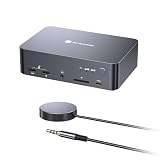
Price. A basic two-port HDMI KVM that handles 4K at 60Hz, shares a monitor, keyboard, and mouse, and includes a wired remote costs around $16–$30. Even premium multi-monitor models with aluminum housings rarely cross $100. No docking station comes close.
Simplicity. There is no software, no drivers, and no charging negotiation to troubleshoot. If the switch works on day one, it works on day 500. A unit like the UGREEN 8K@60Hz model with three monitor outputs shows how far the category has come—two computers sharing three displays over a single hardware switch—while still staying in the sub-$100 range.
Compatibility with towers and Mini PCs. Desktops don’t need charging and usually already have HDMI or DisplayPort outputs. A KVM slides into that workflow with zero waste. It also adds negligible weight—a few ounces—so it travels easily between home and office desks.
Failure mode. If a KVM dies, your computers keep working independently. You lose convenience, not connectivity.
Where Docking Station for Two Computers Wins
One cable per laptop. A dual USB-C KVM dock like the AV Access iDock X20 lets each laptop connect with a single USB-C cable that carries video to your monitors, data to your keyboard and mouse, and charging power—typically up to 100W per machine. Plug in, and your laptop becomes a desktop. Unplug, and you leave with a charged battery. A KVM switch simply cannot do this.
Multi-monitor support per computer. Most dual-computer docks drive two or three external monitors from each connected machine, something budget KVM switches handle only in expensive multi-output models.
Fewer dongles and bricks. The dock replaces the laptop’s own charger, a monitor hub, and a USB hub. That consolidation is worth real money if you were about to buy those accessories separately.
Built quality and desk presence. Aluminum enclosures, better cable routing, and under-desk mounting options make docks the tidier long-term fixture for a permanent workstation.
Cost Over 5 Years
KVM switch route: a $20–$100 unit plus the cables you likely own. Add maybe $15 for a replacement HDMI or USB cable at some point. Five-year total: roughly $35–$115.
Docking station route: $180–$300 up front. Budget for a power brick replacement or firmware-era quirks, but quality docks rarely fail inside five years. You also save the $40–$80 you might otherwise spend on a separate charger and USB hub. Five-year effective total: roughly $150–$300.
The honest math: the dock costs about 2–4 times as much but eliminates the daily friction of plugging and unplugging laptop chargers. If you dock and undock even twice a day, most people consider the premium justified. If your two computers are stationary towers, that convenience is worth nothing to you—and the KVM’s price advantage becomes decisive.
Which One for Your Home
Small Apartment
Space is currency. A compact KVM switch—3 to 6 inches wide, a few ounces—tucks behind a monitor and shares one display between a work laptop and a personal machine. If both machines are laptops, a dual-USB-C dock actually reduces clutter more by letting you stow both chargers in a drawer. Pick the dock if you can spare the footprint; pick the KVM if your desk is under 40 inches wide and every inch counts.
Family with Kids or Pets
More cables mean more things to yank. A KVM switch keeps the setup minimal—one monitor, one keyboard, one small box—which is easier to protect and cheaper to replace if a cable gets tripped over. A $20 switch failing is an annoyance; a $270 dock being pulled off a desk is not. If the household shares one family desk between a parent’s work laptop and a shared desktop, the KVM switch is the resilient choice.
Rental or Temporary Home
If you move every year or two, portability and low sunk cost matter. A KVM switch packs in a drawer and redeploys in minutes with no mounting. Docks work too, but a 100W power brick plus cabling is more to manage at each move, and you may land somewhere with different monitor inputs. Keep it cheap and flexible until your living situation settles.
Long-Term Home
If this desk is permanent and your daily drivers are two laptops, invest in the dual-computer docking station. One cable per machine, consistent charging, two or three monitors, and a clean under-desk install will serve you for five or more years and through two or three laptop generations. Pair it with a quality monitor arm and the whole workstation stays tidy indefinitely.
FAQ
Can a docking station work like a KVM switch?
Yes, if it is specifically a dual-computer model. A dual USB-C KVM dock accepts a USB-C input from each of two computers and switches your peripherals and monitors between them, just like a KVM switch—but it also charges the laptops and expands their ports. A standard single-computer docking station cannot switch between machines at all.
Will a KVM switch reduce my monitor’s resolution or refresh rate?
It can if the switch doesn’t support your display’s bandwidth. A 4K@60Hz monitor needs an HDMI 2.0-class switch; a 4K@144Hz or 8K display needs HDMI 2.1-class hardware. Check the switch’s rated resolution and refresh rate against your monitor before buying—budget models frequently cap at 4K@30Hz.
Do I need to install software for either device?
Most hardware KVM switches are plug and play with no drivers. Dual-computer docks sometimes offer optional software for hotkey switching, and occasional firmware updates improve monitor compatibility, but day-to-day use doesn’t require anything installed on your computers.
Can I use a KVM switch or dock with a desktop and a laptop together?
Yes, with one caveat. For a KVM switch, both machines just need matching video outputs to feed the switch—HDMI to HDMI, for example. For a dual-USB-C dock, the desktop must have a USB-C port that carries DisplayPort video; many desktop graphics cards only offer HDMI and DisplayPort, so verify your desktop’s ports before choosing the dock route.


