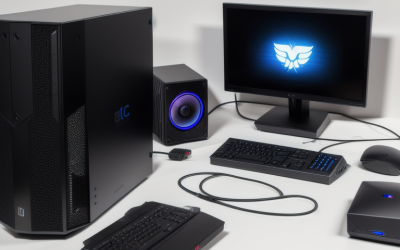
PC fans are loud at idle most often because the fan curve is too aggressive, something in the background is keeping the CPU or GPU busy, or the fan header is in the wrong control mode. The fastest first step is to open a monitoring tool, see which component is warm or busy at idle, and then lower or smooth the fan curve for that part.
As an Amazon Associate we earn from qualifying purchases at no extra cost to you.



Top 3 picks at a glance
Symptom, cause and fix
| Symptom | Common cause | First fix |
|---|---|---|
| CPU fan surges every few seconds | Fan curve reacts to short CPU spikes | Add step-up delay or smoothing; flatten the early curve |
| All fans steady and loud at desktop | Fan curve set to a high minimum or a performance profile | Choose a quieter BIOS profile and lower the minimum speed |
| Fan full speed right after boot | Header in the wrong mode, or no fan signal | Match PWM or DC mode to the fan connector |
| Loud only after a few minutes | Background task, update or launcher using the CPU | Check task manager for busy processes |
| Rattle or ticking | Dust, loose cable, worn bearing | Power off, clean, re-route cables, replace the fan |
| Graphics card fan runs at idle | Warm case, high idle temperature, or a connected display mode that keeps clocks up | Improve airflow; check the GPU maker’s fan-stop behavior |
| Pump whine from an AIO | Pump at fixed high speed | Set pump speed in BIOS or the maker’s software |
Why idle is not always idle
Modern processors boost briefly for small tasks, so a browser tab, a game launcher or a background update can make the CPU temperature jump even when the desktop looks quiet. A fan curve that follows temperature instantly will speed up and slow down repeatedly, which is more irritating than a steady low hum. Many motherboard fan menus include a response-time or smoothing option, and using it is a common fix for this behavior. The name and location of that option varies by motherboard maker, so consult your manual.
Background activity is also easy to overlook. Windows can run indexing, updates or security scans shortly after boot, and some game clients check for patches. Check the processes list for sustained CPU use. If a task keeps the CPU at a high load while idle, the fan is behaving correctly and the fix is to deal with the task, not the fan.
Check the cooling basics
- Look at idle temperatures. Use a monitoring tool for the CPU and GPU. Idle temperatures far above the usual range for your cooler point to a mounting, paste or airflow problem.
- Power off and unplug, then inspect. Dust on filters, fins and fan blades traps heat. Clean gently with a soft brush and short bursts of compressed air, holding fans still.
- Check the CPU cooler mounting. A cooler that is loose or unevenly tightened cools poorly, so the fan speeds up. Follow the cooler maker’s instructions when reseating.
- Review case airflow. A case with blocked intake, a closed panel against a wall or a cable bundle in front of a fan raises internal temperatures at all times.
- Check fan headers. A fan connected to the wrong header may not respond to the right sensor. Many boards offer separate headers for the CPU fan, the pump and case fans.
Adjusting the fan curve safely
Most boards offer a fan control screen in the BIOS, and many include a Windows application as well. A typical approach is to keep fans at a low fixed speed up to a moderate temperature, then ramp up gradually. The aim is to prevent a fast ramp at the first sign of a temperature increase.
- Change one fan or one curve point at a time, and watch the temperature after each change.
- Do not set fan speeds so low that temperatures climb under load; the CPU may throttle, and this lowers performance.
- If you use a fan hub or splitter, check the header’s current limit in the motherboard manual.
- If the system becomes unstable or fans stop altogether, reset the BIOS to defaults and begin again.
BIOS changes can cause instability, and in some cases adjusting power or overclocking settings may affect warranty terms. Keep changes conservative and consult your board maker’s documentation.
Graphics card fans at idle
Many graphics cards stop their fans at low temperature, a feature often called zero-RPM or fan stop. The maker’s documentation states the temperature thresholds, which vary by model. If your card’s fans spin at idle, a common cause is a case that keeps the card warm, a high-refresh or multi-monitor setup that keeps the card’s memory clock up, or a custom fan curve in a tuning program that overrides the default. Resetting the card’s tuning settings to default is a reasonable first step. If the fans make noise even when stopped or at a steady slow speed, ask the maker about warranty service rather than opening the card.
The power supply and case fans
Sometimes the noise comes from a different part. Power supplies with a fan that starts on a temperature threshold and case fans on a fixed full-speed header are both common. Do not open a power supply; the capacitors inside can hold a charge even when unplugged. If the supply fan is the source, contact the maker or a technician. To find the noise source, power off, and gently hold a fan still for a moment to see whether the sound changes, taking care not to touch the blades while the system is running.
Common mistakes
- Setting every fan to the same curve, even though a case fan and a CPU fan respond to different temperatures.
- Using a CPU temperature sensor to control case fans, which causes unnecessary ramping.
- Reducing fan speed rather than cleaning clogged filters.
- Choosing a performance fan profile for convenience and leaving it on.
- Assuming the fan is faulty when a background process is the real cause.
- Blocking the vents with a desk, wall or carpet.
What to do depending on the situation
| Situation | Action |
|---|---|
| Noise comes and goes in cycles | Use smoothing or delay in the fan curve |
| Temperature is high at idle | Clean, reseat the cooler, review airflow |
| Noise is steady and high from the start | Check profile, header mode and minimum speed |
| Mechanical sound | Inspect cables, clean, replace the fan |
| GPU fans spin at idle | Reset tuning software, check airflow and fan-stop settings |
| Power supply fan is loud | Contact the maker; do not open the unit |
Frequently Asked Questions
Why are my fans loud when I am just browsing?
Browsers can drive brief CPU spikes, and an instant-response fan curve will ramp up each time. Smoothing the curve or raising the temperature at which fans ramp usually fixes it. Also check for background processes that are using the CPU.
Is it bad for fans to run fast at idle?
It is not harmful in itself, but constant high speed wears the bearing faster and is noisy. If temperatures are normal and fans are still fast, the curve is probably set too aggressively.
Should I use PWM or DC mode?
Match the mode to the fan connector. Four-pin fans are normally controlled in PWM mode, and three-pin fans in DC mode. Using the wrong mode can leave the fan stuck at a speed or make it unable to slow down.
Can dust cause loud fans?
Yes. Dust blocks filters and heatsink fins, which raises temperatures and forces fans to spin faster. Regular cleaning, with the PC off and unplugged, is a simple step that reduces noise.
Why does my graphics card fan not stop at idle?
Some cards do not have a fan-stop mode, and others only stop below a temperature set by the maker. A warm case, a custom curve or a multi-monitor setup can keep the fans spinning. Check your card’s documentation.
When should I contact the maker?
If a fan grinds, clicks or is loud at every speed, or if a power supply or graphics card fan is the source, contact the maker for guidance. Do not open the power supply, and avoid disassembling a card that is under warranty.
Related guides
More from Amazon
Programs that pair well with the guide above. Offers and eligibility are set by Amazon and may change.
Free shipping on eligible items, Prime Video and more. Eligible new members can start with a free trial.
Start a Prime free trialAd-free music streaming. Eligible new subscribers can start with a free trial.
Try Music Unlimited freeA Prime membership for ages 18-24 with a trial period. Eligibility is set by Amazon.
See Prime for Young AdultsAudiobooks and podcasts to listen to on the go. Eligible new members can start with a free trial.
Try Audible freeAs an Amazon Associate we earn from qualifying purchases.